
1. Okwu mmalite
This manual provides comprehensive instructions for the M-Wave Bicycle Computer, model Cicli Bonin_CVC911. It covers installation, operation, maintenance, and troubleshooting to ensure optimal performance and longevity of your device. Please read this manual thoroughly before using the product.

Image 1: M-Wave Bicycle Computer head unit, yellow model.
2. Ozi nchekwa
Always prioritize safety when cycling. Ensure the computer is securely mounted and does not obstruct your view or control of the bicycle. Do not attempt to operate the computer while riding in traffic or hazardous conditions. Keep batteries out of reach of children. Dispose of batteries responsibly according to local regulations.
3. Ihe ngwugwu
Chọpụta na akụrụngwa niile dị na ngwugwu:
- M-Wave Bicycle Computer Head Unit
- Sensọ ọsọ ikuku ikuku
- Igwe Igwe Igwe Ọdụdọ
- Mounting Bracket for Handlebar/Stem
- Zip Ties for Sensor and Bracket
- Batrị (etinyere ya ma ọ bụ kewapụrụ iche)
- Akwụkwọ ntuziaka
4. Nhazi
4.1 Ntinye batrị
The M-Wave Bicycle Computer uses alkaline batteries. If not pre-installed, open the battery compartment on the back of the head unit and the speed sensor. Insert the batteries with correct polarity, observing the '+' and '-' markings, and securely close the compartments.
4.2 Sensor and Magnet Mounting
Attach the wireless speed sensor to the front fork using the provided zip ties. Position the wheel magnet on a spoke so that it passes within 2mm of the sensor when the wheel rotates. Ensure the magnet and sensor are aligned for reliable signal transmission.
4.3 Computer Mounting
Mount the computer head unit to your handlebar or stem using the provided bracket and zip ties. Ensure it is firmly secured and visible without obstructing your view ma ọ bụ njikwa.
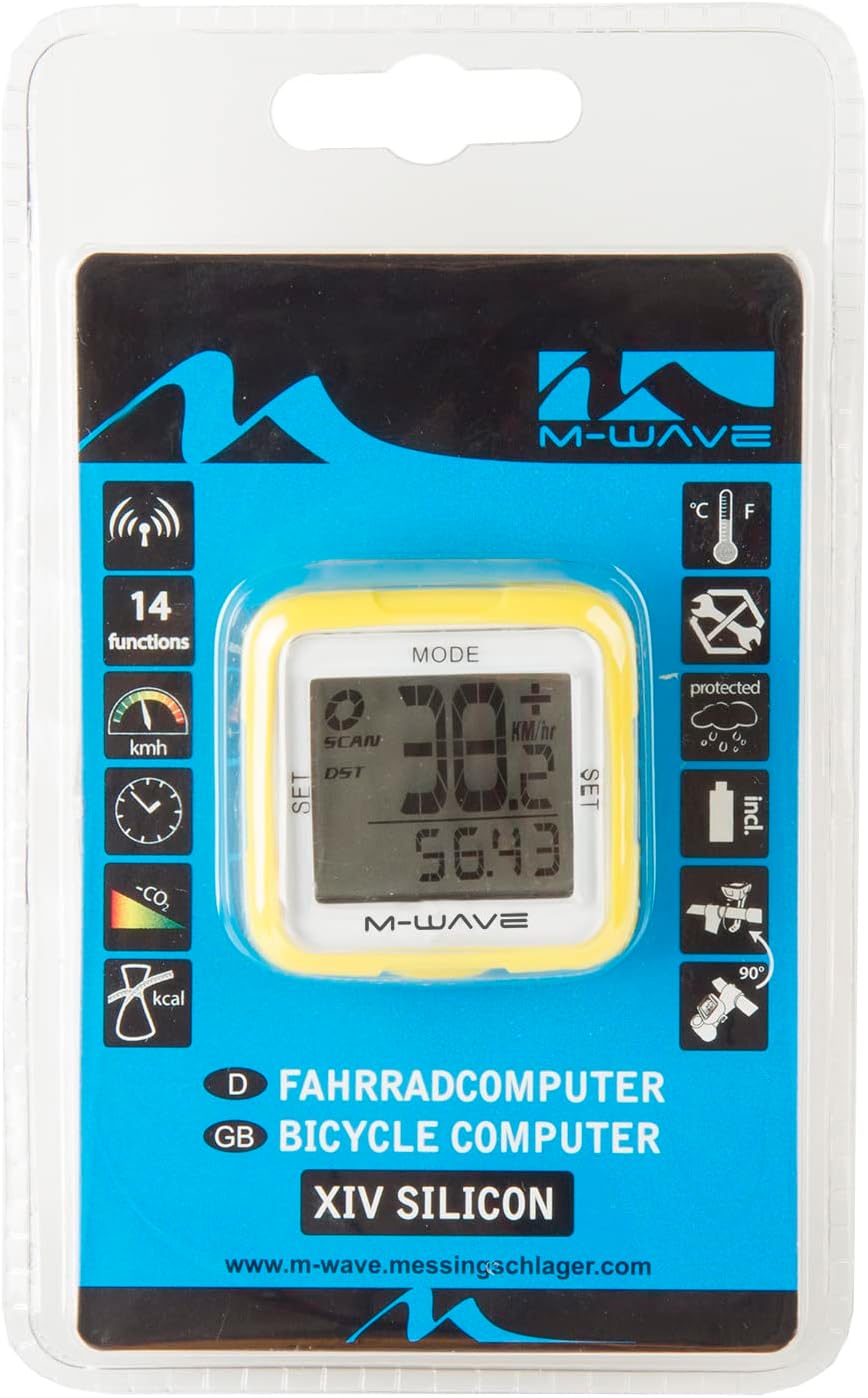
Foto 2: Akụkụ view of the M-Wave Bicycle Computer, illustrating its compact design and potential mounting points.
4.4 Ntọala mbụ
Upon first use or after battery replacement, you will need to set up the computer. This typically involves:
- Dayameta Wheel: Refer to your bicycle tire's sidewall for the circumference or use a measurement chart. Input this value into the computer for accurate speed and distance readings.
- Nkeji: Select your preferred units for speed (km/h or mph) and temperature (C° or F°).
- Oge: Tọọ oge ugbu a.
Consult the on-screen prompts and use the 'SET' and 'MODE' buttons for navigation and selection.
5. Ntuziaka ọrụ
The M-Wave Bicycle Computer features 14 functions. Use the 'MODE' button to cycle through different display modes and the 'SET' button for adjustments within a mode.

Image 3: Product packaging showing the 14 functions of the M-Wave Bicycle Computer.
- Ọsọ dị ugbu a: Displays your real-time cycling speed.
- Nkezi Ọsọ: Shows the average speed for your current ride.
- Ọsọ kachasị: Records the highest speed achieved during your ride.
- Ogologo (DST): Displays the distance covered during your current ride.
- Total Distance (ODO): Shows the accumulated total distance.
- Oge ịnya ụgbọ ala: Tracks the duration of your current ride.
- Elekere: Na -egosiputa oge ugbu a.
- Okpomọkụ: Shows the ambient temperature in Celsius or Fahrenheit.
- Ihe nleba anya kalori: Estimates calories burned during your ride.
- CO2 Savings: Calculates estimated CO2 savings compared to driving.
- Auto Start/Stop: The computer automatically starts recording when you begin cycling and pauses when you stop.
- Speed Tendency/Comparison: Indicates if your current speed is higher or lower than your average speed.
6. Nlekọta
6.1 Nhicha
Wipe the computer and sensor with a soft, damp cloth. Do not use abrasive cleaners or solvents. The unit is waterproof, but avoid submerging it for extended periods.
6.2 nnọchi batrị
When the display becomes dim or functions become erratic, it's time to replace the batteries. Follow the battery installation steps outlined in Section 4.1, ensuring correct polarity. Resetting initial settings may be required after battery replacement.
7. Nchọpụta nsogbu
If your M-Wave Bicycle Computer is not functioning as expected, consider the following:
- No Speed Display:
- Check the distance between the sensor and magnet. It should be no more than 2mm.
- Ensure the sensor and magnet are correctly aligned.
- Verify that the sensor battery is not depleted.
- Confirm the computer head unit battery is not depleted.
- Ọgụgụ na-ezighi ezi:
- Re-check the wheel diameter setting.
- Ensure the sensor and magnet are securely mounted and not shifting.
- Ngosipụta bụ oghere:
- Replace the computer head unit battery.
- Hụ na etinyere batrị ahụ na polarity ziri ezi.
- Bọtịnụ anaghị anabata:
- Try removing and reinserting the battery to perform a soft reset.
8. Nkọwapụta
| Njirimara | Nkọwa |
| Ụdị | M-Wave |
| Nọmba nlereanya | Cicli Bonin_CVC911 |
| Teknụzụ Njikọta | Wireless (Funk) |
| Ụdị ngosi | Ikanam |
| Ụdị ihe mmetụta | Speed Sensor (Geschwindigkeitssensor) |
| Ụdị batrị | Alkaline |
| Ụdị nkwụnye | Stem mount or Handlebar mount |
| Ibu Ibu | 0.1 kilogram |
| Akụkụ (L x W x H) | 30L x 30W x 30H centimita |
| Ọrụ | 14 functions (Digital radio transmission, speed: actual/diameter/max., speed tendency/comparison, total/daily kilometres, automatic display change, time, CO2 savings, calorie counter, temperature display (C°/F° selectable), auto start/stop, mileage/mile selection) |
| Waterproof | Ee |
9. Akwụkwọ ikike na nkwado
For warranty information and technical support, please refer to the M-Wave official websaịtị ma ọ bụ kpọtụrụ onye na-ere ahịa gị. Debe nnata nzụta gị ka ihe akaebe nke ịzụrụ.