
1. Okwu mmalite
This manual provides instructions for the Symcode R40DB handheld barcode scanner. This device is designed for efficient and reliable scanning of both 1D and 2D barcodes, offering multiple connectivity options for various applications. Please read this manual thoroughly before using the product to ensure proper operation and to maximize its performance.
2. Ngwaahịa gafereview
The Symcode R40DB is an ergonomically designed handheld barcode scanner, ensuring comfortable use even during extended periods. It is suitable for a wide range of environments, including manufacturing, inventory management, logistics, retail, office settings, and libraries. Its robust decoding capabilities allow it to read various barcode types efficiently.

Image: The Symcode R40DB handheld barcode scanner, showcasing ya kọmpat na ergonomic imewe.
3. Ihe ngwugwu
Biko chọpụta na ihe niile dị na ngwugwu:
- Symcode R40DB Barcode Scanner
- Charging/Receiver Stand
- eriri USB
- 2.4GHz Dongle USB Ikuku
- Akwụkwọ ntuziaka onye ọrụ (Japanese)
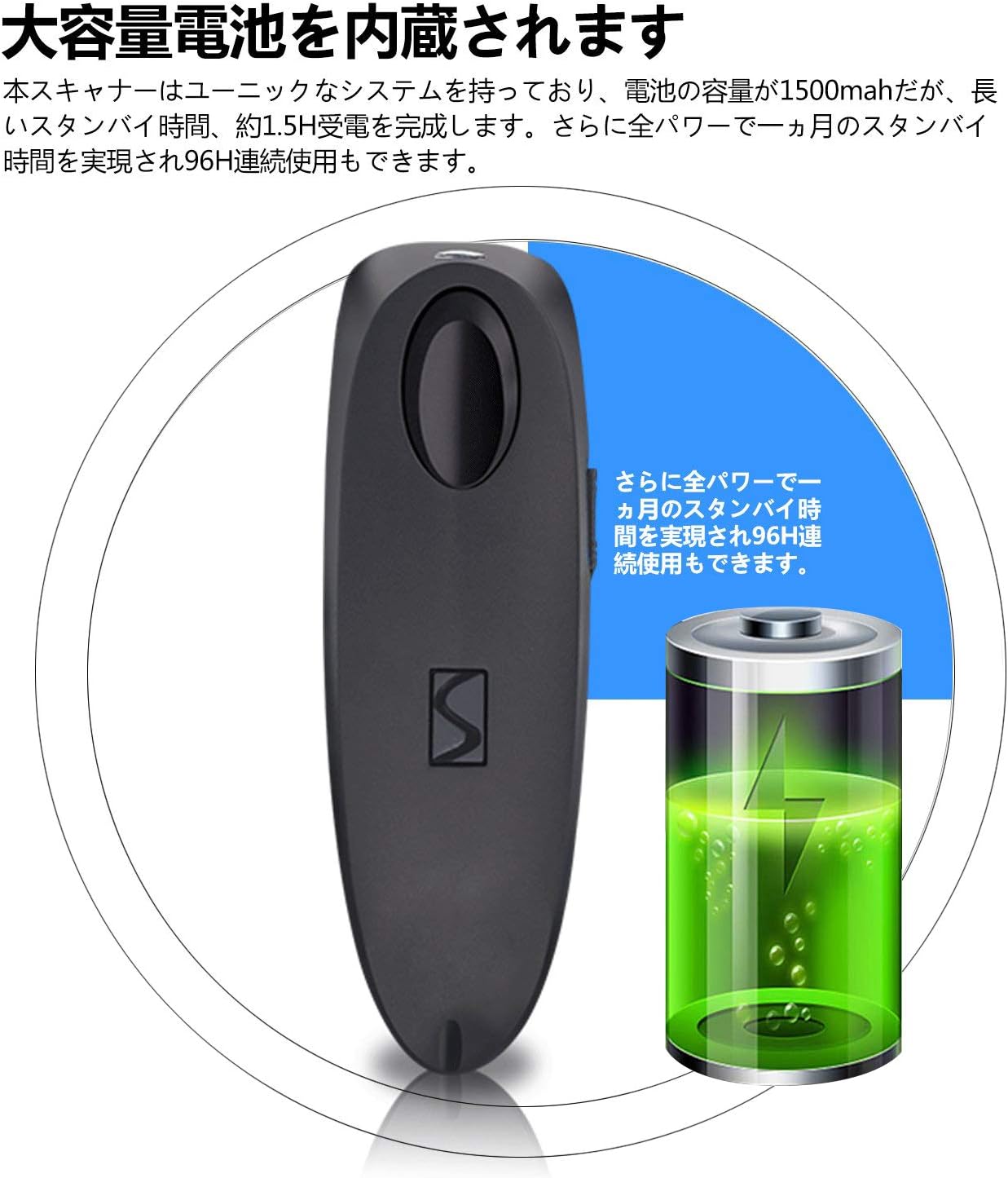
Image: Contents of the Symcode R40DB package, including the scanner, stand, USB cable, 2.4GHz dongle, and user manual.
4. Nhazi
The Symcode R40DB scanner features a plug-and-play design, eliminating the need for application downloads or software driver installations. For detailed setup instructions, refer to the included Japanese user manual, which contains specific configuration barcodes.
Ike mbụ Gbanye
- Ensure the scanner is charged.
- Press the trigger button to power on the device.
5. Njikọta
The Symcode R40DB offers three versatile connection methods:
- Bluetooth: Connects wirelessly to Bluetooth-enabled devices such as smartphones, tablets (iOS, Android), and computers.
- Ikuku 2.4GHz: Utilizes the included USB dongle for wireless connection to computers.
- USB USB: Provides a direct wired connection to a computer via the USB cable.
The scanner is compatible with Windows, Mac, iOS, and Android operating systems. For PCs without built-in Bluetooth, a separate Bluetooth receiver adapter may be required for Bluetooth connectivity.
Ijikọ na ngwaọrụ
To set up a connection, scan the appropriate configuration barcode from the user manual. For example, to connect via Bluetooth, scan the 'Bluetooth Pairing' barcode. The device will automatically pair with your host system.

Image: Diagram illustrating the wired USB connection and wireless 2.4GHz and Bluetooth connection modes for the Symcode R40DB scanner.
Ogologo nnyefe
The wireless transmission range varies depending on the connection type and environment:
- Ikuku 2.4GHz: Up to 150m (492ft) in barrier-free environments; up to 30m (98ft) in environments with obstacles.
- Bluetooth: Up to 50m (164ft) in barrier-free environments; up to 15m (49ft) in environments with obstacles.

Image: Visual representation of the Symcode R40DB's wireless transmission distances for both 2.4GHz and Bluetooth connections, showing ranges in open and obstructed environments.
6. Ntuziaka ọrụ
To scan a barcode, aim the scanner's light at the barcode and press the trigger button. The scanner will emit a confirmation sound or vibration upon successful decoding, depending on your settings.
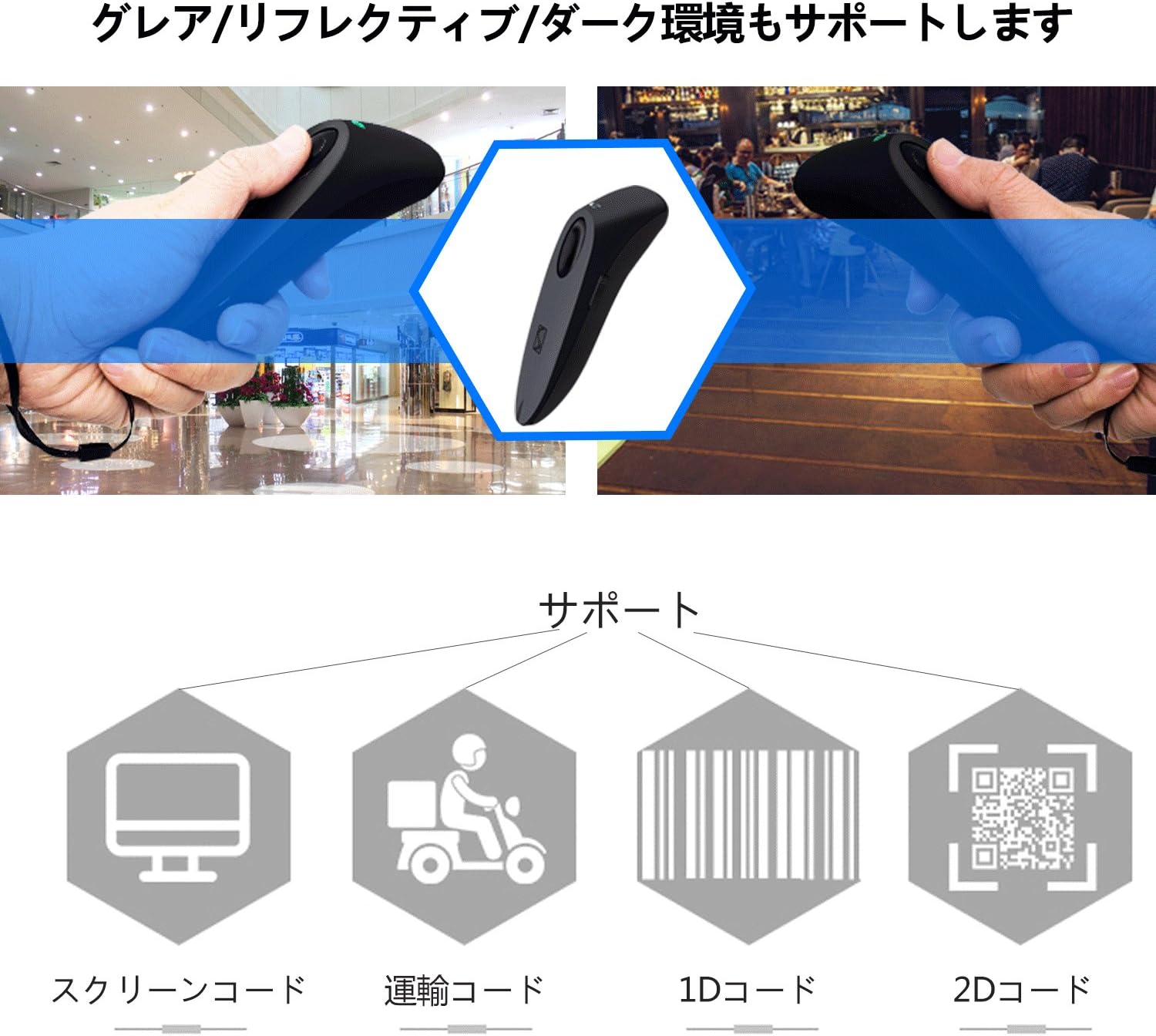
Image: The Symcode R40DB scanner actively decoding a QR code displayed on a smartphone screen, demonstrating its 1D and 2D scanning capability.
7. Decoding Capabilities
The Symcode R40DB scanner features excellent decoding capabilities, allowing it to recognize blurry or damaged barcodes even in weak or strong lighting conditions. It supports a wide array of 1D and 2D barcode symbologies:
Supported 1D Barcodes:
- JAN/EAN-13, JAN/EAN-8, UPC-A, UPC-E
- Code11, Code32, Code39, Code 39 Full ASCII, Code93, Code128
- Codabar (NW-7), Interleaved 2 of 5, Matrix 2 of 5, Industrial 2 of 5, Standard 2 of 5
- PLESSEY, MSI, ITF14, ISBN, ISSN
- GS1 Databar, GS1-128 (UCC/EAN128), ISBT-128
Supported 2D Barcodes:
- QR Code, Data Matrix, PDF417, Aztec code, Maxicode

Image: The Symcode R40DB scanner's ability to decode barcodes in challenging conditions, including glare, reflective surfaces, and dark environments.
8. Ntọala ahaziri ahazi
The scanner offers various customizable settings to suit different operational needs:
- Ụdị nyocha: Choose between Trigger Mode (scan upon button press), Continuous Scan Mode (scans continuously), and Auto-Sensing Mode (scans when a barcode is detected).
- Mbufe data: Configure for instant data transmission or batch transmission after temporarily storing up to approximately 50,000 barcode data entries in memory.
- Nzaghachi: Toggle sound and vibration feedback on or off according to preference.
Refer to the detailed instructions in the product manual for specific barcodes to configure these settings.
9. Nlekọta
To ensure the longevity and optimal performance of your Symcode R40DB scanner, follow these maintenance guidelines:
- Keep the scanner clean by wiping it with a soft, dry cloth. Avoid abrasive cleaners or solvents.
- Protect the scanning window from scratches and dirt.
- Chekwaa ngwaọrụ ahụ n'ebe dị jụụ, kpọrọ nkụ na-adịghị na ìhè anyanwụ kpọmkwem na oke okpomọkụ.
- Avoid dropping the scanner or subjecting it to strong impacts.
Nlekọta batrị
The scanner is equipped with a large-capacity 1500mAh Lithium-Ion battery. To maintain battery health:
- Chajịa batrị zuru oke tupu ojiji mbụ.
- Zere ka batrị ahụ gbapụta kpamkpam mgbe niile.
- If storing the scanner for an extended period, charge it to about 50% capacity.

Image: Illustration of the Symcode R40DB's internal battery, highlighting its large capacity and extended standby/continuous use times.
10. Nchọpụta nsogbu
If you encounter issues with your Symcode R40DB scanner, consider the following common troubleshooting steps:
- Scanner not connecting: Ensure the scanner is powered on and fully charged. Verify that the correct connection mode (Bluetooth, 2.4GHz, or USB) is selected and properly configured according to the manual. For 2.4GHz, ensure the USB dongle is securely inserted. For Bluetooth, ensure your host device's Bluetooth is enabled and the scanner is in pairing mode.
- Barcodes not scanning: Check if the barcode is clean and undamaged. Ensure the scanner's window is clean. Adjust the distance and angle of the scanner to the barcode. Confirm that the barcode type is supported by the scanner (refer to Decoding Capabilities section).
- No feedback (sound/vibration): Check the scanner's settings to ensure sound and/or vibration feedback is enabled.
- Data transmission issues: Verify the connection is stable. If using batch mode, ensure data is being transmitted from the scanner's memory.
For persistent issues, consult the detailed troubleshooting section in the included user manual or contact customer support.
11. Nkọwapụta
| Njirimara | Nkọwapụta |
|---|---|
| Ụdị | akara ngosi |
| Nọmba nlereanya | R40-2D |
| Teknụzụ Njikọta | Bluetooth, 2.4GHz Wireless, USB Cable |
| Isi Iyi Ike | Akwanyere batrị |
| Ụdị batrị | 1 Lithium Ion Battery (included) |
| Ike batrị | 1500mAh |
| Oge Njikere | Approx. 1 month (full power) |
| Oge eji na-aga n'ihu | Ihe ruru. awa 96 |
| Ọnụego nyocha | 100fps |
| Supported 1D Codes | JAN/EAN-13, JAN/EAN-8, UPC-A, UPC-E, Code11, Code32, Code39, Code 39 Full ASCII, Code93, Code128, Codabar (NW-7), Interleaved 2 of 5, Matrix 2 of 5, Industrial 2 of 5, Standard 2 of 5, PLESSEY, MSI, ITF14, ISBN, ISSN, GS1 Databar, GS1-128 (UCC/EAN128), ISBT-128 |
| Supported 2D Codes | QR Code, Data Matrix, PDF417, Aztec code, Maxicode |
| Nchekwa data | Approx. 50,000 barcode entries |
| UPC | 889489266233 |
12. Akwụkwọ ikike na nkwado
Symcode Technology, established in 2009, specializes in the development and manufacturing of barcode scanners. We are committed to providing high-quality products and comprehensive customer support. If you have any questions, require assistance, or are interested in bulk purchases or customized products, please do not hesitate to contact us via Amazon's messaging system.