
1. Okwu mmalite
This manual provides essential information for the safe and efficient operation of your Digi International WR21-L52A-DE1-TB Cellular Wireless Router. Please read this manual thoroughly before installation and use, and retain it for future reference. This device is designed to provide reliable cellular connectivity for various applications.
2. Ozi nchekwa
- Ịnye ọkụ: Use only the power adapter supplied with the device. Using an incorrect adapter may damage the device and void the warranty.
- Igwe ikuku: Ensure adequate ventilation around the router. Do not block ventilation openings.
- gburugburu: Avoid exposing the device to extreme temperatures, humidity, direct sunlight, or corrosive environments.
- Ije ozi: Anwala imeghe ma ọ bụ rụkwaa ngwaọrụ n'onwe gị. Kpọtụrụ ndị ọrụ ruru eru ọrụ niile.
- Mpi: Ensure antennas are securely connected before powering on the device.
3. Ihe ngwugwu
Chọpụta na ihe niile dị na ngwugwu:
- Digi International WR21-L52A-DE1-TB Cellular Wireless Router
- Ihe nkwụnye ọkụ
- Antennas (quantity may vary)
- eriri Ethernet
- Ntuziaka mmalite ngwa ngwa (ọ bụrụ na etinyere ya)
Ọ bụrụ na ihe ọ bụla efuo ma ọ bụ mebie, kpọtụrụ onye na-ere ahịa gị ozugbo.
4. Ngwaahịa gafereview
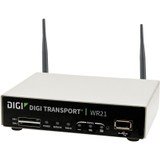
Foto: N'ihu view of the Digi International WR21-L52A-DE1-TB Cellular Wireless Router. This image displays the compact form factor of the device, likely showing ports for antennas, power, and network connections.
The Digi International WR21-L52A-DE1-TB is a robust cellular wireless router designed for reliable and secure connectivity. It features multiple connectivity options and is suitable for various industrial and enterprise applications requiring remote access and data transfer over cellular networks.
5. Nhazi
5.1. Ntinye kaadi SIM
- Gbaa mbọ hụ na agbanyụrụ rawụta wee kepụ ya na isi iyi ike.
- Locate the SIM card slot(s) on the device. Refer to the device's physical markings for exact location.
- Insert the activated cellular SIM card into the slot with the gold contacts facing down and the notched corner oriented correctly. Push until it clicks into place.
- If applicable, secure the SIM card tray or cover.
5.2. Njikọ antenna
- Identify the cellular antenna ports (typically labeled 'MAIN' and 'DIV' or similar).
- Screw the provided cellular antennas onto the corresponding ports until finger-tight. Do not overtighten.
- Debe antennas maka nnabata mgbaama kacha mma.
5.3. Njikọ ike
- Connect the power adapter to the router's power input port.
- Tinye nkwụnye ọkụ n'ime oghere eletrik kwesịrị ekwesị.
- The router will power on automatically or may require pressing a power button. Observe the LED indicators for power status.
5.4. Network Connection (Optional)
- To connect a device via Ethernet, plug one end of an Ethernet cable into an available LAN port on the router.
- Plug the other end of the Ethernet cable into the network port of your computer or other network device.
6. Ntuziaka ọrụ
6.1. Ịgbanye / gbanyụọ
- Ike Na: Connect the power adapter. The device will typically power on automatically. Observe the power LED.
- Gbanyụọ: Disconnect the power adapter from the electrical outlet. For controlled shutdown, refer to the device's web interface or specific documentation for a software shutdown procedure if available.
6.2. Ịnweta na Web Interface
- Ensure your computer is connected to the router via Ethernet or Wi-Fi (if enabled).
- Mepee a web ihe nchọgharị (dịka, Chrome, Firefox, Edge).
- Enter the router's default IP address (e.g., 192.168.1.1 or 192.168.0.1) into the address bar and press Enter. Refer to the Quick Start Guide or device label for the exact default IP address.
- Enter the default username and password when prompted. These are typically found on a label on the device or in the Quick Start Guide.
- Upon successful login, you will access the router's configuration interface.
6.3. Nhazi nhazi
N'ime web interface, ị nwere ike hazie ntọala dị iche iche:
- Cellular Settings: Verify APN settings, signal strength, and connection status.
- Ntọala netwọkụ: Configure LAN IP address, DHCP server, and port forwarding.
- Nchekwa: Change default login credentials, configure firewall rules, and VPN settings.
- Femụwe Update: Check for and apply firmware updates to ensure optimal performance and security.
7. Nlekọta
- Nhicha: Use a soft, dry cloth to clean the exterior of the router. Do not use liquid cleaners or aerosols.
- Mmelite femụwe: Lelee onye nrụpụta mgbe niile website for firmware updates. Keeping the firmware updated ensures the latest features, security patches, and performance improvements.
- Ọnọdụ gburugburu: Ensure the router is operating within its specified temperature and humidity ranges to prevent overheating or damage.
8. Nchọpụta nsogbu
8.1. No Cellular Connection
- Verify the SIM card is correctly inserted and activated with your cellular provider.
- Check antenna connections and ensure they are positioned for optimal signal.
- Banye n'ime web interface to check cellular signal strength and connection status.
- Malitegharịa ekwentị rawụta.
8.2. Enweghị ike ịnweta Web Interface
- Jide n'aka na kọmputa gị jikọọ ozugbo na rawụta ahụ site na Ethernet.
- Verify your computer's IP address is in the same subnet as the router (e.g., if router is 192.168.1.1, computer should be 192.168.1.x).
- Gbalịa ikpochapụ cache ihe nchọgharị gị ma ọ bụ jiri ihe nchọgharị dị iche.
- If you forgot the password, a factory reset might be necessary (refer to specific device documentation for this procedure, as it will erase all configurations).
8.3. Ọsọ njikọ dị nwayọ
- Check cellular signal strength in the web interface. Weak signal can lead to slow speeds.
- Ensure antennas are properly positioned and unobstructed.
- Verify your cellular data plan has not reached its data cap or is being throttled.
- Restart the router and connected devices.
9. Nkọwapụta
| Njirimara | Nkọwa |
|---|---|
| Nlereanya | WR21-L52A-DE1-TB |
| Ụdị | Digi International |
| Protocol Njikọta | Cellular |
| Teknụzụ Njikọta | USB |
| Usoro njikwa | Ime ime |
| Njirimara Pụrụ Iche | WPS |
| Ngwa dakọtara | Kọmputa nkeonwe |
| Eji akwadoro | Ụlọ |
| UPC | 747356312219 |
10. Akwụkwọ ikike na nkwado
For detailed warranty information, please refer to the warranty card included with your product or visit the official Digi International website. Technical support is available through the manufacturer's support channels. Please have your product model number (WR21-L52A-DE1-TB) and serial number ready when contacting support.