
Okwu mmalite
Thank you for choosing the KROM Kernel TKL Mechanical Gaming Keyboard. This compact, tenkeyless (TKL) keyboard is designed for gaming enthusiasts, offering a responsive mechanical experience with customizable RGB backlighting and a Spanish layout. This manual provides detailed instructions for setup, operation, maintenance, and troubleshooting to ensure optimal performance and longevity of your device.
Ngwaahịa gafereview
Atụmatụ igodo
- Mgbanwe igwe: Durable and responsive mechanical key switches for precise input.
- Nhazi Tenkeyless (TKL): Compact form factor without a numeric keypad, ideal for saving desk space and improving mouse movement.
- RGB ọkụ azụ: Customizable LED backlighting with various effects and colors.
- Ọrụ nnukwu: Assign macro functions to any key for personalized commands.
- Igodo mgbasa ozi: Dedicated or function-layer multimedia controls for convenience.
- Mgbochi Ghosting: Ensures all key presses are registered accurately, even during intense gaming sessions.
- Ihe owuwu na-adịgide adịgide: Built with quality materials for long-lasting performance.
- Spanish Layout: Designed with a QWERTY Spanish key layout.
Ihe ngwugwu
- KROM Kernel TKL Mechanical Gaming Keyboard
- eriri USB (agbakwunyere)
- Akwụkwọ ntuziaka (akwụkwọ a)
- (Note: Additional accessories may vary by region or specific product bundle.)
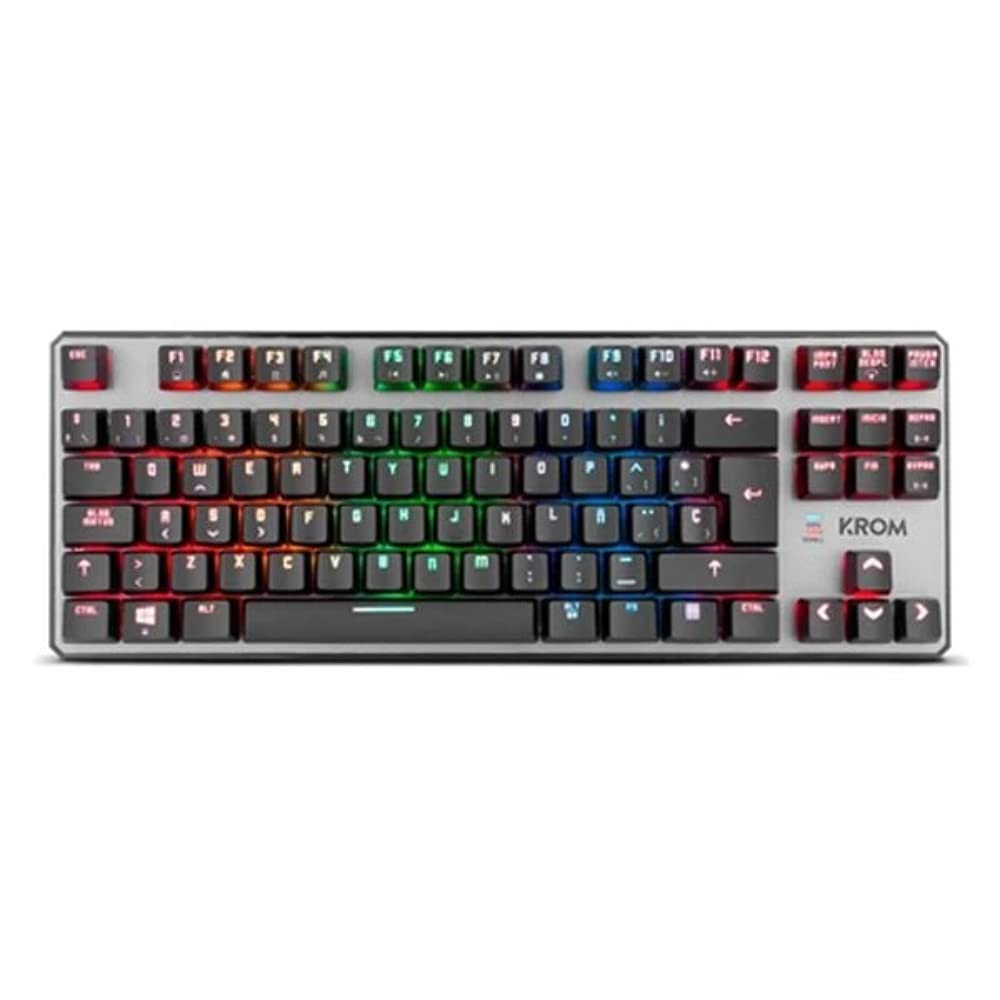
Foto nke 1.1: KROM Kernel TKL Mechanical Gaming Keyboard packaging, showing the front and back of the box with product features and design.

Foto nke 1.2: Si elu gbadata view of the KROM Kernel TKL keyboard, showcasing its compact design and vibrant RGB backlighting across all keys.
Melite
- Mepee ahụigodo: Carefully remove the KROM Kernel TKL keyboard from its packaging.
- Jikọọ na Kọmputa: Locate the USB cable attached to the keyboard. Plug the USB connector into an available USB port on your computer (PC or laptop).
- Nwụnye ọkwọ ụgbọala: The keyboard is plug-and-play. Your operating system (Windows 7/8/8.1/10) should automatically detect and install the necessary drivers. This process may take a few moments.
- Nyochaa arụmọrụ: Once drivers are installed, test the keyboard by typing in a text editor or browser to ensure all keys are responsive.
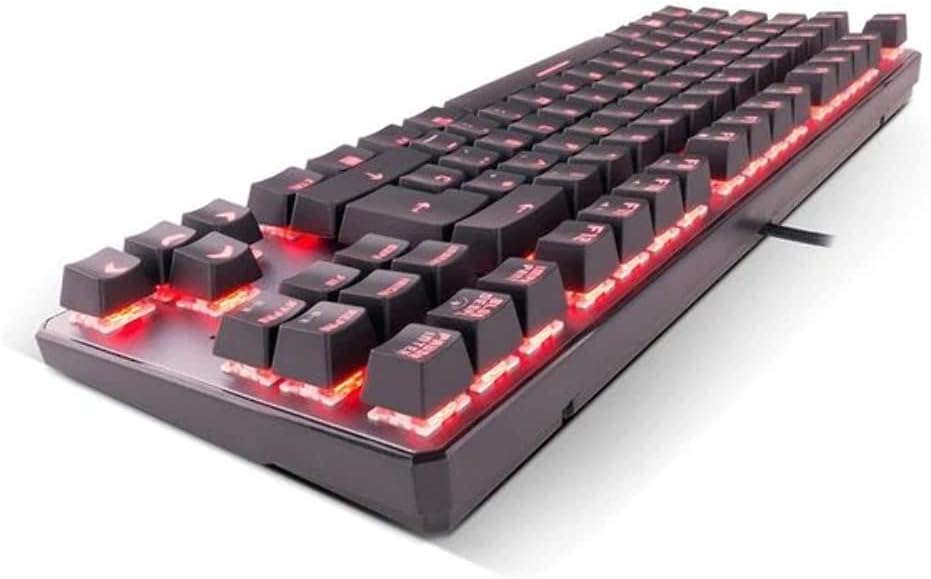
Foto nke 2.1: Akụkụ view of the KROM Kernel TKL keyboard, highlighting the red backlighting visible beneath the keycaps and the compact profile.
Ntuziaka ọrụ
Njikwa ọkụ azụ RGB
The KROM Kernel TKL keyboard features dynamic RGB backlighting. Use the following key combinations to adjust lighting effects:
- Fn + [Igodo]: Specific function keys (often F1-F12 or dedicated keys) are used in combination with the Function (Fn) key to cycle through lighting modes, adjust brightness, change speed, or select colors. Refer to the keyboard's keycap legends for specific symbols indicating lighting controls.
- Ndozi ihie: Typically Fn + Up/Down arrow keys or dedicated brightness keys.
- Effect Speed: Often Fn + Left/Right arrow keys to increase or decrease the speed of dynamic lighting effects.
- Ụdị mgbanwe: Cycle through various pre-set RGB lighting modes (e.g., wave, ripple, breathing, static color) using a dedicated Fn combination.

Foto nke 3.1: The KROM Kernel TKL keyboard displaying its full RGB spectrum backlighting, enhancing the visual appeal during use.
Macro Function Assignment
The keyboard supports on-the-fly macro recording or software-based macro assignment. For on-the-fly recording:
- Initiate Recording: Press a specific Macro Record key (often labeled "MR" or a Fn combination).
- Select Target Key: Press the key you wish to assign the macro to.
- Record Sequence: Type the sequence of keys you want to record as the macro.
- Nkwụsị ndekọ: Press the Macro Record key again to save the macro.
Note: Detailed macro programming instructions may require specific software or refer to the full digital manual available on the KROM websaịtị.
Igodo mgbasa ozi na ụzọ mkpirisi
Access multimedia functions and system shortcuts using the Fn key in combination with the F-keys (F1-F12) or other designated keys. Common functions include:
- Njikwa olu: Fn + Fx (e.g., F1-F3 for Mute, Volume Down, Volume Up).
- Ndabere mgbasa ozi: Fn + Fx (e.g., F5-F8 for Play/Pause, Stop, Previous Track, Next Track).
- Ụzọ mkpirisi ngwa: Fn + Fx (e.g., F9-F12 for Email, Web Browser, My Computer, Calculator).

Foto nke 3.2: A nso-elu view of the KROM Kernel TKL keyboard's keycaps, clearly showing the Spanish QWERTY layout and secondary functions.
Nlekọta
Ndozi nke ọma na-eme ka ahụ dị ogologo na arụmọrụ nke ahụigodo gị.
- Nhicha:
- Kwụpụ kiiboodu na kọmputa gị tupu ihicha.
- Jiri mkpọ ikuku abịakọrọ wepụ uzuzu na irighiri ihe n'etiti igodo igodo.
- Jiri obere ihe dị nro hichaa mkpịsị ugodi na elu ahụigodo ahụamp, akwa akwa na-enweghị lint. Zere oke mmiri mmiri.
- Ejila kemịkalụ siri ike, ihe nhicha ihe na-eme ka ihe dị nro, ma ọ bụ ihe mgbaze.
- Nchekwa: Store the keyboard in a dry, cool place away from direct sunlight and extreme temperatures.
- Ijikwa: Avoid dropping the keyboard or exposing it to liquids. Do not attempt to disassemble the keyboard as this may void the warranty.

Foto nke 4.1: A side profile view of the KROM Kernel TKL keyboard, illustrating its ergonomic tilt and compact design.

Foto nke 4.2: A close-up image showing a mechanical switch on the KROM Kernel TKL keyboard, highlighting its design and potential for easy replacement (CIY Technology).

Foto nke 4.3: The CIY Technology logo, indicating that the keyboard features hot-swappable mechanical switches for easy customization or replacement.
Nchọpụta nsogbu
If you encounter issues with your KROM Kernel TKL keyboard, refer to the following common solutions:
- Ahụigodo Anaghị aza:
- Gbaa mbọ hụ na etinyere eriri USB na nchekwa na ma ahụigodo na kọmputa.
- Gbalịa itinye ahụigodo ahụ n'ọdụ ụgbọ mmiri USB dị iche na kọmputa gị.
- Malitegharịa ekwentị gị na kọmputa.
- Nwalee kiiboodu na kọmpụta ọzọ iji chọpụta ma ọ bụrụ na nsogbu dị na ahụigodo ma ọ bụ sistemụ gị.
- Ọkụ azụ anaghị arụ ọrụ ma ọ bụ na-ezighi ezi:
- Check if the backlighting is turned off. Use the Fn key combinations to cycle through lighting modes and adjust brightness.
- Ensure no software conflicts are interfering with the lighting controls.
- Igodo anaghị edebanye aha ma ọ bụ pịnye ugboro abụọ:
- Jiri ikuku abịakọrọ hichaa igodo emetụtara iji wepụ irighiri ihe ọ bụla.
- If the keyboard uses hot-swappable switches (like the "CIY Technology" mentioned in an image), try gently removing and re-inserting the switch for the problematic key.
- Gbaa mbọ hụ na ndị ọkwọ ụgbọala sistemụ arụmọrụ gị emelitere.
- Macro Functions Not Working:
- Review the macro programming steps to ensure correct recording.
- Check if any software is overriding the keyboard's native macro functions.
Nkọwapụta
| Njirimara | Nkọwa |
|---|---|
| Nọmba nlereanya | NXKROMKRNLTKL |
| Ụdị ahụigodo | Mechanical |
| Nhazi | Spanish QWERTY (TKL) |
| Ịkụ azụ azụ | RGB LED |
| Njikọ | Wired USB (Gold-plated) |
| Ogologo eriri USB | 180 cm (Braided) |
| Ike mmeghari | 60 +/- 10 g |
| Ọnụego ntuli aka | 1000 Hz |
| Ebe nchekwa | 64 KB (for macros/profiles) |
| Oriri ugbu a | 100-260mA |
| Voltage | 5.0 +/- 0.25 V |
| Akụkụ (L x W x H) | 361 x 133.5 x 22.5 mm |
| Ibu | 950 +/- 30 g |
| Ndakọrịta | Windows 7/8/8.1/10 |
| Atụmatụ pụrụ iche | Macro function assignment, Multimedia keys, Shortcut keys |
Akwụkwọ ikike na nkwado
KROM products are designed for reliability and performance. This product comes with a standard manufacturer's warranty. For specific warranty terms and conditions, please refer to the warranty card included with your product or visit the official KROM websaịtị.
For technical support, driver downloads, or further assistance, please visit the KROM official support page or contact their customer service. Contact information can typically be found on the KROM webngwugwu saịtị ma ọ bụ ngwaahịa.
KROM Official Websaịtị: www.kromgaming.com (Rịba ama: Nke a bụ ebe njide ihe URL, please verify the actual KROM support websaịtị.)