
1. Okwu mmalite
The Blaupunkt IRD 30c is a versatile internet radio designed to provide a wide range of audio entertainment. It features Internet Radio, DAB+, and FM reception, allowing access to over 18,000 internet radio stations and 12,000 podcasts worldwide, alongside traditional digital and analog broadcasts. With its WLAN connectivity, color display, and remote control, it offers intuitive operation and a rich listening experience. The device also includes an AUX input for connecting external audio sources, an alarm clock, and a sleep function, making it suitable for various environments like the living room, kitchen, or bedroom.
2. Ozi nchekwa
- Gụọ ntuziaka niile nke ọma tupu i jiri ngwaọrụ ahụ.
- Debe akwụkwọ ntuziaka maka ntụnye aka n'ọdịnihu.
- Ewepụla ngwaọrụ ahụ na mmiri ozuzo, mmiri mmiri ma ọ bụ oke okpomọkụ.
- Gbaa mbọ hụ na ikuku ikuku dị mma iji gbochie ikpo oke ọkụ.
- Jiri naanị nkwụnye ọkụ enyere.
- Anwala imeghe ma ọ bụ rụkwaa ngwaọrụ n'onwe gị. Kpọtụrụ ndị ọrụ ruru eru ọrụ niile.
- Debe ebe ụmụaka na-apụghị iru.
3. Ihe ngwugwu
Biko lelee ma ihe niile dị na ngwugwu ahụ:
- Blaupunkt IRD 30c Internet Radio Unit
- Njikwa anya
- Ihe nkwụnye ọkụ
- Akwụkwọ ntuziaka onye ọrụ

4. Ngwaahịa gafereview
Familiarize yourself with the various parts of your Blaupunkt IRD 30c Internet Radio.
4.1 Ogwe ihu
The front panel features the color display, the main control knob (for navigation and selection), and several function buttons (MENU, FAV, HOME).

4.2 Ogwe Top
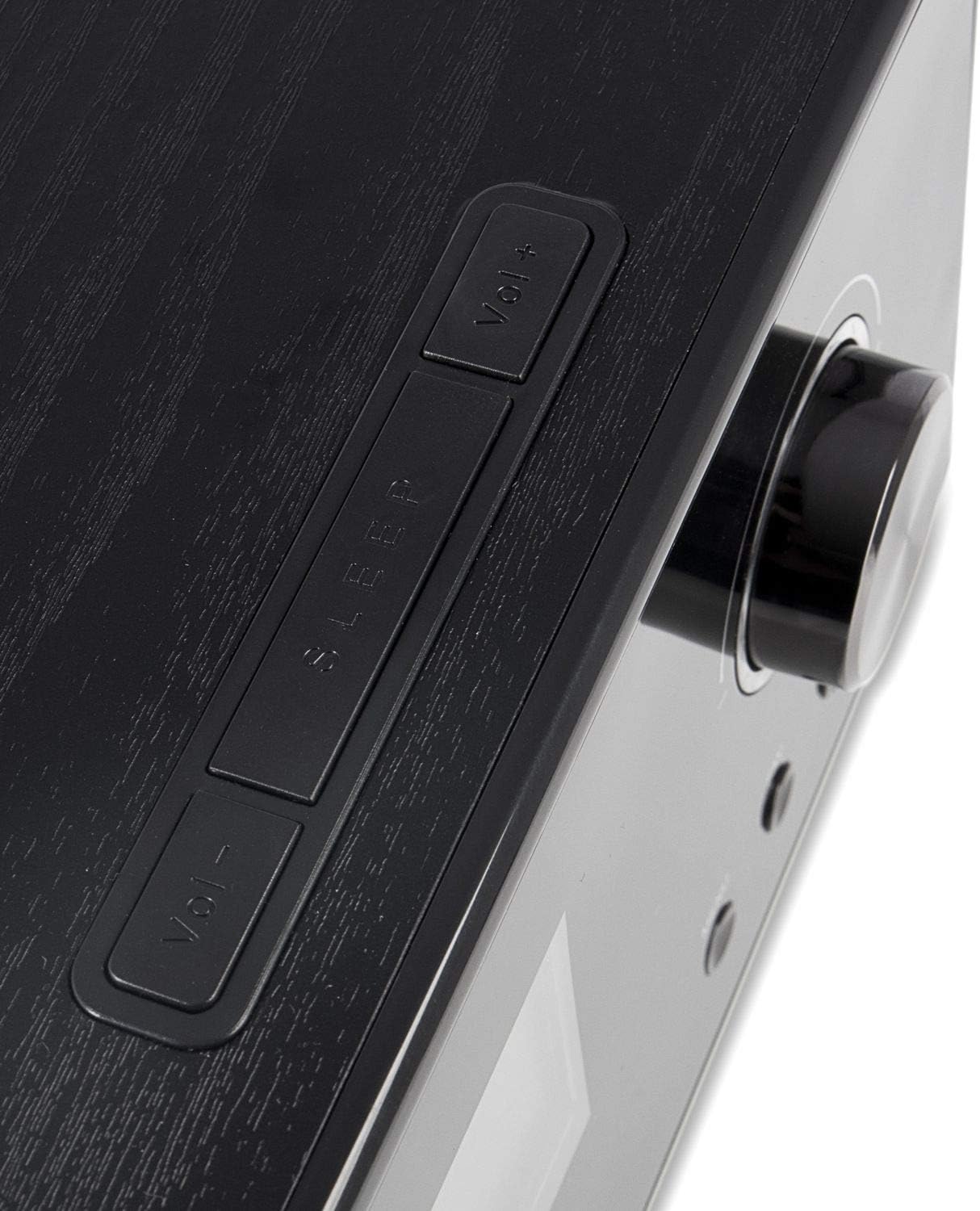
The top panel includes additional control buttons, such as Volume Up/Down and Sleep.
4.3 Akụkụ akụkụ
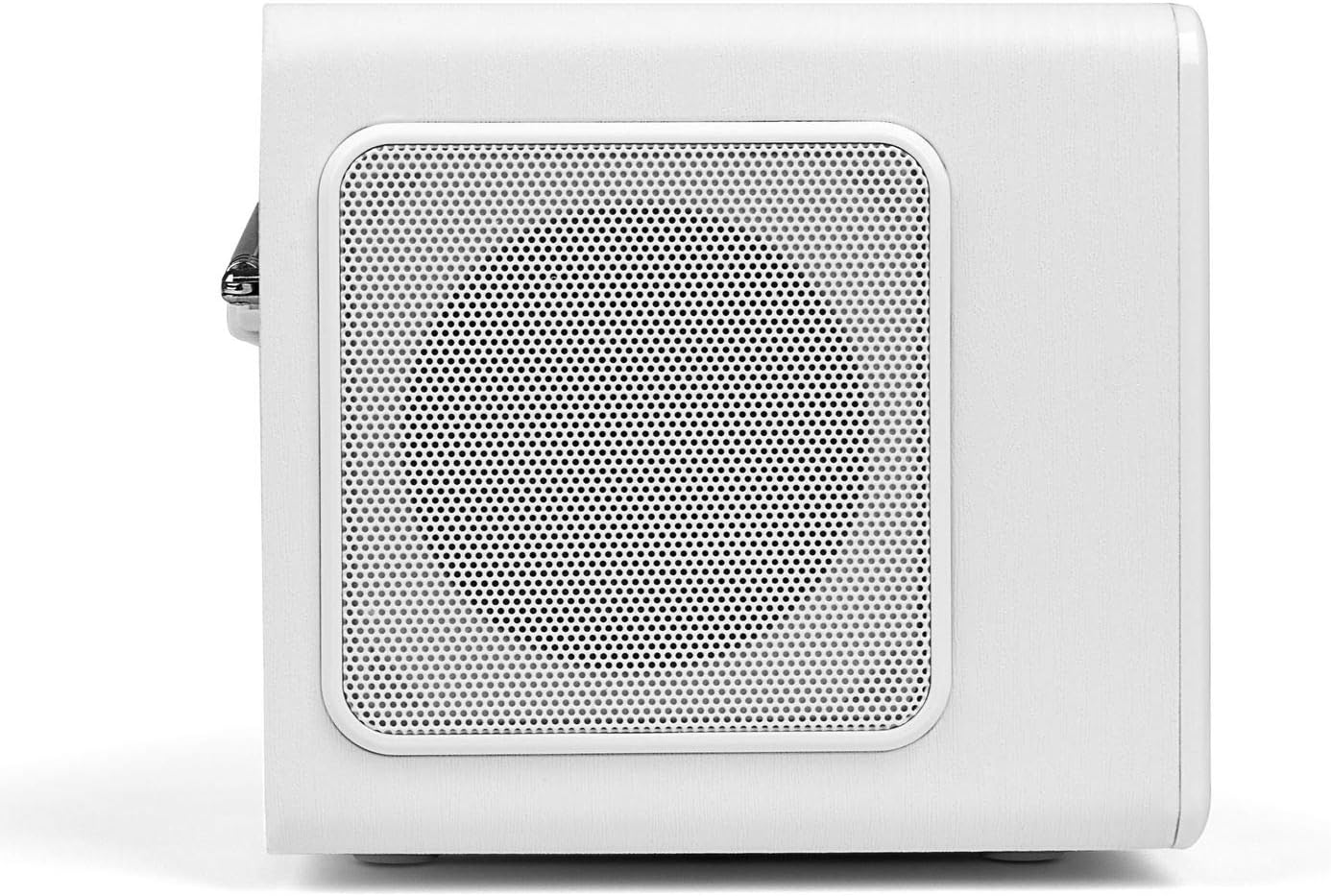
The side panels feature integrated speakers for stereo sound output.
4.4 Ogwe azụ
The rear panel houses the telescopic antenna, power input, Line Out, and AUX input ports.

5. Nhazi
Follow these steps to set up your Blaupunkt IRD 30c Internet Radio for the first time.
- Mepee ngwaọrụ ahụ: Jiri nlezianya wepụ ihe niile dị na nkwakọ ngwaahịa.
- Njikọ Ike: Plug the power adapter into the DC 12V input on the rear of the radio, then connect it to a power outlet.
- Gbatịa antenna: Fully extend the telescopic antenna for optimal DAB+ and FM reception.
- Ike izizi: The radio will power on automatically or require a press of the power button.
- Network Setup (WLAN): Follow the on-screen prompts to connect to your Wi-Fi network. You will need your network name (SSID) and password.
- Oge na ụbọchị: The device will usually synchronize time and date automatically via the internet.
Watch the following video for a visual guide on unboxing and initial setup:
Video 5.1: Unboxing and basic setup of the Blaupunkt IRD 30c Internet Radio, demonstrating power connection, antenna extension, and initial menu navigation.
6. Ntuziaka ọrụ
6.1 Redio ịntanetị
Access thousands of stations and podcasts from around the world.
- Pịa ỤLỌ button to navigate to the main menu.
- Select "Internet Radio" using the control knob and press to confirm.
- You can browse stations by location, genre, or use the search function.
- To save a favorite station, tune into the desired station and press the FAV button. Follow the on-screen instructions to store it.
6.2 DAB+ Digital Radio
Enjoy high-quality digital radio broadcasts.
- Pịa MENU button and select "DAB Radio".
- Perform a "Full Scan" to find all available DAB+ stations in your area.
- Use the control knob to scroll through the station list and select your desired station.
Igwe redio FM 6.3
Tune into traditional analog FM broadcasts.
- Pịa MENU button and select "FM Radio".
- You can perform an automatic scan or manually tune to a frequency using the control knob.
- For best reception, ensure the telescopic antenna is fully extended.
Ntinye AUX 6.4
Jikọọ ngwaọrụ ọdịyo dị na mpụga dịka ekwentị mkpanaaka ma ọ bụ ihe ọkpụkpọ MP3.
- Connect your external device to the ỌXụ IN port on the rear of the radio using a 3.5mm audio cable.
- Pịa MENU button and select "AUX In" mode.
- Jikwaa ọkpụkpọ dị na mpụga ngwaọrụ gị.
6.5 Alarm Clock and Sleep Function
Use the radio as an alarm clock or set a sleep timer.
- Mkpu: Access the alarm settings via the main menu to set up to two independent alarms with customizable sources (buzzer, internet radio, DAB+, FM).
- Oge ụra: Pịa Ụra button on the top panel or remote control to set a timer (e.g., 15, 30, 60 minutes) after which the radio will automatically turn off.
6.6 Sound Customization (Equalizer)
Adjust the audio output to your preference.
The IRD 30c features an equalizer with preset genres (e.g., Rock, Pop, Classical, HipHop) and a custom setting to adjust bass and treble levels. Access the equalizer settings through the menu or directly via the remote control.
7. Nlekọta
To ensure the longevity and optimal performance of your Blaupunkt IRD 30c, follow these maintenance guidelines:
- Nhicha: Use a soft, dry cloth to clean the exterior of the radio. Do not use abrasive cleaners, waxes, or solvents.
- Uzuzu: Regularly dust the speaker grilles and control areas to prevent accumulation.
- Nkwanye: Place the radio on a stable, flat surface away from direct sunlight, heat sources, and excessive moisture.
- Antenna: Handle the telescopic antenna with care to avoid bending or breaking.
8. Nchọpụta nsogbu
If you encounter issues with your radio, refer to the following common problems and solutions:
| Nsogbu | Ihe nwere ike ime | Ngwọta |
|---|---|---|
| Enweghị ike | Ejikọghị ihe nkwụnye ọkụ ma ọ bụ ụzọ adịghị mma. | Check power connections and try a different outlet. Ensure the power button is pressed correctly. |
| No internet radio reception | WLAN connection issue, weak signal, or incorrect network settings. | Verify your Wi-Fi password. Check router status. Move the radio closer to the router or use a Wi-Fi extender. Reconfigure network settings. |
| Poor DAB+/FM reception | Antenna not extended, weak signal, or interference. | Fully extend the telescopic antenna. Reposition the radio. Perform a new station scan. |
| Enweghị ụda sitere na ntinye AUX | Incorrect mode selected, cable issue, or external device volume. | Ensure "AUX In" mode is selected. Check the 3.5mm audio cable connection. Increase volume on both the radio and the external device. |
| Njikwa anya anaghị arụ ọrụ | Dead batteries, obstruction, or remote not pointed at sensor. | Replace batteries. Remove any obstructions between the remote and the radio. Ensure direct line of sight. |
| Blue ring light around control knob is too bright/distracting | This is a design feature and cannot be permanently turned off. | The light typically illuminates for a few seconds after interaction and turns off in standby. Consider placement if used in a dark room like a bedroom. |
9. Nkọwapụta
| Njirimara | Nkọwa |
|---|---|
| Ụdị | BLAUPUNKT |
| Nlereanya | IRD 30 C |
| Teknụzụ Njikọta | AUX, WLAN (802.11 b/g/n) |
| Nkà na ụzụ Tuner | Digital (FM, DAB+) |
| Ndị otu redio akwadoro | Internet Radio, FM, DAB+ |
| Isi Iyi Ike | Igwe ọkụ eletrik |
| Ike mmepụta ọdịyo | 2 x 7 Watts RMS (14 Watts total) |
| Ngosipụta | Color Display (dimmable) |
| Ngwaọrụ Akụrụngwa | 3.5mm Audio (AUX In, Line Out) |
| Ibu Ibu | 3.09 pound (ihe dị ka 1.4 n'arọ) |
| Akụkụ (ihe dị ka.) | Height: 13 cm, Depth: 12.9 cm, Width: 21.2 cm |
| Atụmatụ | Alarm Clock, Sleep Function, Equalizer, Remote Control |
10. Akwụkwọ ikike na nkwado
For warranty information and customer support, please refer to the documentation included with your product or visit the official Blaupunkt websaịtị. Debe ihe akaebe nke ịzụrụ ihe maka akwụkwọ ikike ọ bụla.
If you require technical assistance or have questions not covered in this manual, please contact Blaupunkt customer service.


