
1. Okwu mmalite
This manual provides instructions for the Insten 4-in-1 Joy-Con Charging Dock. This device is designed to charge up to four Nintendo Switch Joy-Con controllers simultaneously, ensuring they are ready for use. It is compatible with both the original Nintendo Switch and the OLED Model.
2. Ozi nchekwa
- Do not expose the charging dock to water or excessive moisture.
- Zere idobe ma ọ bụ idobe ngwaọrụ ahụ na mmetụta siri ike.
- Anwala ịkwasa ma ọ bụ gbanwee ọdụ ụgbọ mmiri ịchaji.
- Use only the provided USB cable or a certified equivalent for power.
- Debe ebe ụmụaka na-apụghị iru.
- Ensure proper ventilation around the charging dock during use.
3. Ihe ngwugwu
- 1 x Insten 4-in-1 Joy-Con Charging Dock
- 1 x eriri USB
4. Nhazi
- Place the charging dock on a stable, flat surface.
- Connect the small end of the included USB charging cable to the Micro USB port on the back of the charging dock.
- Connect the standard USB end of the cable to a powered USB port (e.g., a Nintendo Switch dock, computer, or USB wall adapter).
The charging dock is now ready for use.

Figure 1: Connecting the USB cable to the charging dock. The image also shows the dock's dimensions (4.8" height, 3.3" diameter) and the 2.25 ft USB cable length.
Video 1: Demonstrates connecting the USB cable to the charging dock and inserting Joy-Cons for charging. The video also shows the LED indicators changing color.
5. Ntuziaka ọrụ
5.1 Charging Joy-Cons
- Ensure the charging dock is powered on and connected to a USB power source.
- Slide your Joy-Con controllers into the available slots on the charging dock. Ensure they click into place securely. The dock supports up to four Joy-Cons simultaneously.
- The LED indicators on the top of the dock will illuminate to show the charging status.

Figure 2: Four Joy-Con controllers (two red, two blue) inserted into the charging dock, illustrating simultaneous charging capability. The image highlights that Joy-Cons can be easily slid in for quick charging.
5.2 LED Charging Indicators
The Insten 4-in-1 Joy-Con Charging Dock features individual LED indicators for each charging slot. These indicators provide visual feedback on the charging status of your Joy-Cons:
- Ìhè na-acha anụnụ anụnụ: Indicates that the Joy-Con controller is currently charging.
- Ọkụ ndụ ndụ: Indicates that the Joy-Con controller is fully charged.
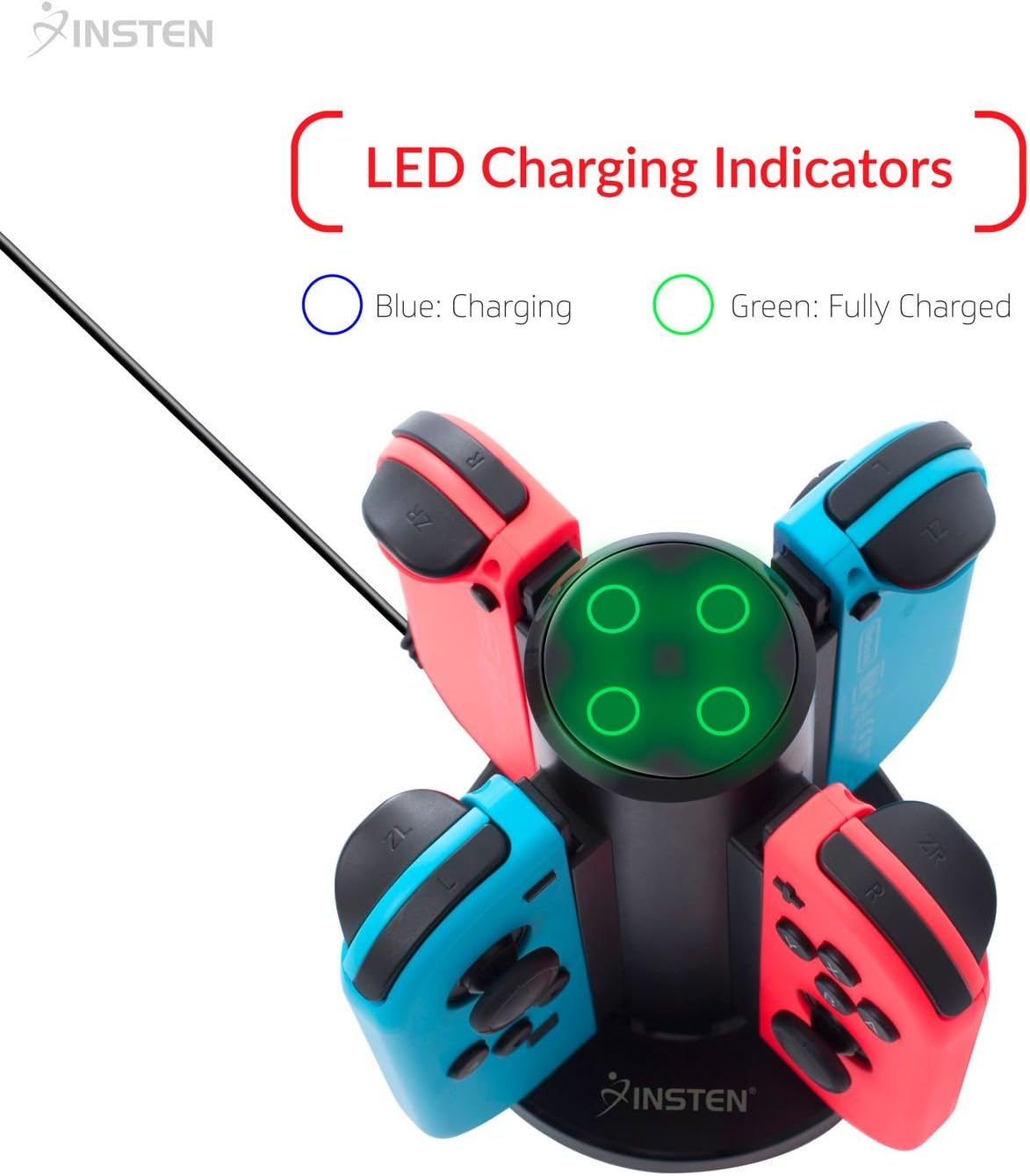
Figure 3: Close-up of the Insten Joy-Con Charging Dock's top, showing the LED charging indicators. The image clarifies that a blue light signifies charging, and a green light signifies a full charge.
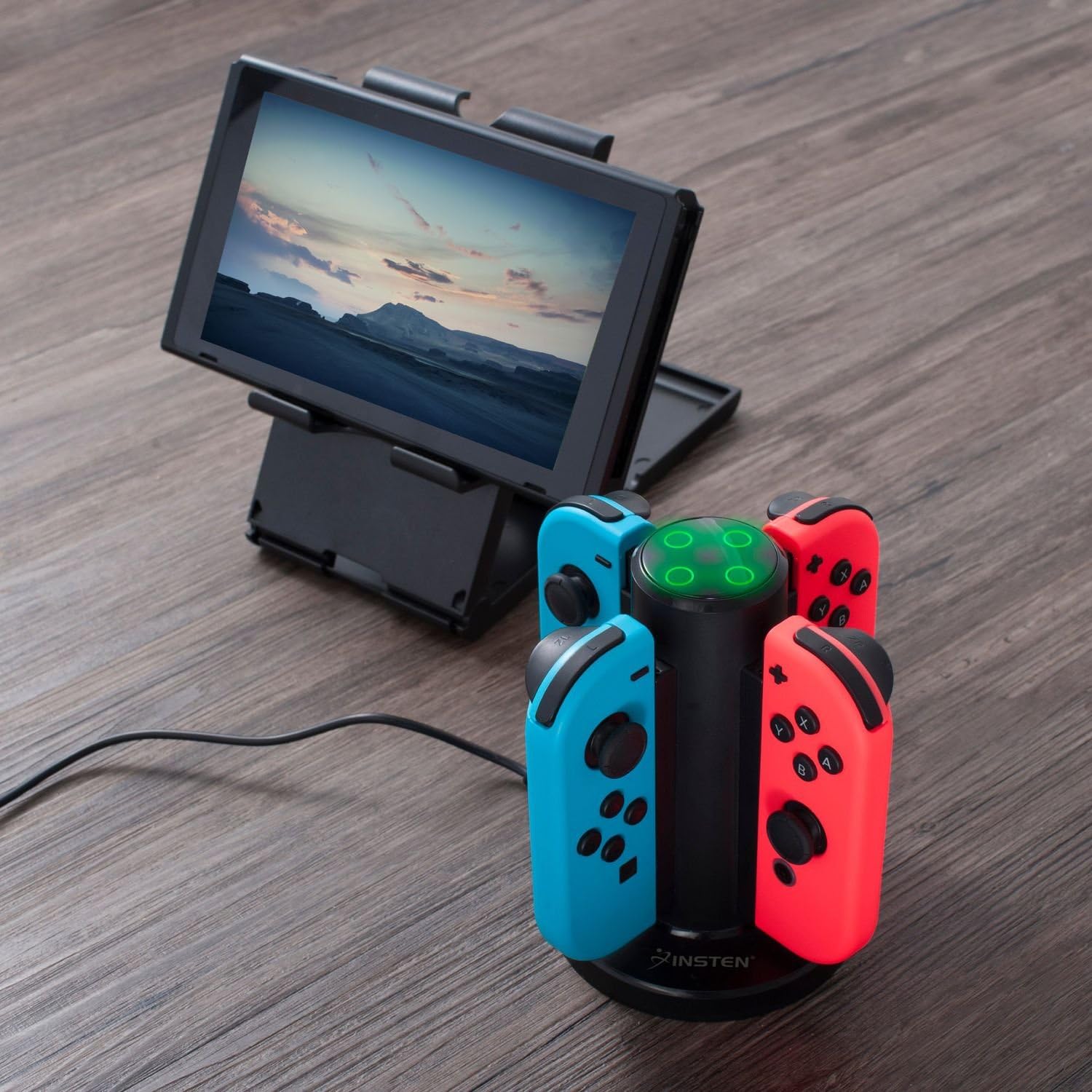
Figure 4: The Insten Joy-Con Charging Dock actively charging four Joy-Con controllers (red and blue) on a wooden surface, positioned next to a Nintendo Switch console on a separate stand. The LED indicators on the dock are illuminated green, indicating fully charged controllers.
6. Nlekọta
- To clean the charging dock, disconnect it from the power source and wipe it with a soft, dry cloth.
- Ejila ihe nchacha abrasive ma ọ bụ ihe mgbaze.
- Store the charging dock in a cool, dry place when not in use.
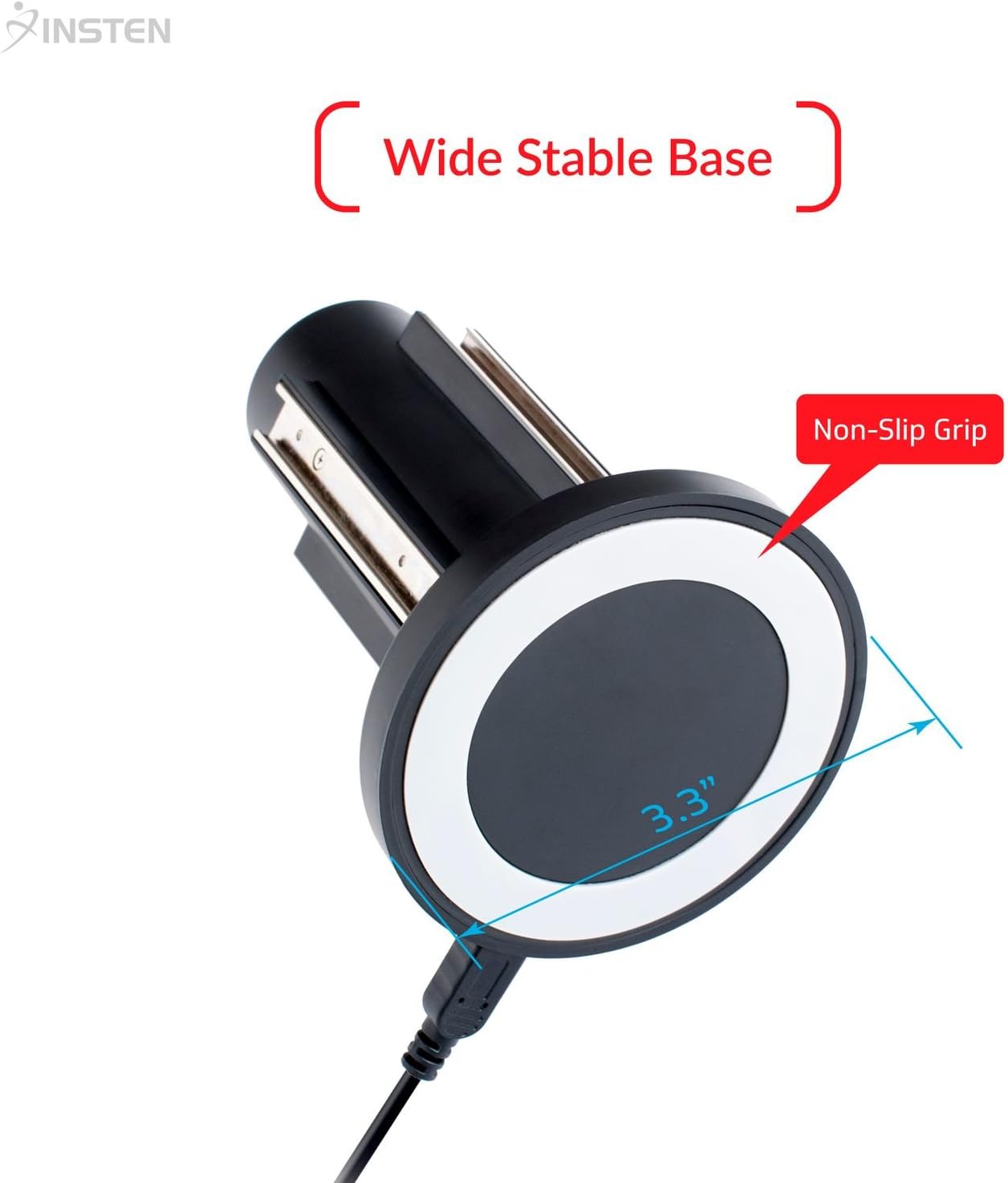
Figure 5: The underside of the Insten Joy-Con Charging Dock, highlighting its wide stable base (3.3" diameter) and non-slip grip for secure placement during use and maintenance.
7. Nchọpụta nsogbu
- Joy-Cons not charging: Ensure the USB cable is securely connected to both the charging dock and the power source. Try a different USB port or power adapter. Verify Joy-Cons are correctly inserted into the slots.
- LED indicators not lighting up: Check the power connection. If the Joy-Cons are already fully charged, the LEDs will be green or off depending on the specific charge cycle.
- Nchaji nwayọ: Ensure the power source provides sufficient output (e.g., a wall adapter rather than a low-power USB port on a computer).
8. Nkọwapụta
| Njirimara | Nkọwapụta |
|---|---|
| Akụkụ ngwaahịa | 4.92 x 3.39 x 3.39 sentimita asatọ |
| Ibu Ibu | 2.56 ounces |
| Ụdị njikọ | USB |
| Ngwa dakọtara | Nintendo Switch Joy-Cons |
| Ngwa gụnyere | 1 x Joy-Con Charging Dock |
| Njirimara Pụrụ Iche | Multiple Output Ports, LED Charge Indicator |
| Ntinye Voltage | 240 Volts (AC, via USB adapter) |
| Mmepụta Voltage | 5 volts (DC) |
| Mgbakọta ọdụ ụgbọ mmiri USB | 1 (for input power) |
| Ọnụọgụ nke ihe | 1 |
9. Akwụkwọ ikike na nkwado
For warranty information or technical support, please refer to the product packaging or contact Insten customer service through their official website or the retailer where the product was purchased. Please have your product model number (B0753FLMVG) and purchase date available.