
Okwu mmalite
The TruVoice HD-100 is a wired office and call center headset designed for professional communication. It features a noise-canceling microphone, HD speakers, and a quick disconnect (QD) feature for versatile connectivity. This manual provides detailed instructions for setting up and operating your HD-100 headset, ensuring optimal performance and comfort.
Atụmatụ igodo
- Igwe okwu na-akagbu mkpọtụ: High-quality microphone with a flexible 270-degree rotational boom, designed to reduce background noise for clear conversations.
- HD Audio Speakers: Equipped with acoustic shock protection and HD audio sound for superior call clarity.
- Ụdị dị fechaa na nke dị mma: An extremely light headband (weighing only 54 grams) made with a die-cast aluminum frame, offering strength, durability, and all-day comfort. Includes soft foam ear cushions.
- Quick Disconnect (QD) Feature: Allows users to detach the headset from the adapter cable, providing mobility away from the desk without losing a call. This feature also enables the use of the same headset with various devices by simply swapping adapter cables.
- Ndakọrịta sara mbara: Includes a U10P adapter for compatibility with a wide range of desk phones and communication systems.
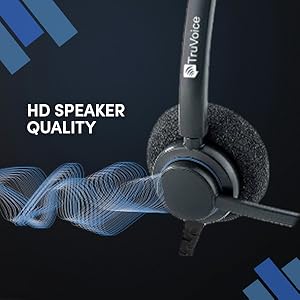
Image: HD Sound quality for clear communication.

Image: Noise-canceling microphone for reduced background noise.
Ntuziaka nhazi
Follow these steps to set up your TruVoice HD-100 headset with your desk phone:
- Connect the Headset Cable: Take the headset cable (U10P adapter included) and locate the headset port on your telephone. This port is typically found at the bottom or side of your phone and is often marked with a headset icon.
- Tinye nkwụnye ahụ: Firmly plug the adapter end of the headset cable into the designated headset port on your telephone until it clicks into place.
- Jikọọ ekweisi: Connect the Quick Disconnect (QD) end of your HD-100 headset to the corresponding QD connector on the adapter cable. Ensure a secure connection.
- Hazie maka nkasi obi: Place the headset on your head and adjust the headband for a comfortable fit. Position the microphone approximately two fingers' width from your mouth for optimal voice pickup.
Video: TruVoice Headset Setup (Quick Disconnect) - This video demonstrates the physical connection of the headset to a desk phone using the Quick Disconnect feature.

Image: Quick Disconnect feature illustrating headset flexibility across multiple devices.
Ntuziaka ọrụ
Once your TruVoice HD-100 headset is connected, follow these general operating guidelines:
- Oku na-aza/Nkwụsị: To answer or end a call, press the dedicated headset button on your telephone. If your phone does not have a specific headset key, consult your phone's manual or IT department, as a button can often be programmed for this function.
- Njikwa olu: Adjust the call volume using the volume controls on your telephone. The headset itself does not feature inline volume controls.
- Mechie igwe okwu: If your telephone supports it, use the mute function on your phone to temporarily disable the microphone.
- Quick Disconnect Usage: To temporarily leave your desk without disconnecting from a call, simply unclip the Quick Disconnect (QD) connector. Reconnect it to resume your conversation.
Ndakọrịta ngwaọrụ
The TruVoice HD-100 headset, with its included U10P adapter, is compatible with a wide range of desk phone models. Below is a list of supported systems:
Polycom / Poly
EDGE Series, VVX50, VVX101, VVX150, VVX201, VVX250, VVX300, VVX350, VVX301, VVX310, VVX311, VVX400, VVX401, VVX410, VVX411, VVX450, VVX500, VVX501, VVX600, VVX601, IP301, IP335, IP331, IP335, IP560, IP550, CX300, CX500, CX600, CX700, 485.
Mitel
5212, 5312, 5320, 5320e, 5330, 5330e, 5340, 5340e, 5410, 5420, 550, 5540, 6867i, 6869i, 6910, 6920, 6930, 6940, 8528, IP420, IP420G, IP480, IP485G.
Avaya
6402D, 6408D+, 6416D+M, 6424D+M, 8403, 8410D, 8434DX, 4406D+, 4412D+, 4424D+, 4424LD+, 1408, 1416, 2410, 2420, 4610, 4610SW, 4612, 4620, 4620SW, 4621, 4621SW, 4622, 4622SW, 4625, 4625W, 4630, 4630SW, 5410, 5420, 5610, 5620, 5621, 5625, 9404, 9406, 9408, 9504, 9508, DT1, DT3, DT5, QE4610.
Other Compatible Systems
Shoretel: 100, 212, 212K, IP230, 230, 265, 530, 560, 560G, 565, 565G, 655, 420, 480, 480G, 485, 485G.
Aastra: 6757i, 6731i, 6739i, 6755i, 6867i, 6869i.
Nortel: T7316, T7316e, T7208.
Ụdị ndị ọzọ: Toshiba DKT, Panasonic, ESI, Fanvil, Digium, Adtran, Ascom, Audiocodes, Altigen, Allworx, Comdial, Intertel.
If your specific phone model is not listed, please check the TruVoice online store for additional headset and adapter cable combinations, or contact TruVoice support for assistance.

Image: Detailed compatibility chart for the TruVoice HD-100 headset.
Nkọwa nka nka
| Njirimara | Nkọwa |
|---|---|
| Aha Nlereanya | Headset With U10P |
| Nọmba Nlereanya ihe | HD100 |
| Ụdị | TruVoice |
| Teknụzụ Njikọta | Ekwenyere |
| Ụdị Ihe | Wired (Quick Disconnect) |
| Njikwa mkpọtụ | Mwepu ụda |
| Igwe okwu | Noise Canceling, 270-degree Rotational Boom |
| Ụdị ọkwọ ụgbọ ala ọdịyo | Ọkwọ ụgbọala dị ike |
| Ntinye ntị | Na Ntị |
| Jack ekweisi | 3.5 mm Jack (via adapter) |
| Ụdị njikwa | Volume Control (via phone) |
| Njirimara USB | Detachable (Quick Disconnect) |
| Ibu Ibu | 3.52 ounces (ihe dị ka gram 100) |
| Ngwa gụnyere | Headset, U10P Adapter Cable, Ear Cushions |
| Agba | Oji na ọlaọcha |
| Mgbochi | 150 ohms |
Nlekọta
To ensure the longevity and optimal performance of your TruVoice HD-100 headset, follow these maintenance guidelines:
- Nhicha: Gently wipe the headset and ear cushions with a soft, dry cloth. Avoid using harsh chemicals or abrasive materials. For ear cushions, ensure they are completely dry before reattaching or using.
- Nchekwa: Store the headset in a clean, dry place away from extreme temperatures and direct sunlight. Avoid tangling the cables.
- Nlekọta USB: Do not pull on the cables to disconnect the headset. Always grasp the plug or Quick Disconnect connector firmly.
- Ndochi Nkwadebe Ntị: Over time, ear cushions may wear out. Replacement ear cushions are available from TruVoice to maintain comfort and hygiene.

Image: Soft foam ear cushions, designed for comfort and replaceable for hygiene.
Nchọpụta nsogbu
If you encounter issues with your TruVoice HD-100 headset, try the following solutions:
- Enweghị ụda/olu dị ala:
- Ensure the headset and adapter cables are securely connected.
- Check the volume settings on your telephone.
- Verify that the headset button on your phone is activated.
- Igwe okwu anaghị arụ ọrụ:
- Hụ na e tinyere ụda igwe okwu ahụ nke ọma n'akụkụ ọnụ gị.
- Check if the microphone is muted on your telephone.
- Confirm that the headset is fully plugged into the headset port.
- Ọdịmma Ọdịnaya Na-anaghị Agbanwe Agbanwe Ma Ọ Bụ Na-adịghị Mma:
- Hụ na njikọ niile siri ike.
- Test the headset on a different phone or device if possible to rule out phone-specific issues.
- Check for any physical damage to the cables or connectors.
- Headset Not Recognized by Phone:
- Confirm your phone model is listed in the compatibility section.
- Ensure you are using the correct adapter cable (U10P for many Polycom/Mitel/Avaya models).
- Restart your telephone if possible.
If these steps do not resolve the issue, please contact TruVoice customer support for further assistance.
Akwụkwọ ikike na nkwado
The TruVoice HD-100 headset comes with a manufacturer's warranty. For specific warranty terms and conditions, please refer to the documentation included with your purchase or visit the official TruVoice website. For technical support, troubleshooting assistance, or to inquire about replacement parts, please contact TruVoice customer service through their official channels.
You can find additional information and contact details on the TruVoice Amazon Store.