
1. Okwu mmalite
This manual provides detailed instructions for the Symcode MJ-2030-W Barcode Scanner. This device offers both 2.4GHz wireless and USB 2.0 wired connectivity, designed for efficient and reliable barcode scanning in various environments. Please read this manual thoroughly before operating the scanner to ensure proper use and to maximize its performance.
2. Ngwaahịa gafereview
The Symcode MJ-2030-W is a versatile handheld laser barcode scanner. Key features include:
- Njikọta abụọ: Supports both 2.4GHz wireless and USB 2.0 wired connections.
- Ogologo ogologo: Effective wireless communication up to 200 meters outdoors and 100 meters indoors.
- Ogologo ndụ batrị: Equipped with a 2000mAh rechargeable battery, providing extended operation.
- Ụdị ọrụ abụọ: Instant upload and storage modes for flexible data handling.
- Customizable Scanning: Supports prefix/suffix settings and character manipulation.
- Nhazi na-adịgide adịgide: Features a shock-resistant silicone casing (IP54 rated) for enhanced protection.
3. Nhazi
Ihe ngwugwu 3.1
Tupu ịmalite, hụ na ihe niile dị na ngwugwu:
- Symcode MJ-2030-W Barcode Scanner
- Mini USB Receiver (2.4GHz wireless dongle)
- USB USB (maka ịchaji na njikọ wired)
- Akwụkwọ ntuziaka (akwụkwọ a)
3.2 Ijikọ ihe nyocha
The scanner offers two primary connection methods:
Njikọ ikuku 3.2.1 2.4GHz
- Insert the mini USB receiver into an available USB 2.0 port on your computer.
- Turn on the barcode scanner. It will automatically pair with the receiver.
- A successful connection is indicated by a specific sound or LED indicator on the scanner.

Figure 1: The reliable mini USB receiver for wireless connection.

Figure 2: Scanner in use with 2.4GHz wireless connection.
3.2.2 Njikọ eriri USB
- Connect one end of the provided USB cable to the scanner's USB port.
- Connect the other end of the USB cable to an available USB 2.0 port on your computer.
- The scanner will be recognized as a HID keyboard device, and no additional drivers are typically required.
4. Ntuziaka ọrụ
4.1 Basic Scanning
To scan a barcode, aim the laser beam at the center of the barcode and press the trigger button. A successful scan is usually indicated by a beep and/or a green LED light.
4.2 Data Upload Modes
The scanner supports two modes for uploading scanned data:
4.2.1 Instant Upload Mode
In this mode, scanned barcodes are immediately transmitted to the connected computer. This is suitable for real-time data entry.
4.2.2 Ọnọdụ nchekwa
When the scanner is out of range of the receiver or disconnected, it can store scanned barcodes internally. The scanner supports storing approximately 1000 barcodes in offline memory. To upload stored data, reconnect the scanner to your computer (either wirelessly or via USB) and scan the specific 'Upload Data' barcode (refer to the programming guide for this barcode, if provided). The stored data will then be transmitted to your computer.
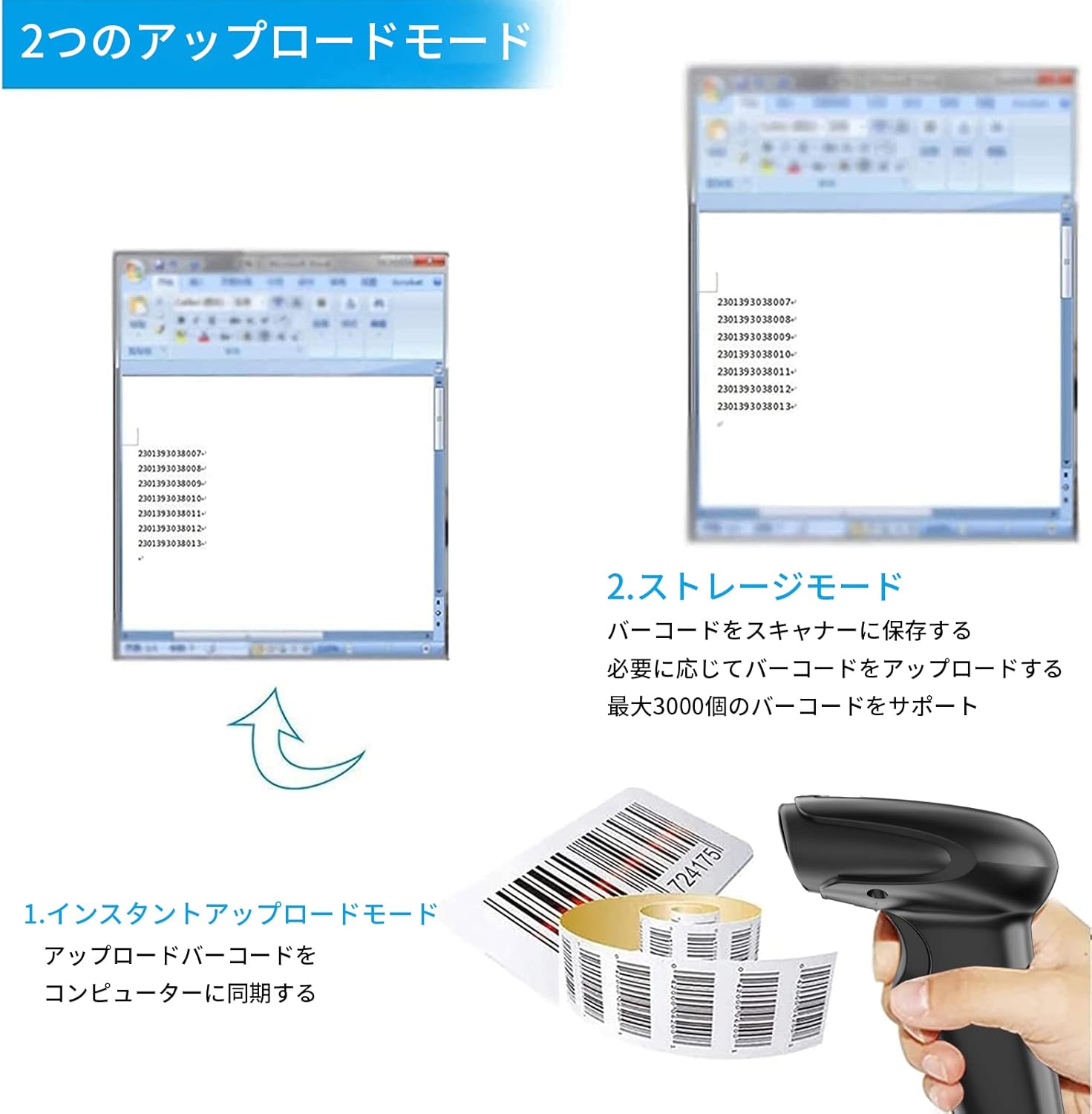
Figure 3: Illustration of Instant Upload and Storage Modes.
4.3 Programmable Barcodes
The Symcode MJ-2030-W scanner allows for customization of barcode data output:
- Ntọala mbido na mgbakwunye: You can configure the scanner to add a specific prefix or suffix to each scanned barcode data.
- Character Insertion/Deletion: Specific characters can be inserted or deleted from the scanned data.
Refer to the separate programming guide (if included) or the manufacturer's website for detailed instructions on how to program these settings by scanning specific configuration barcodes.

Figure 4: Scanner demonstrating programmable barcode features.
5. Batrị na Nchaji
The scanner is equipped with a 2000mAh rechargeable battery. For optimal performance, ensure the battery is fully charged before first use.
- Oge nchaji: Ihe dị ka awa 3-4 maka ụgwọ zuru ezu.
- Ogologo oge ọrụ: A full charge can provide up to 12,000 hours of standby time or approximately 74,000 scans.
- Ụzọ nchaji: Connect the scanner to a computer or a USB power adapter using the provided USB cable.

Figure 5: Battery specifications and shock-resistant design.
6. Nlekọta
- Nhicha: Use a soft, dry cloth to clean the scanner's exterior. For the scanning window, use a soft, lint-free cloth slightly dampened with water or a mild cleaning solution. Avoid abrasive cleaners or solvents.
- Nchekwa: Debe ihe nyocha ahụ n'ebe dị jụụ ma kpọọ nkụ, ebe anwụ na-anaghị apụta kpọmkwem na oke okpomọkụ.
- Ogologo oge: The scanner features a black silicone protective cover with IP54 rating, designed to protect the glass window from scratches and the unit from drops up to 6.56 feet (2 meters).
7. Nchọpụta nsogbu
7.1 Scanner anaghị azaghachi
- Ensure the scanner is turned on and fully charged.
- For wireless connection, verify the mini USB receiver is securely plugged into the computer and the scanner is within range. Try re-pairing if necessary (refer to the programming guide for pairing instructions).
- For wired connection, ensure the USB cable is properly connected to both the scanner and the computer. Try a different USB port.
7.2 Barcodes Not Scanning
- Ensure the barcode is clear, undamaged, and well-lit.
- Hazie anya na akụkụ dị n'etiti ihe nyocha na barcode.
- Check if the scanner is in the correct operating mode (e.g., not in a configuration mode).
7.3 Unexpected Sound Volume
If the scanner's beep volume is too loud or too quiet, refer to the programming guide for specific barcodes that allow adjustment of the sound settings.
7.4 Ihe Ndị Na-efu
If any components, such as the receiver or a programming code sheet, are missing from your package, please contact customer support immediately.
8. Nkọwapụta
| Njirimara | Nkọwapụta |
|---|---|
| Ụdị | akara ngosi |
| Nọmba nlereanya | MJ-2030-W |
| Agba | Ọcha |
| Akụkụ | 17.53 x 8.38 x 11.43 cm |
| Ibu | 280.66 g |
| Isi Iyi Ike | Akwanyere batrị |
| Teknụzụ Njikọta | 2.4GHz Wireless, USB Cable |
| Ike batrị | 2000mAh |
| Wireless Range (Outdoor) | Ruo 200m |
| Wireless Range (Indoor) | Ruo 100m |
| Ike nchekwa | Approx. 1000 barcodes (offline mode) |
| Wepu Nguzogide | Ruo 6.56 ụkwụ (mita 2) |
| Ogo nchekwa | IP54 |

Figure 6: Wireless transmission distance capabilities.
9. Akwụkwọ ikike na nkwado
Symcode products are designed for reliability and performance. For warranty information, technical support, or service inquiries, please refer to the contact information provided with your purchase or visit the official Symcode website. Please have your product model number (MJ-2030-W) and purchase details ready when contacting support.