
1. Ngwaahịa gafereview
The MAIWO K16N is an aluminium external enclosure designed to transform your M.2 SATA SSD into a portable USB 3.1 Gen1 storage device. It supports data transfer speeds of up to 5Gbps and features UASP (USB Attached SCSI Protocol) for enhanced performance. The durable and lightweight aluminium construction ensures optimal heat dissipation. This enclosure is compatible with 2230, 2242, 2260, and 2280 M.2 NGFF B-key and B&M-key SSDs and supports TRIM functionality.
2. Ihe ngwugwu
Biko chọpụta na agụnyere ihe niile edepụtara n'okpuru na ngwugwu gị:
- MAIWO K16N M.2 SSD Enclosure
- USB 3.1 Gen1 Micro-B to USB-A Cable
- Obere screwdriver
- Mounting Screws for SSD
- Akwụkwọ ntuziaka (akwụkwọ a)
- Akwụkwọ ikike kaadị
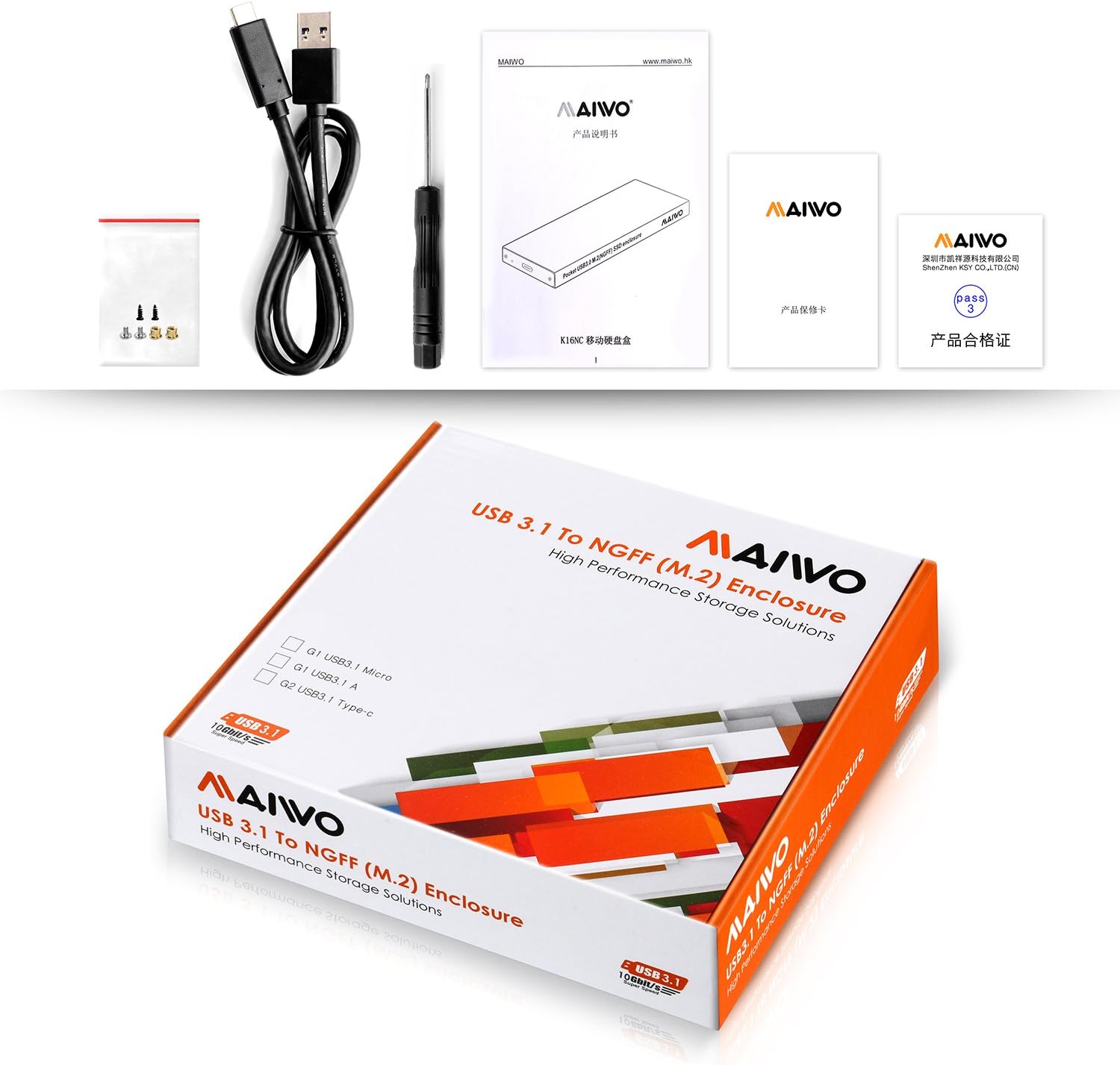
Foto 2.1: Contents of the MAIWO K16N package. Includes the enclosure, a USB cable, a small screwdriver, mounting screws, a user manual, and a warranty card.
3. Ntọala na nwụnye
Follow these steps to install your M.2 SSD into the MAIWO K16N enclosure.
3.1. Disssembly
- Using the provided screwdriver, carefully remove the screw securing the end cap of the enclosure.
- Slide out the internal circuit board (PCB) from the aluminium casing.

Foto 3.1: The MAIWO K16N enclosure disassembled, showing the main aluminium body, the internal circuit board (PCB) with the M.2 slot, and the small screws for assembly.
3.2. SSD Installation
- Align your M.2 NGFF B-key or B&M-key SSD with the M.2 slot on the internal PCB. Gently insert the SSD into the slot at an angle.
- Once inserted, push the SSD down and secure it with the small screw provided, ensuring it is flush with the PCB. The enclosure supports 2230, 2242, 2260, and 2280 M.2 SSD sizes.
3.3. Nhazigharị
- Carefully slide the assembled PCB with the SSD back into the aluminium casing. Ensure the USB port aligns with the opening on the end cap.
- Reattach the end cap and secure it with the screw using the screwdriver.

Foto 3.2: A hand demonstrating the insertion of the M.2 SSD circuit board into the MAIWO K16N aluminium enclosure.

Foto 3.3: A screwdriver being used to secure the end cap of the MAIWO K16N enclosure, completing the assembly process after the SSD has been installed.
4. Ntuziaka ọrụ
4.1. Ijikọ na Kọmputa
Connect the MAIWO K16N enclosure to your computer using the provided USB 3.1 Gen1 Micro-B to USB-A cable. Plug the Micro-B end into the enclosure and the USB-A end into an available USB port on your computer. For optimal performance, use a USB 3.0 or USB 3.1 port.
4.2. Ihe ngosi LED
The enclosure features an LED indicator:
- Blue siri ike: Indicates the enclosure is powered on and connected.
- Blue na-egbu maramara: Indicates data activity (reading or writing data to the SSD).

Foto 4.1: The MAIWO K16N enclosure held in a hand, illustrating its compact and portable design.
4.3. Initializing the SSD (New SSDs Only)
If you are using a brand new SSD, it may need to be initialized and formatted before it can be used. This process is typically done through your operating system's Disk Management utility (Windows) or Disk Utility (macOS).
- Windows: Right-click on "This PC" or "My Computer", select "Manage", then "Disk Management". Locate your new SSD, initialize it (MBR or GPT), and create a new simple volume.
- MacOS: Open "Disk Utility" (Applications > Utilities). Select your new SSD, erase it, and choose a format (e.g., APFS, Mac OS Extended).
5. Nlekọta
To ensure the longevity and optimal performance of your MAIWO K16N enclosure:
- Nhicha: Jiri akwa dị nro ma kpọọ nkụ hichaa mpụta nke ogige ahụ. Zere iji ihe nhicha mmiri ma ọ bụ ihe mgbaze.
- Nchekwa: Chekwaa ogige ahụ n'ebe dị jụụ, kpọrọ nkụ pụọ na ìhè anyanwụ kpọmkwem na oke okpomọkụ.
- Ijikwa: Jikwaa ihe mkpuchi ahụ nke ọma iji gbochie mmebi anụ ahụ.
- Firmware: Periodically check the MAIWO official website for any available firmware updates for the chipset (Asmedia 1153E) to ensure compatibility and performance.
6. Nchọpụta nsogbu
If you encounter issues with your MAIWO K16N enclosure, refer to the following common problems and solutions:
| Nsogbu | Ihe nwere ike ime | Ngwọta |
|---|---|---|
| Kọmputa ahụghị ihe mkpuchi ahụ. |
|
|
| Ọsọ mbufe data dị nwayọ. |
|
|
| Ihe ngosi LED anaghị agba ọkụ. |
|
|
7. Nkọwapụta
| Njirimara | Nkọwa |
|---|---|
| Nọmba nlereanya | K16N |
| Interface Mpụga | 1x SuperSpeed USB 3.1 Gen1 (5Gbps) Micro-B |
| Interface | 1x 67-Pin M.2 (B-Key / B&M-Key NGFF SATA) |
| Supported SSD Types | M.2 NGFF SATA SSDs (B-Key or B&M-Key) |
| Nha SSD akwadoro | 2230, 2242, 2260, 2280 |
| Chipset | Asmedia 1153E |
| Ọnụego mbufe data | Up to 5Gbps (USB 3.1 Gen1) |
| Ihe onwunwe | Aluminom |
| Agba | Silver (Note: Product image may show black, but current stock is silver as per product description) |
| Nkwado UASP | Ee |
| TRIM Support | Ee |
| Ihe ngosi LED | Power and Data Activity |
| OS dakọtara | Windows, macOS, Linux (driver-free) |
8. Akwụkwọ ikike na nkwado
MAIWO products are designed for reliability and performance. This product comes with a standard manufacturer's warranty. For specific warranty terms and conditions, please refer to the warranty card included in your package or visit the official MAIWO websaịtị.
If you require technical assistance or have any questions regarding your MAIWO K16N enclosure, please contact MAIWO customer support through their official channels. You can often find contact information on the MAIWO brand store or their official websaịtị.