
1. Okwu mmalite
Welcome to the user manual for your ID TECH Keypad. This manual provides essential information for the proper setup, operation, and maintenance of your device. Please read this manual thoroughly before using the product to ensure safe and efficient operation.
Ihe ndetu dị mkpa: This device requires merchant encryption and key injection to function as a payment terminal and accept cards. It will not work out of the box for card processing without these prerequisites.
2. Ngwaahịa gafereview
The ID TECH Keypad (Model IDSK-534833TEB) is a robust and compact access-control keypad designed for various applications. It features a numeric keypad, function keys, and a display for user interaction.
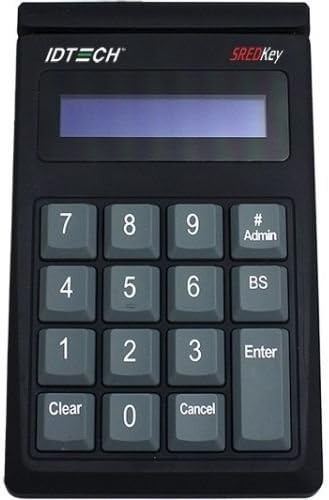
Foto 2.1: N'ihu view of the ID TECH Keypad, showing the display, numeric keys (0-9), and function keys like 'Clear', 'Cancel', 'Enter', 'BS', and '# Admin'.
2.1 Atụmatụ
- USB Connectivity: Easily connects to host systems via a standard USB interface.
- Numeric Keypad: Standard 0-9 numeric input.
- Function Keys: Includes Clear, Cancel, Enter, Backspace (BS), and Admin (# Admin) keys.
- Integrated Display: Provides visual feedback for operations.
- Durable Construction: Made from Acrylonitrile Butadiene Styrene (ABS) for longevity.
3. Nhazi
3.1 Njikọ mbụ
- Unpack the ID TECH Keypad from its packaging.
- Locate the USB cable attached to the keypad.
- Connect the USB cable to an available USB port on your computer or host system.
- The system should automatically detect the device. Driver installation may be required depending on your operating system; refer to your system's documentation if prompted.
3.2 Encryption and Key Injection (Crucial for Card Acceptance)
For the ID TECH Keypad to function as a payment terminal and securely accept credit cards, it requires specific merchant encryption and key injection. This process is typically performed by a certified technician or your payment processor. The device will not process card transactions without this critical step. Contact your payment solution provider or ID TECH support for guidance on encryption and key injection services.
4. Ntuziaka ọrụ
4.1 Basic Keypad Functions
- Igodo ọnụọgụ (0-9): Used for entering numerical data, such as PINs, access codes, or amounts.
- Kpochapụ: Erases the current input or cancels the current operation.
- Kagbuo: Stops the current process or returns to the previous menu/state.
- Banye: Confirms an entry or proceeds to the next step.
- BS (Backspace): Deletes the last character entered.
- # Admin: Typically used to access administrative functions or special modes. Refer to your specific application software for its exact use.
4.2 Iji Ngosipụta
The integrated display provides visual prompts, confirms entries, and shows transaction status. Follow the instructions displayed on the screen during operation.
4.3 Card Acceptance (Post-Encryption)
Once the device has been properly encrypted and keys injected, it can be used to accept card payments. The exact procedure will depend on your point-of-sale (POS) software or application. Generally, this involves:
- Initiating a transaction on your POS system.
- Prompting the customer to enter their PIN or other required information on the keypad.
- The keypad securely transmits the data to the host system for processing.
5. Nlekọta
5.1 Nhicha
- Disconnect the keypad from its power source (USB) before cleaning.
- Jiri nro dị nro damp akwa iji hichaa mpụta nke ngwaọrụ ahụ.
- Do not use harsh chemicals, abrasive cleaners, or solvents, as these can damage the plastic and electronic components.
- Ensure no liquid enters the device through openings.
5.2 Nchekwa
When not in use, store the keypad in a cool, dry place, away from direct sunlight and extreme temperatures. Protect it from dust and excessive moisture.
6. Nchọpụta nsogbu
6.1 Okwu nkịtị na Ngwọta
- Kọmputa amataghị ngwaọrụ:
- Ensure the USB cable is securely connected to both the keypad and the computer.
- Gbalịa jikọọ na ọdụ ụgbọ USB dị iche.
- Malitegharịa ekwentị gị na kọmputa.
- Check your operating system's device manager for any driver issues.
- Ahụigodo Anaghị aza:
- Verify the device is powered on (if applicable, though USB powered).
- Kwupu ma megharia eriri USB.
- Ensure no physical obstructions are preventing key presses.
- Cannot Accept Credit Cards:
- This is the most common issue: The ID TECH Keypad requires merchant encryption and key injection to securely process card transactions. If this has not been done, the device will not accept cards. Contact your payment processor or ID TECH support for assistance with this critical setup step.
- Ensure your POS software is correctly configured to communicate with the keypad.
7. Nkọwapụta
| Njirimara | Nkọwa |
|---|---|
| Nọmba nlereanya | IDSK-534833TEB |
| Teknụzụ Njikọta | USB |
| Agba | Nwa |
| Ihe onwunwe | Acrylonitrile Butadiene Styrene |
| Ibu Ibu | 12.8 ounces (ihe dị ka gram 363) |
| Akụkụ ngwaahịa | 10 x 2 x 2.7 sentimita (ihe dịka 25.4 x 5.1 x 6.9 cm) |
| Ọnụọgụ igodo | 10 (Numeric) + Function Keys |
| Ngwa gụnyere | Ọnụ |
8. Akwụkwọ ikike na nkwado
For information regarding product warranty, please refer to the warranty card included with your purchase or visit the official ID TECH website. For technical support, troubleshooting assistance, or inquiries about encryption and key injection services, please contact ID TECH customer support directly.
ID TECH Official Websaịtị: www.idtechproducts.com
Note: Specific contact details may vary by region. Please check the official websaịtị maka ozi nkwado kachasị ọhụrụ.