
Xprinter XP-Q200
Xprinter XP-Q200 Thermal Printer User Manual
Model: XP-Q200
Aha: Xprinter
1. Okwu mmalite na gafereview
This manual provides detailed instructions for the setup, operation, and maintenance of your Xprinter XP-Q200 80mm Thermal Printer. The XP-Q200 is a high-speed thermal receipt printer designed for various operating systems including Windows, Android, and iOS. It offers versatile connectivity options such as USB, Bluetooth, and Ethernet, making it suitable for a wide range of business environments.

Foto 1.1: N'ihu view of the Xprinter XP-Q200 Thermal Printer.
2. Ozi nchekwa
Please read the following safety precautions carefully before using the printer to ensure safe and proper operation:
- Do not touch the thermal print head immediately after printing, as it may be hot.
- Use only the power adapter supplied with the printer. Using an incorrect adapter may damage the printer or cause fire.
- Do not disassemble or modify the printer. Refer all servicing to qualified personnel.
- Keep the printer away from water, moisture, and direct sunlight.
- Ensure the printer is placed on a stable, level surface.
3. Ihe ngwugwu
Nyochaa na etinyere ihe niile edepụtara n'okpuru na ngwungwu ngwa nbipute gị:
- Xprinter XP-Q200 Thermal Printer Unit
- Ihe nkwụnye ọkụ
- eriri USB
- Thermal Paper Roll (initial)
- Akwụkwọ ntuziaka onye ọrụ
4. Akụrụngwa Ngwaahịa
The Xprinter XP-Q200 offers a range of features designed for efficient and reliable thermal printing:
- Mbipụta Ọsọ Ọsọ: Achieves print speeds of up to 260mm/sec with an integrated auto cutter.
- Otutu interface: Equipped with USB, Bluetooth, and Ethernet connectivity for flexible integration.
- Ndakọrịta sara mbara: Supports Windows, Linux, and Android operating systems.
- Logo and Barcode Support: Allows for downloading and printing of store logos (BMP file format) and various barcode types on thermal paper.
- Ijikwa akwụkwọ: Designed to handle thermal paper rolls up to 80x80mm.
- International Language Support: Supports a variety of international languages and scripts.
- Mkpu njehie: Features print job tips and error alarm functions for operational awareness.
- Black Mark Detection: Includes a black mark detection function for specific printing applications.
- Missing Orders Function: Incorporates a feature to help avoid "missing orders."
- Ike nlekota: Supports Ethernet and Serial port monitoring functions.
- NV Logo Storage: Provides 256K Bytes of NV Logo download storage.
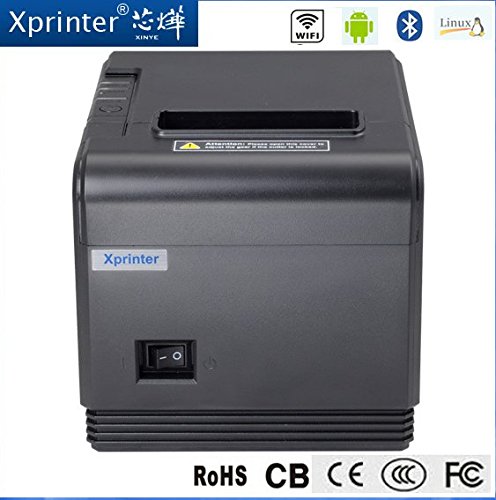
Foto 4.1: N'ihu view highlighting connectivity options.
5. Nhazi
5.1 Nhazi anụ ahụ
- Unpack the printer and remove all protective packaging materials.
- Place the printer on a stable, flat surface near a power outlet and your host device.
- Jikọọ ihe nkwụnye ike ahụ na ọdụ ọkụ nke ngwa nbipute ahụ wee tinye ya na oghere mgbidi.
5.2 Na-ebunye akwụkwọ ọkụ
- Press the cover open button (usually located on the side or front) to open the printer's top cover.
- Insert the thermal paper roll into the paper compartment with the printing side facing the thermal print head. Ensure the roll unwinds from the bottom.
- Were obere mpempe akwụkwọ gafere n'obe ahụ.
- Close the top cover firmly until it clicks into place. The printer will automatically feed the paper to the correct position.
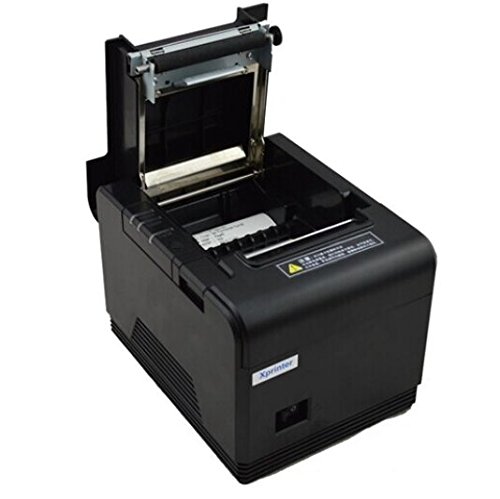
Figure 5.1: Loading thermal paper into the printer.
5.3 Ijikọ na ngwaọrụ
The XP-Q200 supports USB, Bluetooth, and Ethernet connections.

Ọgụgụ 5.2: N'azụ view of the printer with connectivity ports.
5.3.1 USB njikọ
- Connect one end of the USB cable to the printer's USB port and the other end to your computer's USB port.
- The computer should detect the printer automatically.
5.3.2 Bluetooth Connection (for Android/iOS)
- Gbaa mbọ hụ na agbanyere ngwa nbipute.
- On your Android or iOS device, go to Bluetooth settings and enable Bluetooth.
- Chọọ maka available devices. The printer should appear as "XP-Q200" or similar.
- Select the printer to pair. The default PIN is usually "0000" or "1234".
- Once paired, you can select the printer from your application's print settings.
5.3.3 Njikọ Ethernet
- Jikọọ eriri Ethernet site na ọdụ ụgbọ mmiri Ethernet nke ngwa nbipute na rawụta netwọk gị ma ọ bụ gbanwee.
- The printer will obtain an IP address automatically via DHCP. For static IP configuration, refer to the advanced settings utility provided with the printer drivers.
5.4 Nwụnye ọkwọ ụgbọala
For Windows and Linux systems, you will need to install the appropriate printer drivers. Drivers are typically available on the Xprinter official website or on a CD included with the printer. Follow the on-screen instructions during installation.
6. Ntuziaka ọrụ
6.1 Mbipụta bụ isi
Once the printer is connected and drivers are installed (if applicable), you can send print jobs from your application. Ensure the printer is powered on and has paper loaded.
- From your application (e.g., POS software, web browser), select the print option.
- Choose "Xprinter XP-Q200" from the list of available printers.
- Adjust any print settings as needed (e.g., paper size, copies).
- Click "Print" to send the job to the printer.
6.2 Logo and Barcode Printing
The XP-Q200 supports custom logo and barcode printing. Refer to the printer's utility software (usually provided with drivers) for instructions on how to upload logos (BMP format) to the printer's NV memory and configure barcode printing settings.
7. Nlekọta
7.1 Na-ehicha ngwa nbipute
Ịsacha ihe mgbe niile na-enyere aka ịnọgide na-enwe mma mbipụta ma na-agbatị ndụ onye na-ebipụta ihe.
- Isi Bipụta: Jiri ákwà owu mee obere ihe.ampened with isopropyl alcohol to gently wipe the thermal print head. Allow it to dry completely before closing the cover. Clean the print head regularly, especially if print quality degrades.
- Platen Roller: Clean the rubber platen roller with a soft cloth dampetinyere ya na mmanya isopropyl.
- Mputa: Wipe the exterior of the printer with a soft, dry cloth. Do not use abrasive cleaners or solvents.
7.2 Mkpochapụ akwụkwọ Jams
If a paper jam occurs:
- Gbanyụọ ngwa nbipute.
- Mepee mkpuchi elu.
- Carefully remove any jammed paper. Ensure no small pieces of paper remain inside.
- Mechie mkpuchi elu ahụ nke ọma.
- Turn the printer back on.
8. Nchọpụta nsogbu
This section addresses common issues you might encounter with your XP-Q200 printer.
| Nsogbu | Ihe nwere ike ime | Ngwọta |
|---|---|---|
| Printer does not power on | Power cable loose; Power outlet faulty; Power adapter faulty | Check power connections; Try a different outlet; Contact support if adapter is faulty. |
| Enweghị mmepụta mbipụta | No paper; Paper loaded incorrectly; Printer offline; Driver issue | Load paper correctly; Check printer status; Reinstall drivers. |
| Ọdịmma ebipụta na-adịghị mma | Print head dirty; Low quality paper; Print head worn out | Clean print head; Use recommended thermal paper; Contact support for service. |
| Mpempe akwụkwọ | Paper loaded incorrectly; Foreign object inside | Refer to Section 7.2 for clearing jams. |
| Bluetooth/Ethernet connection fails | Incorrect pairing; Network issue; IP address conflict | Re-pair device; Check network cables/settings; Verify IP address. |
9. Nkọwapụta
| Njirimara | Nkọwapụta |
|---|---|
| Aha Nlereanya | XP-Q200 |
| Teknụzụ obibi akwụkwọ | Thermal |
| Ọsọ Bipụta | 260 mm / sk |
| Mmepụta ngwa nbipute | Monochrome |
| Teknụzụ Njikọta | Bluetooth, USB, Ethernet |
| Nha mpempe akwụkwọ | Thermal (80mm) |
| Mbipụta nwere akụkụ abụọ | Ee |
| Agba | Nwa |
| Ụdị njikwa | iOS, Android |
| Ngwa gụnyere | Akwụkwọ |
| Njirimara Pụrụ Iche | USB |
| Ụdị nyocha | Enwere ike ibugharị |
Ask a question about this manual
Ask about setup, troubleshooting, compatibility, parts, safety, or missing instructions. Manuals+ will review the question and use this page’s manual context to help answer it.