
Coby CVG-02-RC
Coby CVG-02-RC Virtual Reality Goggles User Manual
Model: CVG-02-RC
Okwu mmalite
This manual provides essential instructions for the safe and effective use of your Coby CVG-02-RC Virtual Reality Goggles. Please read this manual thoroughly before using the device and retain it for future reference.
The Coby CVG-02-RC transforms your smartphone into a 3D virtual reality headset, offering an immersive experience for compatible VR applications and content. It features adjustable optics and comes with a wireless remote control for enhanced interaction.
Ozi nchekwa
- Do not use the VR goggles while operating a vehicle or machinery, or in situations requiring full attention to your surroundings.
- Take frequent breaks during use to prevent eye strain, dizziness, or discomfort. If you experience any discomfort, discontinue use immediately.
- Ensure your surroundings are clear of obstacles to avoid injury while immersed in virtual reality.
- Keep the device away from direct sunlight, high temperatures, and moisture.
- Do not attempt to disassemble or modify the device. This will void the warranty and may cause damage.
- This device is not suitable for children under 13 years of age. Adult supervision is recommended for younger users.
Ihe ngwugwu
Chọpụta na ihe niile dị na ngwugwu:
- Coby CVG-02-RC Virtual Reality Goggles
- Njikwa ime ikuku ikuku
- Akwụkwọ ntuziaka (akwụkwọ a)
Ngwaahịa gafereview
Familiarize yourself with the components of your Coby VR Goggles.
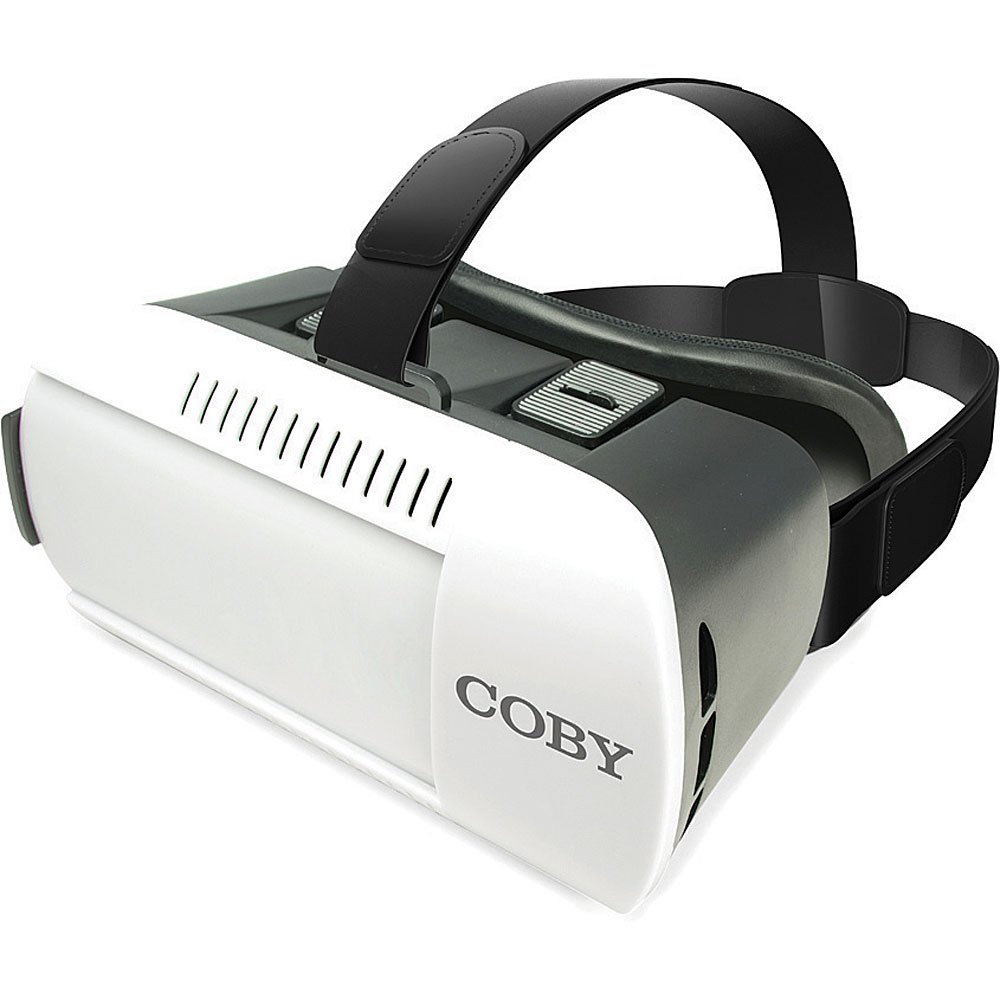
Foto 1: N'ihu view of the Coby CVG-02-RC Virtual Reality Goggles. This image shows the main body of the goggles, including the adjustable head strap, the padded face cushion, and the lenses visible from the user's perspective. The top features adjustment sliders for lens positioning.
Goggles Components:
- eriri isi nwere ike idozi: Secures the goggles to your head.
- Padded Face Cushion: Provides comfort and blocks external light.
- Spherical Lenses: Provide the 3D virtual reality view.
- Lens Adjustment Dials/Sliders: Located on top, these allow for focus and interpupillary distance (IPD) adjustments.
- Smartphone Tray/Compartment: Front section where the smartphone is inserted.
Njikwa ikuku ikuku:
The remote control typically includes buttons for navigation, selection, and volume, enhancing interaction within VR applications. Refer to the remote's specific instructions for detailed button functions.
Melite
1. Inserting Your Smartphone
- Open the front cover of the VR goggles. This usually involves unlatching or sliding the front panel.
- Place your smartphone into the designated tray or holder. Ensure the phone is centered and securely held. The screen should face the lenses.
- Mechie mkpuchi ihu nke ọma.
- Mara: The goggles are compatible with smartphones up to 6 inches in screen size.
2. Adjusting the Head Straps
- Place the goggles on your head.
- Adjust the side and top straps to achieve a comfortable and secure fit. The goggles should feel snug but not overly tight, and the image should be centered in your vision.
3. Pairing the Wireless Remote Control
- Gbaa mbọ hụ na agbanyere Bluetooth nke ama gị.
- Turn on the wireless remote control (refer to the remote's specific instructions for power on/off).
- On your smartphone, search for available Bluetooth devices.
- Select the remote control from the list (e.g., "VR-Remote" or similar) to pair.
- Once paired, the remote can be used to navigate within VR applications.
4. Downloading VR Applications
For the best experience, download virtual reality applications from your smartphone's app store:
- Maka ngwaọrụ iOS: Gaa leta Ụlọ ahịa Apple App and search for "VR games," "3D split screen," or "virtual reality."
- Maka ngwaọrụ gam akporo: Gaa leta Ụlọ ahịa Google Play and search for "VR games," "3D split screen," or "virtual reality."
Many VR apps are designed for split-screen viewing, which is necessary for these goggles.
Na-arụ ọrụ
Using the VR Goggles
- Launch a VR application on your smartphone. The screen should display a split-screen view.
- Insert your smartphone into the goggles as described in the "Setup" section.
- Put on the goggles and adjust the head straps for comfort.
- Use the lens adjustment dials/sliders on the top of the goggles to achieve a clear and focused image. Adjust both the focus (distance from lenses to screen) and the interpupillary distance (IPD - distance between the centers of the lenses) until the image is sharp and comfortable for both eyes.
- Use the wireless remote control to interact with the VR application.
Adjusting Lenses
The Coby CVG-02-RC features adjustable dual optics to optimize your viewahụmahụ nke:
- Ndozi anya: Slide the dials on the top of the goggles forward or backward to adjust the clarity of the image. This compensates for different vision needs.
- Mmezi IPD (Interpupillary Distance) Slide the dials left or right to adjust the distance between the lenses. This aligns the lenses with your eyes for a single, clear 3D image.

Foto 2: N'elu view of the Coby CVG-02-RC Virtual Reality Goggles, highlighting the lens adjustment sliders. These sliders allow users to fine-tune the focus and interpupillary distance for optimal viewinwe nkasi obi na nghọta doro anya.
Nlekọta
- anya anya nhicha: Use a soft, dry microfiber cloth specifically designed for optical lenses. Do not use abrasive cleaners or paper towels.
- Cleaning Goggles Body: Jiri ihe dị nro, dị ntakịrị hichaa mpụta ya.amp ákwà. Zere ka mmiri ghara ịbanye n'ime oghere ọ bụla.
- Nchekwa: Store the goggles in a cool, dry place away from direct sunlight and dust. Use the original packaging or a protective case if available.
- Padded Cushion: The foam padding can be gently wiped with a damp cloth and mild soap if necessary. Ensure it is completely dry before use.
Nchọpụta nsogbu
| Nsogbu | Ihe nwere ike ime | Ngwọta |
|---|---|---|
| Foto ahụ adịghị mma ma ọ bụ na-apụtaghị ìhè. | Incorrect lens adjustment. | Adjust the focus and IPD dials/sliders on top of the goggles until the image is clear. |
| Double vision or eye strain. | Incorrect IPD adjustment; phone not centered. | Adjust the IPD dials to match your eye distance. Ensure your smartphone is perfectly centered in the tray. Take a break. |
| Remote control not connecting. | Bluetooth not enabled; remote not powered on; remote not paired. | Ensure Bluetooth is on your phone. Power on the remote. Re-pair the remote via your phone's Bluetooth settings. Check remote battery. |
| No 3D effect or distorted image. | App not designed for VR; phone not properly seated. | Ensure the app displays a split-screen VR view. Re-seat your smartphone securely and centered in the goggles. |
| Smartphone overheating. | Extended use of demanding VR apps. | Remove the phone from the goggles and allow it to cool down. Reduce usage time for demanding applications. |
Nkọwapụta
- Ụdị: CVG-02-RC
- Ubi nke View (FOV): 98-99 ogo
- Ụdị oghere: High Transparency Spherical Lens
- Ndakọrịta na ama: Up to 6 inches screen size (iOS/Android)
- Connectivity (Remote): Bluetooth
- Akụkụ ngwaahịa: 13 x 14 x 20 inch (ihe dị ka kwa data ngwaahịa)
- Ibu ihe: Paụnd 1.2 (ihe dịka, dịka data ngwaahịa si dị)
- Onye nrụpụta: Coby
Akwụkwọ ikike na nkwado
For warranty information and technical support, please refer to the warranty card included with your product or visit the official Coby websaịtị. Debe nnata nzụta gị ka ihe akaebe nke ịzụrụ.
For further assistance, you may contact Coby customer service through their official channels.
Ask a question about this manual
Ask about setup, troubleshooting, compatibility, parts, safety, or missing instructions. Manuals+ will review the question and use this page’s manual context to help answer it.