
Okwu mmalite
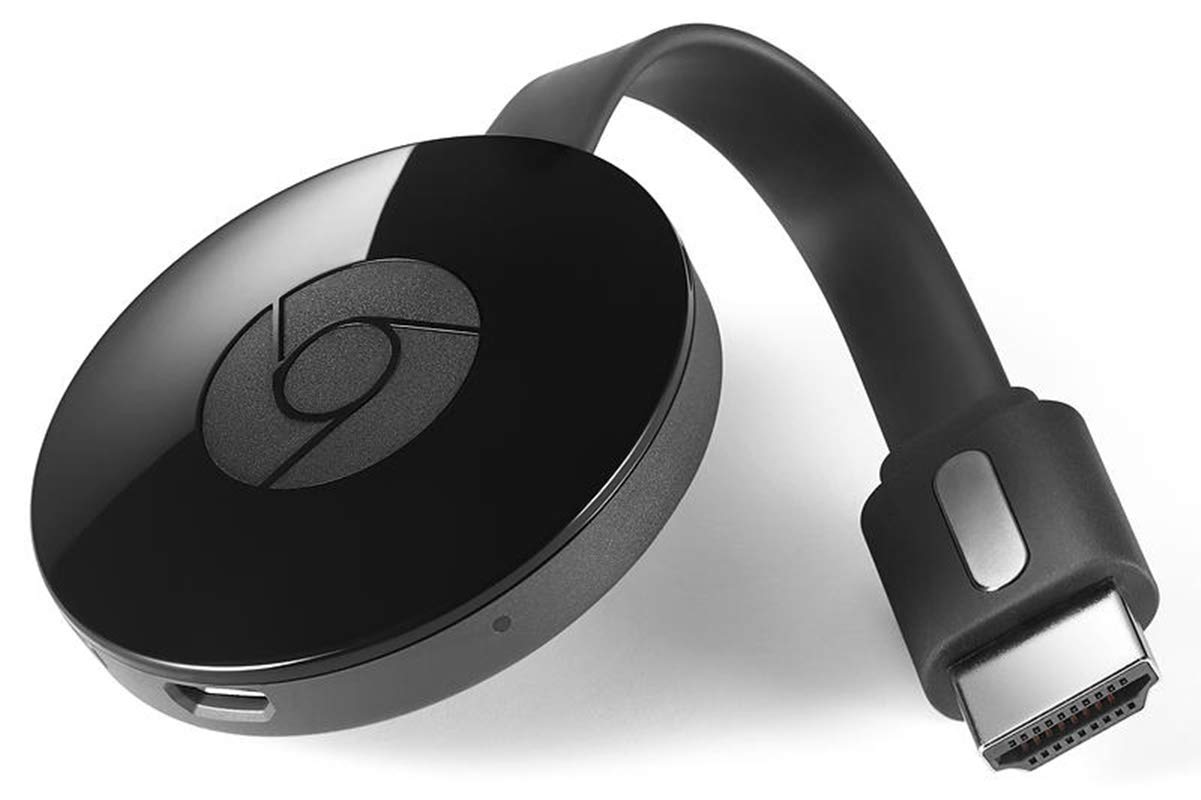
The Google NC2-6A5 Chromecast is an HDMI streaming media player designed to bring online content to your television. This compact device allows you to cast videos, music, and other media from your smartphone, tablet, or laptop directly to any HDTV with an HDMI port. It offers a simple and convenient way to transform your existing television into a smart TV, providing access to a wide range of streaming services and applications.
Melite
Kedu ihe gụnyere
- Google Chromecast device
- Ihe nkwụnye ọkụ
- USB ike eriri USB
Nzọụkwụ Njikọ
- Plug Chromecast into your HDTV: Locate an available HDMI port on your television and firmly insert the Chromecast device.
- Jikọọ na ike: Use the provided USB power cable and power adapter to connect the Chromecast to a power outlet. Ensure the device powers on, indicated by a small LED light.
- Select HDMI input: On your TV, use your remote control to select the HDMI input corresponding to the port where your Chromecast is connected.
Nhazi izizi
- Download Google Home app: On your smartphone or tablet, download and open the Google Home app.
- Jikọọ na Wi-Fi: Follow the on-screen instructions in the Google Home app to connect your Chromecast to your home Wi-Fi network.
- Jikọọ Akaụntụ Google: Sign in with your Google account to personalize your Chromecast experience.
Ntuziaka ọrụ
Ọdịnaya nkedo
Once setup is complete, you can cast content from compatible apps on your smartphone, tablet, or computer. Look for the Cast icon (a rectangle with a Wi-Fi symbol in the corner) within your favorite streaming apps (e.g., YouTube, Netflix, Hulu) and tap it to select your Chromecast device.
Iji Remote Control
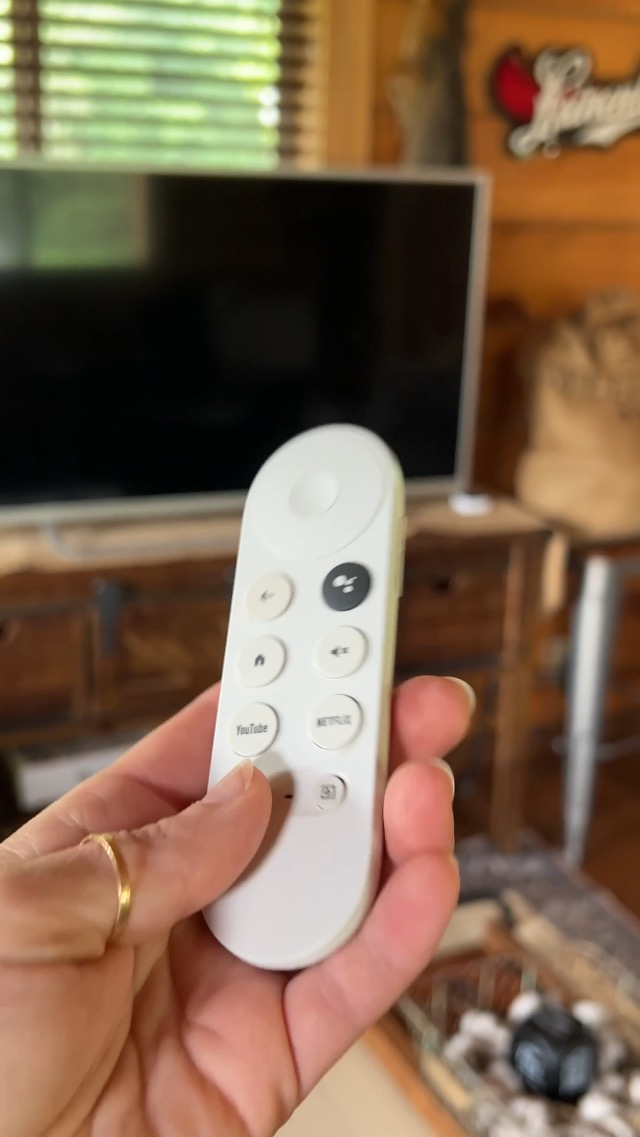
The included remote control allows for easy navigation and control of your Chromecast. It features directional buttons, volume control, and dedicated buttons for popular streaming services like YouTube and Netflix.

Njikwa olu
The Chromecast supports voice control through Google Assistant. Press the microphone button on your remote and speak commands to search for content, control playback, or get information.
Nlekọta
Nlekọta izugbe
- Debe ngwaọrụ ahụ na mpaghara ikuku nke ọma ka ọ ghara ikpo ọkụ.
- Clean the device with a soft, dry cloth. Avoid liquid cleaners.
- Ewepụla ngwaọrụ ahụ na oke okpomọkụ ma ọ bụ iru mmiri.
Mmelite ngwanrọ
The Chromecast will automatically download and install system software updates to ensure optimal performance and access to the latest features. Ensure the device remains connected to power and the internet during update periods.
Nchọpụta nsogbu
Enweghị mgbama na TV
- Ensure the Chromecast is firmly plugged into the HDMI port.
- Hụ na edobere TV gị na isi mmalite ntinye HDMI ziri ezi.
- Check that the Chromecast is receiving power and its LED indicator is on.
Casting Issues
- Ensure your casting device (smartphone, tablet, laptop) is connected to the same Wi-Fi network as your Chromecast.
- Restart your Chromecast by unplugging it from the power source for 30 seconds and then plugging it back in.
- Malitegharịa ekwentị Wi-Fi gị.
Nkọwapụta
| Njirimara | Nkọwa |
|---|---|
| Ụdị | |
| Aha Nlereanya | H2G2-42 |
| Teknụzụ Njikọta | HDMI |
| Ụdị njikọ | HDMI |
| Mkpebi | 720p (Video Output Resolution: 1280x720) |
| Ọrụ ịntanetị akwadoro | Chromecast |
| Ụdị njikwa | Njikwa bọtịnụ |
| Ụdị Ihe | Mpempe TV |
| Agba | Nwa |
| Ngwa dakọtara | Televishọn, Ama ekwentị, Kọmputa nkeonwe, Laptọọpụ, Mbadamba |
| Codec vidiyo | H.264, H.265/HEVC |
| Ibu Ibu | 0.35 pound |
Akwụkwọ ikike
For detailed warranty information, please refer to the official Google product documentation included with your Chromecast or visit the Google support website. Standard warranty terms typically cover manufacturing defects for a limited period from the date of purchase.
Nkwado
For further assistance, troubleshooting tips, or to access the full user manual, please visit the official Google Chromecast support website. You can also find community forums and FAQs to help resolve common issues.
Vidiyo ndị emetụtara
No relevant official seller videos for this specific product were found in the provided data.