
1. Okwu mmalite
This manual provides detailed instructions for installing, configuring, and maintaining your GIGABYTE GA-B150M-D3H Micro ATX motherboard. The GA-B150M-D3H is designed to support 6th Generation Intel Core Processors and features Dual Channel DDR4 memory, PCIe Gen3 x4 M.2 connector, SATA Express, and 8-channel HD audio with Audio Noise Guard.
Please read this manual thoroughly before beginning installation to ensure proper setup and operation.
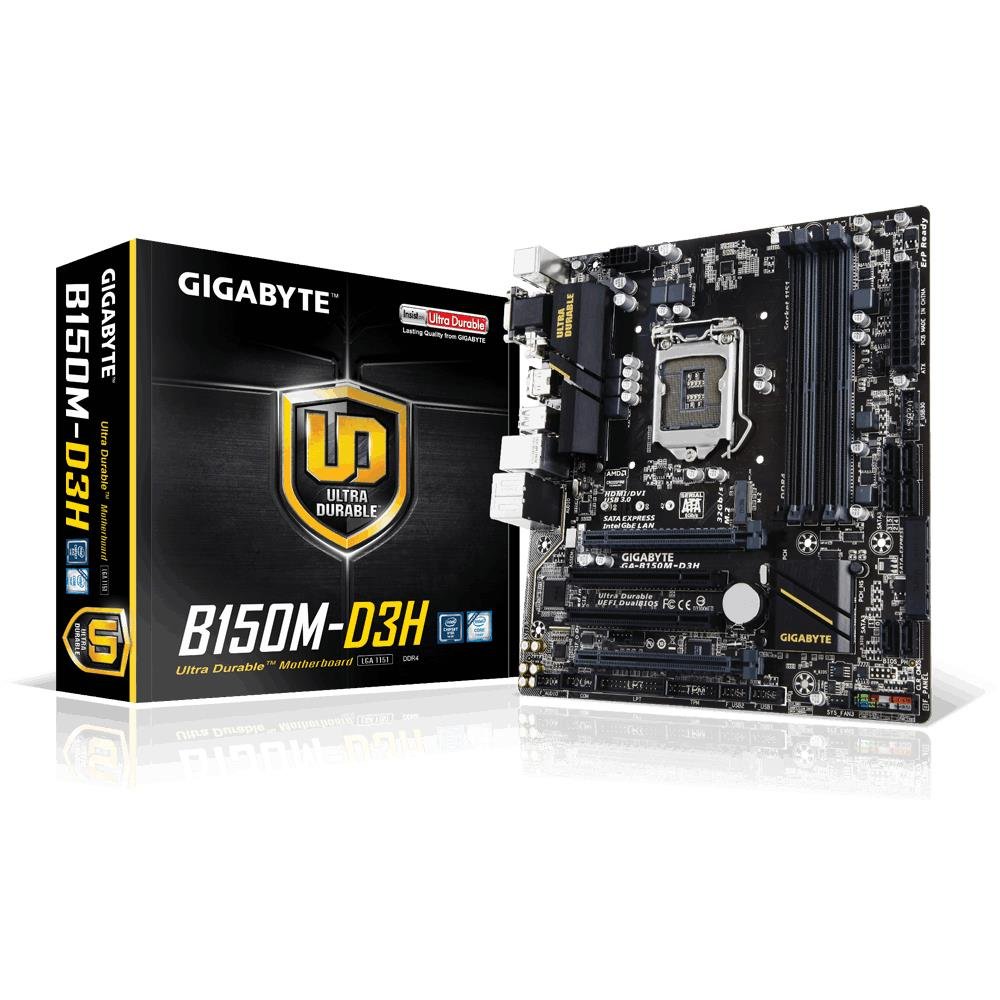
Image 1.1: GIGABYTE GA-B150M-D3H Micro ATX Motherboard. This image displays the overall layout of the motherboard, highlighting its compact Micro ATX form factor and various component slots.
2. Ozi nchekwa
Debe ihe nchekwa nchekwa ndị a iji gbochie mmebi nke motherboard na imerụ onwe gị ahụ:
- Kwụpụ mgbe ọ bụla eriri ọkụ na mpụga mgbidi tupu imetụ ihe ọ bụla aka.
- Yiri eriri nkwojiaka na-egbochi static ma ọ bụ metụ ihe igwe gbadoro ụkwụ aka ka ọ napụta ọkụ eletrik kwụ ọtọ.
- Jikwaa motherboard ahụ n'akụkụ ya iji zere imetụ ihe ndị dị nro aka.
- Debe motherboard ka ọ ghara iru mmiri na oke okpomọkụ.
- Gbaa mbọ hụ na ikuku ikuku dị mma n'ime akpa kọmputa iji gbochie ikpo oke ọkụ.
3. Ihe ngwugwu
Chọpụta na ihe niile dị na ngwugwu motherboard gị:
- GIGABYTE GA-B150M-D3H Motherboard
- Akwụkwọ ntuziaka onye ọrụ
- M / O Shield
- SATA Cables
- Driver CD/DVD
Note: Contents may vary slightly depending on region or revision.
4. Nhazi motherboard
Familiarize yourself with the various components and connectors on the GA-B150M-D3H motherboard.
Image 4.1: GIGABYTE GA-B150M-D3H Motherboard Layout. This image provides a visual reference for the location of key components such as the CPU socket, DIMM slots, PCIe slots, SATA ports, and M.2 connector.
Isi ihe:
- LGA 1151 CPU Socket: For 6th Generation Intel Core Processors.
- DDR4 DIMM Slots (4): Supports Dual Channel DDR4 memory up to 2133 MHz.
- PCIe oghere: Includes PCIe Gen3 x16 for graphics cards and PCIe x1 slots for expansion.
- M.2 Connector: Supports PCIe NVMe & SATA SSDs with up to 32Gb/s data transfer.
- SATA Express Connector: For up to 16Gb/s data transfer.
- ọdụ ụgbọ mmiri SATA 6Gb/s: For connecting traditional SATA storage devices.
- 24-Pin ATX Power Connector: Ntinye ike isi.
- 8-Pin ATX 12V Power Connector: Ntinye ike CPU.
- Ndị nkụnye eji isi mee panel: For power button, reset button, LED indicators, and USB ports.
- Njikọ ọdịyo: 8-channel HD Audio with high quality capacitors and Audio Noise Guard.
5. Ntọala na nwụnye
Soro usoro ndị a maka ntinye nke motherboard na components nke ọma.
5.1. Ịwụnye CPU
- Locate the LGA 1151 CPU socket.
- Mepee oghere oghere CPU wee bulie efere ibu ahụ.
- Carefully align the CPU with the socket, ensuring the gold triangle on the CPU matches the triangle on the socket. Do not force the CPU into the socket.
- Lower the load plate and secure it with the lever.
5.2. Ịwụnye CPU Cooler
Refer to your CPU cooler's instruction manual for specific installation steps. Ensure thermal paste is applied correctly between the CPU and cooler base.
5.3. Ịwụnye ebe nchekwa (RAM)
- Mepee obere vidiyo na nsọtụ abụọ nke oghere DDR4 DIMM.
- Hazie modul ebe nchekwa ahụ na oghere ahụ, hụ na ọkwa dị na modul dabara na igodo dị na oghere ahụ.
- Pịa ala na nsọtụ abụọ nke modul ebe nchekwa ruo mgbe obere vidiyo ga-adaba n'ebe.
- For dual-channel performance, install memory modules in matching colored slots (e.g., DIMM1 and DIMM2).
5.4. Ịwụnye Kaadị Mgbasawanye
- Remove the metal bracket from the desired PCIe slot on your computer case.
- Align the expansion card with the PCIe slot and press down firmly until it is seated correctly.
- Jiri skru kpuchie kaadị ahụ na kọmputa ahụ.
5.5. Ijikọ Ngwaọrụ Nchekwa
- Ngwa SATA: Connect one end of the SATA data cable to a SATA 6Gb/s port on the motherboard and the other end to your hard drive or SSD. Connect the SATA power cable from your power supply to the device.
- M.2 SSD: Insert the M.2 SSD into the M.2 slot at an angle, then gently push it down and secure it with the provided screw.
- SATA Express: If using a SATA Express device, connect it to the designated SATA Express connector.
5.6. Ijikọ Front Panel Njikọ
Connect the cables from your computer case's front panel (power button, reset button, HDD LED, power LED, front USB, front audio) to the corresponding headers on the motherboard. Refer to the motherboard layout diagram for exact locations and pin assignments.
5.7. Jikọọ ike ọkọnọ
- Jikọọ njikọ ike isi ATX nke nwere pin 24 site na ọkọnọ ike gị gaa na oghere ike nke nwere pin 24 dị na motherboard.
- Connect the 8-pin ATX 12V CPU power connector to the 8-pin socket near the CPU.
- Ensure all power connections are secure.
6. Ntuziaka ọrụ
6.1. Mbụ buut
After assembling all components, connect your monitor, keyboard, and mouse. Power on the system. The system should display the GIGABYTE splash screen and then enter the BIOS/UEFI setup or attempt to boot from a connected storage device.
6.2. Ntọala BIOS / UEFI
Iji tinye ntọala BIOS/UEFI, pịa bọtịnụ DEL key repeatedly during the boot process when the GIGABYTE logo appears. Here you can configure system settings, boot order, and monitor hardware status. The GA-B150M-D3H features GIGABYTE UEFI Dual BIOS for enhanced reliability.
6.3. Nwụnye ọkwọ ụgbọala
After installing your operating system, install the necessary drivers for the motherboard components. These can be found on the included driver CD/DVD or downloaded from the official GIGABYTE website. Key drivers include chipset, audio (Realtek ALC892 codec), LAN, and any integrated graphics drivers.
6.4. Nrụnye Sistemụ Ọrụ
Insert your operating system installation media (USB drive or DVD) and configure the boot order in the BIOS/UEFI to boot from it. Follow the on-screen instructions to install your preferred operating system (e.g., Windows 8.1, Windows 10).
7. Nlekọta
7.1. Nhicha
Regularly clean the interior of your computer case to prevent dust buildup, which can lead to overheating. Use compressed air to remove dust from fans, heatsinks, and motherboard components. Ensure the system is powered off and unplugged before cleaning.
7.2. Mmelite BIOS
GIGABYTE periodically releases BIOS updates to improve system stability, compatibility, and performance. Visit the official GIGABYTE website for your motherboard model (GA-B150M-D3H) to check for the latest BIOS version and follow the provided instructions for updating. Exercise caution during BIOS updates, as an interruption can render the motherboard inoperable.
8. Nchọpụta nsogbu
Akụkụ a na-ekwu maka nsogbu ndị ị nwere ike izute.
8.1. No Power / System Does Not Turn On
- Lelee ma ọ bụrụ na ejikọrọ ọkụ eletrik nke ọma na motherboard (njikọ 24-pin na 8-pin).
- Gbaa mbọ hụ na ngbanwe ọkụ ọkụ dị n'ọnọdụ ON.
- Verify that the front panel power button cable is correctly connected to the motherboard header.
- Nwalee ọkụ eletrik ahụ site na iji sistemụ ọzọ ma ọ bụ ihe nnwale ọkụ eletrik.
8.2. Enweghị Ngosipụta Ngosipụta
- Ensure the monitor is connected to the correct graphics output (either integrated graphics on the motherboard or a dedicated graphics card).
- Tinyegharịa kaadị eserese na modul ebe nchekwa.
- Try booting with only one memory module installed.
- Check if the monitor is powered on and set to the correct input source.
8.3. Enweghị Nkwụsi Ike na Sistemụ/Ọdachi
- Lelee okpomọkụ CPU na GPU iji hụ na ha dị n'ime oke ọrụ nchekwa.
- Hụ na arụnyerela draịva niile ma melite ha.
- Gbaa ngwaọrụ nyocha ebe nchekwa ka ịlele maka RAM adịghị mma.
- Ensure the power supply provides sufficient and stable power to all components.
9. Nkọwapụta
Detailed technical specifications for the GIGABYTE GA-B150M-D3H motherboard:
| Njirimara | Nkọwapụta |
|---|---|
| Aha Nlereanya | GA-B150M-D3H |
| Ụdị Ihe | Micro ATX (24.4cm x 22.5cm) |
| Socket CPU | LGA 1151 |
| Ndị nhazi dakọtara | Ọgbọ 6th Intel Core Processors |
| Chipset | Intel B150 Express Chipset |
| Teknụzụ ebe nchekwa | DDR4 |
| Ebe nchekwa | 4 x DDR4 DIMM sockets (Dual Channel) |
| Oke ebe nchekwa | 16 GB |
| Ọsọ elekere ebe nchekwa | 2133 MHz |
| Egwuregwu PCIe | 1 x PCI Express x16, 1 x Total PCIe Ports |
| Njikọ Nchekwa | PCIe Gen3 x4 M.2, SATA Express, SATA 6Gb/s |
| Codec ọdịyo | Realtek ALC892 codec, 8-channel HD Audio |
| ọdụ ụgbọ mmiri USB | Total 8 USB Ports (including USB 2.0) |
| Isi njikọ ike | 24-Pin ATX |
| Njikọ ike CPU | 8-Pin ATX 12V |
| Atụmatụ pụrụ iche | GIGABYTE UEFI Dual BIOS, Audio Noise Guard with LED Trace Path Lighting, App Center (Easy Tune, Cloud Station) |
10. Akwụkwọ ikike na nkwado
For warranty information, please refer to the warranty card included in your product package or visit the official GIGABYTE websaịtị. Usoro na ọnọdụ ikike nwere ike ịdị iche site na mpaghara.
For technical support, driver downloads, BIOS updates, and further product information, please visit the GIGABYTE official support websaịtị:
https://www.gigabyte.com/Support
When contacting support, please have your motherboard model (GA-B150M-D3H) and serial number ready.