
1. Ngwaahịa gafereview
The ELECROW 5-inch Resistive Touch Screen TFT LCD Display offers an 800x480 HD resolution, providing a clear and vibrant full-color display with a wide viewing angle and fast response time. This industrial-grade resistive touchscreen is designed for durability, supporting use with gloved hands or non-conductive tools, and boasts a 1 million touch lifespan. It features manual backlight control, allowing users to turn off the backlight to reduce power consumption.
This versatile display is compatible with various platforms, including Raspberry Pi 5/4/3B+/3B/2B+/Zero, Banana Pi, and Jetson Nano. When used with Raspberry Pi, it utilizes GPIO for touch functionality and power supply, and an HD interface for display. It can also function as a standard HDMI-compatible PC monitor, though touch functionality is not available in this mode, and requires adjusting the output resolution to 800x480 with a 5V 2A power supply.

Figure 1: ELECROW 5-Inch Resistive Touch Screen Display.
2. Ihe ngwugwu
Biko chọpụta na agụnyere ihe niile edepụtara n'okpuru na ngwugwu gị:
- 5-inch touchscreen x 1
- CD x 1 (containing drivers and documentation)
- Aka Pen Pen 1
- HD Adapter x 1
- Copper Pillars (4PCS) x 1

Figure 2: Included components: 5-inch touchscreen, touch pen, HD adapter, and copper pillars.
3. Nkọwapụta
| Njirimara | Nkọwapụta |
|---|---|
| Ụdị | ELECROW |
| Nha ihuenyo | 5 sentimita asatọ |
| Mkpebi | 800x480 Pixels (SVGA) |
| Akụkụ akụkụ | 16:9 |
| Nkọwa ihu ihu ihuenyo | kenkowaputa |
| Ọnụego ume ọhụrụ | 60 Hz |
| Ụdị ngosi | LCD |
| Viewna n'akuku | 170 ogo |
| Teknụzụ Njikọta | USB, HDMI |
| Voltage | 5 volts |
| Akụkụ ihe (D x W x H) | 1"D x 4.7"W x 3"H |
| Ibu Ibu | 113 grams |
| Nọmba nlereanya | RPA05010R |
4. Ntuziaka Nhazi
4.1 Connecting to Raspberry Pi
This display is designed to connect directly to your Raspberry Pi via its GPIO pins for touch and power, and an HD interface for video. Ensure your Raspberry Pi is powered off before making connections.
- Align the display's GPIO pins with the Raspberry Pi's GPIO header. Carefully press the display onto the Raspberry Pi until it is securely seated.
- Connect the HD adapter between the display's HD port and the Raspberry Pi's HDMI port.
- Power on your Raspberry Pi.

Figure 3: Connecting the 5-inch display to a Raspberry Pi.
4.2 Connecting to Other HDMI-Compatible Devices (PC, Banana Pi, Jetson Nano)
The display can be used with standard HDMI-compatible devices. For these devices, the touch function is generally not supported.
- Connect the display to your device using an HD cable (not included) and a micro USB cable (not included) for power.
- Ensure the device's output resolution is set to 800x480. A 5V 2A power supply is recommended for the display.
Video 1: Official ELECROW demonstration of the 5-inch Raspberry Pi screen and its connections.
5. Ntuziaka ọrụ
5.1 Mmetụ Aka
The resistive touchscreen supports touch input, ideal for interactive projects. Use the included touch pen or your finger. The touch function is supported for Raspbian and Ubuntu systems when connected to a Raspberry Pi.

Figure 4: Demonstrating touch functionality with the included stylus.
Njikwa ọkụ azụ 5.2
The display features manual backlight control. A switch on the display allows you to turn the backlight ON or OFF. Turning off the backlight can help reduce power consumption, which is beneficial for battery-powered projects.
6. Nlekọta
To ensure the longevity and optimal performance of your ELECROW 5-inch Resistive Touch Screen Display, follow these maintenance guidelines:
- Nhicha: Jiri akwa dị nro na-enweghị ntụpọ dampened with water or a screen-cleaning solution. Avoid harsh chemicals, abrasive cleaners, or solvents that could damage the screen surface.
- Ijikwa: Always handle the display by its edges. Avoid applying excessive pressure to the screen, especially the resistive touch layer, as this can cause damage.
- Nchekwa: When not in use, store the display in a cool, dry place away from direct sunlight and extreme temperatures. Protect it from dust and physical impact.
- Ike: Always use a stable 5V power supply. Incorrect voltage can damage the display.
7. Nchọpụta nsogbu
If you encounter issues with your ELECROW 5-inch Resistive Touch Screen Display, refer to the following common problems and solutions:
7.1 Display Not Showing Image or Flickering
- Ịnye ọkụ: Ensure the display is receiving adequate power (5V 2A recommended). Check all power connections.
- Njikọ HDMI: Verify that the HD adapter and HDMI cable are securely connected to both the display and your device.
- Mkpebi: If connecting to a PC or non-Raspberry Pi device, ensure the output resolution is manually set to 800x480.
- Ìhè azụ: Check the manual backlight switch on the display to ensure it is in the 'ON' position.
7.2 Touch Function Not Working
- ndakọrịta: The touch function is primarily supported for Raspbian and Ubuntu systems on Raspberry Pi. It is generally not available when used as a standard PC monitor.
- GPIO Connection: For Raspberry Pi, ensure the display is correctly seated on the GPIO pins.
- Nwụnye ọkwọ ụgbọala: Ensure the necessary drivers and configuration settings are correctly applied for your Raspberry Pi operating system. Refer to the included CD or ELECROW's official support resources for specific instructions.
- Raspberry Pi 4 (Bullseye/Buster):
- For system images after 2021-10-30 (e.g., Bullseye), modify
dtoverlay = vc4-kms-v3dkadtoverlay = vc4-fkms-v3dn'imeconfig.txtfile. - For Buster, comment out
dtoverlay = vc4-fkms-V3Dby adding a '#' at the beginning of the line inconfig.txt.
- For system images after 2021-10-30 (e.g., Bullseye), modify
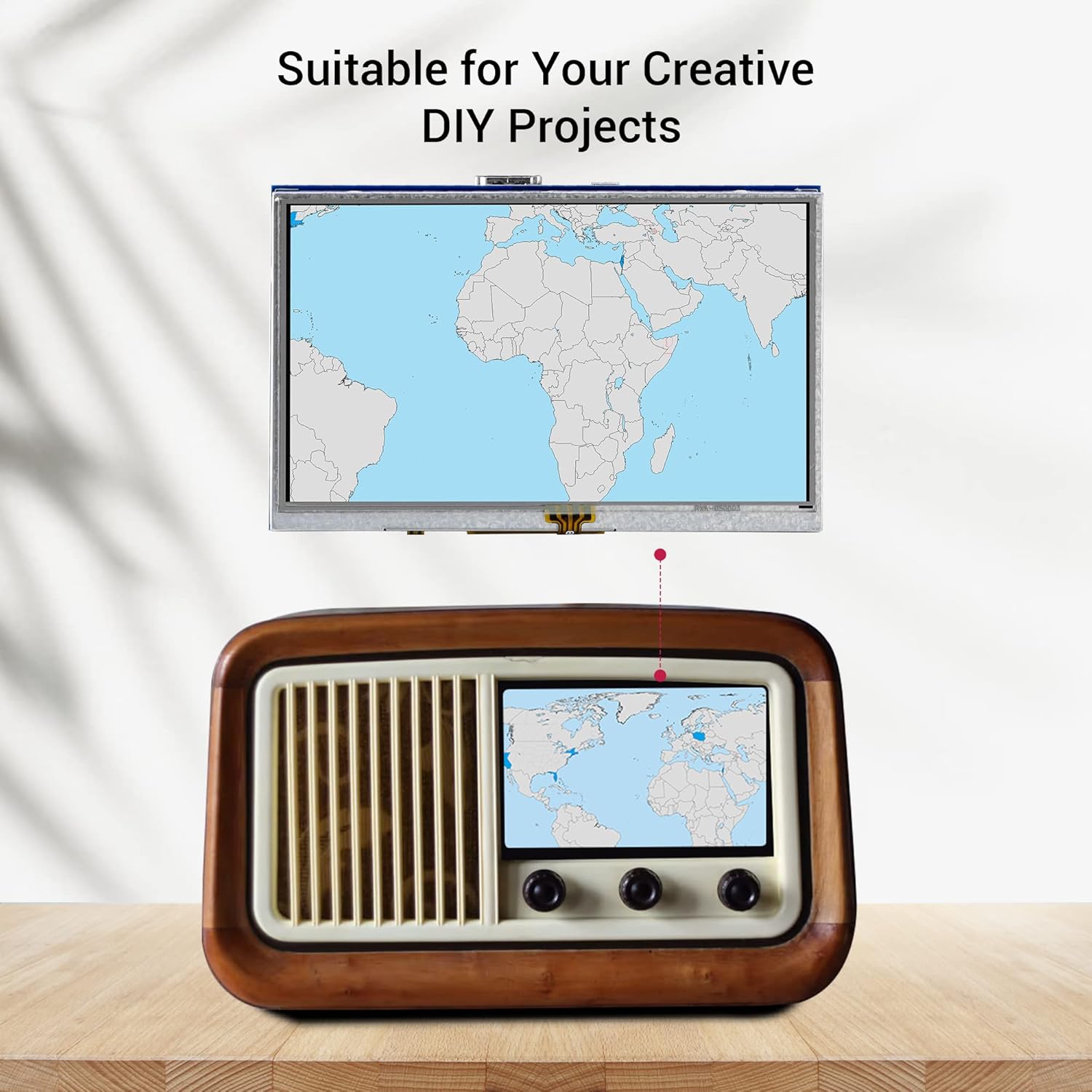
Figure 5: The display's versatility across different applications.
8. Akwụkwọ ikike na nkwado
This ELECROW 5-inch Resistive Touch Screen Display comes with a Akwụkwọ ikike nke Onye nrụpụta afọ 1.
For any technical issues, questions, or support needs, please contact the ELECROW support team. Refer to the contact information provided in the product packaging or on the official ELECROW websaịtị.