
Okwu mmalite
The Rocketek FBA_RT-CR7 is a versatile USB 3.0 7-in-1 multi-memory card reader designed for efficient data transfer from various memory card types to your computer. It supports simultaneous reading and writing of up to 5 cards, offering high-speed performance and broad compatibility across multiple operating systems.
Njirimara ngwaahịa
- Ihe agụ kaadị 7-na-1: Supports CF, XD, MS, SD, and Micro SD card types.
- Simultaneous Read/Write: Capable of reading and writing to 5 different memory cards concurrently.
- USB 3.0 SuperSpeed: Achieves data transfer speeds up to 5Gbps, significantly faster than USB 2.0.
- Ndakọrịta sara mbara: Works with Mac OS, Linux, Chrome OS, and Windows XP/Vista/7/8/8.1/10.
- Nkwụnye & Kpọọ: No drivers required for installation.
- Nhazi kọmpat: Portable and easy to carry, ideal for travel.
- Nchedo arụnyere: Features over-current, over-voltage, na nchebe mkpirisi.
- Ihe ngosi LED: A blue LED light indicates connection and data activity.
Ihe ngwugwu
- 1 x Rocketek FBA_RT-CR7 USB 3.0 7-in-1 Multi Memory Card Reader
- 1 x USB 3.0 Cable (with USB-C to USB-A adapter)
Ntuziaka nhazi
- Jikọọ kaadị Reader: Plug the USB 3.0 cable from the card reader into an available USB port on your computer. If your computer has a USB-C port, use the provided USB-C to USB-A adapter.
- Ihe ngosi ike: The blue LED indicator on the card reader will light up when successfully connected to your computer.
- Fanye kaadị ebe nchekwa: Carefully insert your memory card into the corresponding slot on the card reader. Ensure the card is inserted correctly according to its orientation. The LED indicator will flicker during data transfer.
- Nweta data: Your computer will automatically detect the card reader and the inserted memory card. You can then access the card's contents through your file explorer (Windows) or Finder (Mac OS).

Nyocha 1: N'eluview of card reader slots and supported card types.
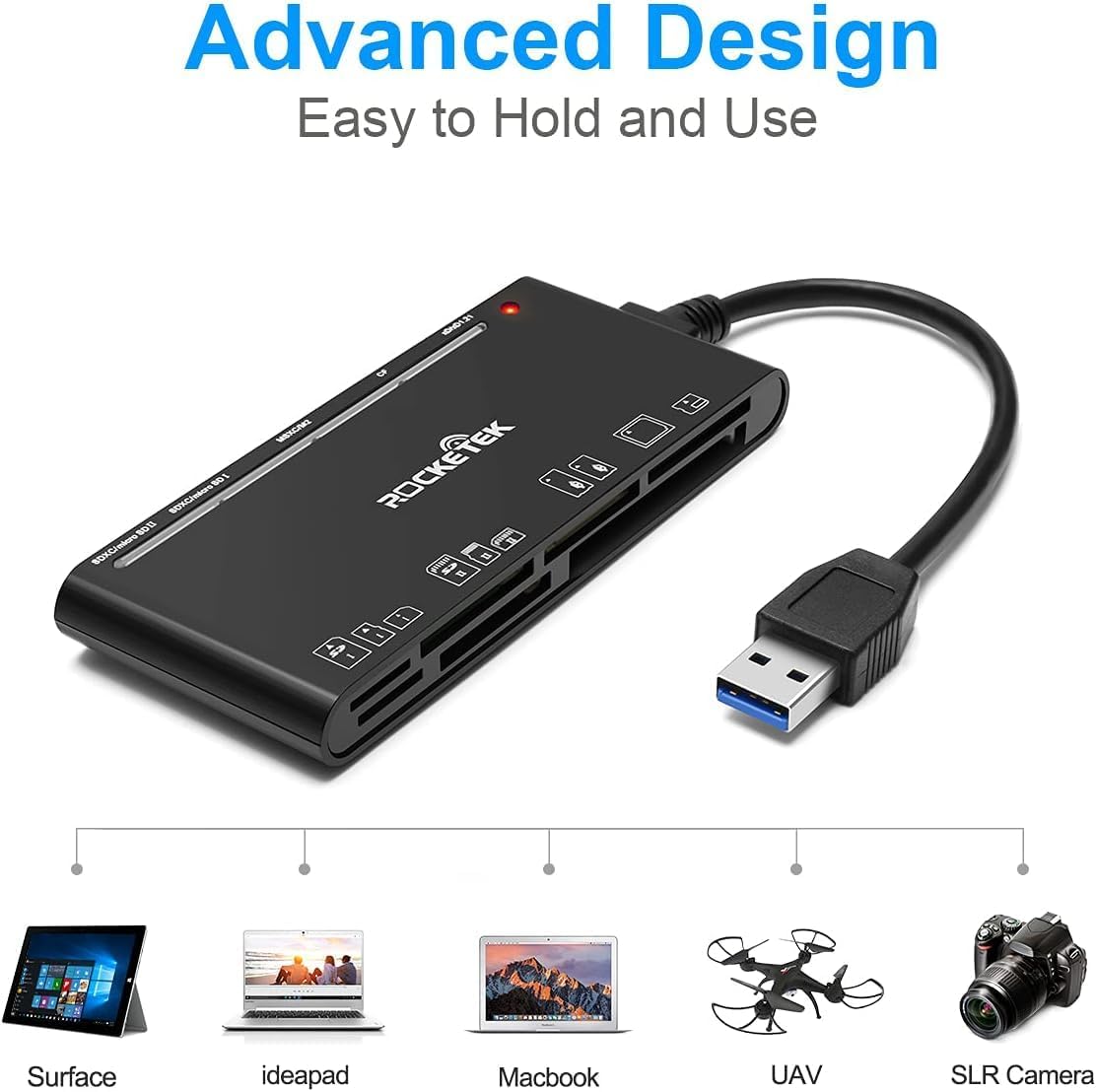
Figure 2: Card reader connected to a laptop, showing operating system compatibility.
Video 1: Demonstration of the Rocketek 7-in-1 Multi Memory Card Reader, showcasing its various card slots, USB 3.0 connectivity, and LED indicator light during operation.
Ntuziaka ọrụ
- Ịtinye kaadị: Gently push the memory card into the appropriate slot until it clicks into place. Do not force the card.
- Data Ọgụgụ/Ode: Once the card is inserted and detected, you can drag and drop files to and from the card. The blue LED indicator will blink during active data transfer.
- Ojiji nke otu oge: The card reader supports reading and writing to multiple cards simultaneously. Ensure proper file management to avoid data conflicts.
- Ejecting Cards: Before removing a memory card, always safely eject it from your computer's operating system to prevent data corruption.

Figure 3: Multiple memory cards inserted into the reader, demonstrating simultaneous access.
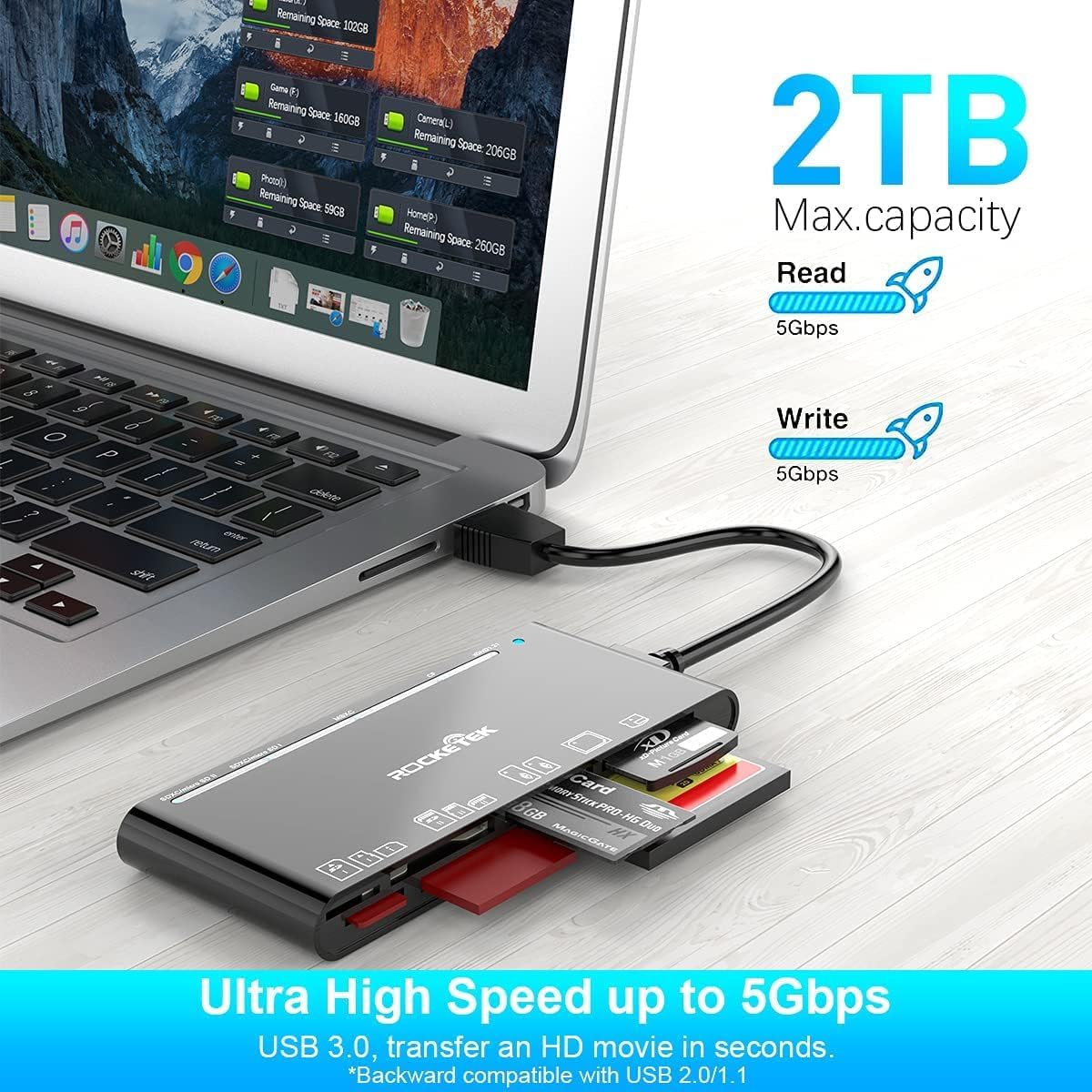
Figure 4: Highlighting the 5Gbps data transfer speed and 2TB maximum capacity.
Ndakọrịta
Sistemu eji arụ ọrụ akwadoro:
- Windows XP / Vista / 7/8/8.1/10
- Mac OS (including MacBook Pro/Air)
- Linux
- Chrome OS
Ụdị mgbasa ozi akwadoro:
- CompactFlash (CF card, high-speed CF UDMA)
- SD Card (SD, SDXC up to 2TB, SDHC, RS-MMC, miniSD)
- Micro SD (Micro SD, Micro SDXC, Micro SDHC)
- Memory Stick (MS, M2, MSXC, Memory Stick PRO Duo, Memory Stick Pro)
- xD Picture Card
Nkọwapụta
| Ụdị | Rocketek |
| Aha Nlereanya | FBA_RT-CR7 |
| Teknụzụ Njikọta | USB Ụdị A |
| Ngwaọrụ Akụrụngwa | USB 3.0 |
| Ọnụego mbufe data | 5 Gbps |
| Slot Count | 7 (supporting 5 simultaneous reads/writes) |
| Agba | Nwa |
| Akụkụ ihe (L x W x H) | 6.1" x 2.9" x 0.4" |
| Ibu Ibu | 9.07 g |
Nlekọta na nlekọta
- Nhicha: Jiri akwa dị nro dị nro hichaa mpụta nke kaadị kaadị. Zere iji ihe nhicha mmiri ma ọ bụ ihe mgbaze.
- Nchekwa: Chekwaa onye na-agụ kaadị n'ebe dị jụụ, kpọrọ nkụ na-adịghị na ìhè anyanwụ kpọmkwem na oke okpomọkụ.
- Ijikwa: Avoid dropping the device or subjecting it to strong impacts. Do not bend or twist the cable excessively.
- Nchekwa ọdụ ụgbọ mmiri: Keep the card slots free from dust and debris.
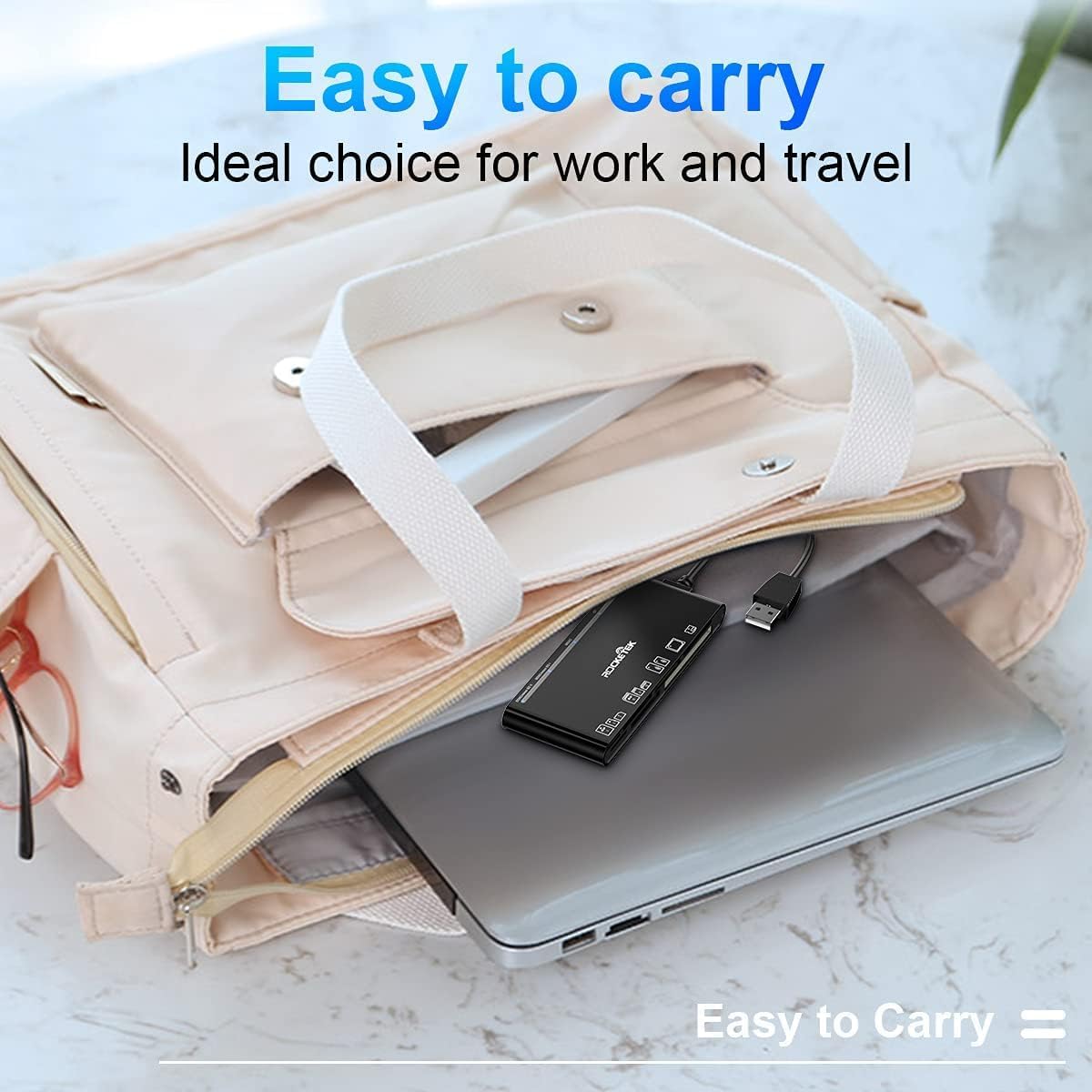
Figure 5: The card reader's compact size, suitable for portability.
Nchọpụta nsogbu
- Achọpụtaghị Ngwaọrụ:
- Ensure the USB cable is securely connected to both the card reader and your computer.
- Gbalịa jikọọ na ọdụ ụgbọ USB dị iche na kọmputa gị.
- Malitegharịa ekwentị gị na kọmputa.
- Amataghị kaadị ebe nchekwa:
- Verify that the memory card is fully inserted into the correct slot.
- Check if the memory card is damaged or corrupted. Try it in another device if possible.
- Ensure your operating system supports the file usoro nke kaadị ebe nchekwa.
- Nyefee data nwayọ:
- Ensure the card reader is connected to a USB 3.0 port on your computer for optimal speed.
- Verify that your memory card itself supports high-speed data transfer.
- Zere ịme ọtụtụ ngwa na-achọsi ike n'oge nnukwu file na-enyefe.
- Ihe ngosi LED anaghị agba ọkụ:
- Confirm the card reader is properly connected to a powered USB port.
- If using a USB hub, ensure it is powered.
Akwụkwọ ikike na nkwado
The Rocketek FBA_RT-CR7 USB 3.0 7-in-1 Multi Memory Card Reader comes with a Akwụkwọ ikike nke afọ 2 from the date of purchase. This warranty covers manufacturing defects and ensures the product performs as described under normal use.
For technical support, warranty claims, or any inquiries regarding your product, please contact Rocketek customer service through the retailer's platform or visit the official Rocketek websaịtị maka ozi kọntaktị.