
1. Ngwaahịa gafereview
The BUFFALO DriveStation Ultra is a high-performance, high-capacity direct attached storage (DAS) solution designed for demanding data transfer needs, such as high-resolution video editing. This 10-drive desktop model offers a 40 TB storage capacity and features multi-interface support for both Mac and PC systems.
Atụmatụ gụnyere:
- Industry-leading throughput: Up to 972 MB/s Read and 737 MB/s Write speeds.
- Multi-interface support: Thunderbolt 2 for Mac, and eSATA/USB 3.0 for Windows.
- Advanced data protection: Supports RAID 6 configurations, allowing for up to two drive failures without data loss.
- Equipped with enterprise or NAS hard drives for continuous operation.
1.1 Kedu ihe dị na igbe ahụ
- DriveStation™ Ultra unit
- eriri Thunderbolt
- eriri USB 3.0
- eSATA eriri
- Ntuziaka nhazi ngwa ngwa
- Nkwupụta akwụkwọ ikike
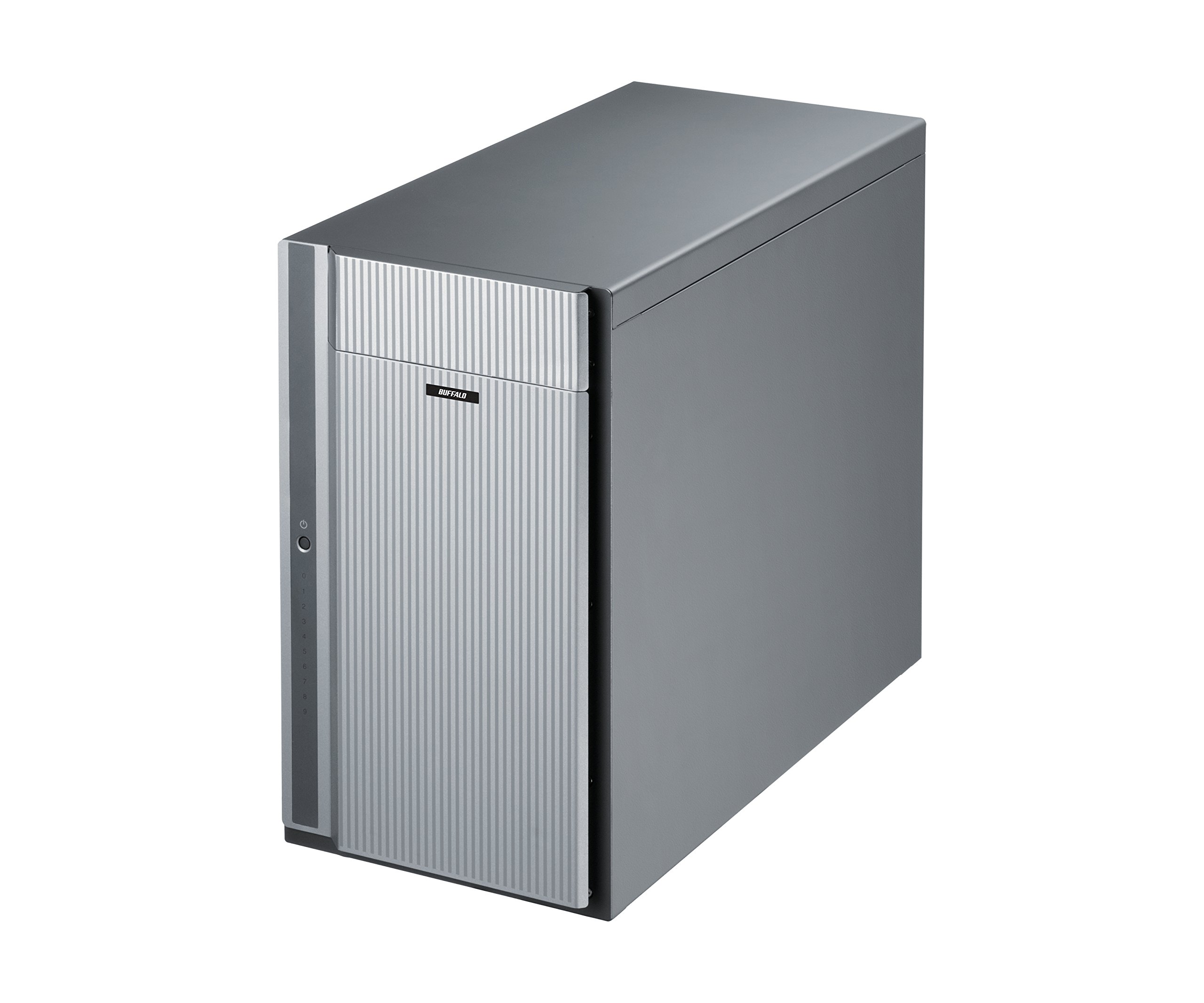
Foto 1: N'ihu view of the BUFFALO DriveStation Ultra unit.
2. Nhazi ntuziaka
Follow these steps to set up your DriveStation Ultra:
- Mepee ngwaọrụ ahụ: Carefully remove the DriveStation Ultra and all accessories from its packaging.
- Debe ngwaọrụ ahụ: Place the unit on a stable, flat surface with adequate ventilation. Ensure no vents are obstructed.
- Njikọ Ike: Connect the power cable to the unit and then to a power outlet. Do not power on the device yet.
- Jikọọ na Kọmputa: Họrọ otu n'ime ụzọ njikọ ndị a:
- Thunderbolt 2 (Mac): Use the provided Thunderbolt cable to connect the DriveStation Ultra to your Mac's Thunderbolt port.
- USB 3.0 (PC/Mac): Use the provided USB 3.0 cable to connect the DriveStation Ultra to your computer's USB 3.0 port.
- eSATA (PC): Use the provided eSATA cable to connect the DriveStation Ultra to your computer's eSATA port.
- Ike Na: Once connected, press the power button on the DriveStation Ultra. The device will initialize.
- Nwụnye ọkwọ ụgbọala (ọ bụrụ na ọ dị mkpa): Your operating system should automatically detect the device. If prompted, install any necessary drivers from the included software or BUFFALO's support websaịtị.
- Nhazi RAID: The DriveStation Ultra comes pre-configured. For advanced RAID configurations (e.g., changing from default RAID 6), refer to the detailed software manual available on the BUFFALO support websaịtị.

Ọgụgụ 2: N'azụ view of the DriveStation Ultra, highlighting Thunderbolt, USB 3.0, and eSATA ports.
3. Ntuziaka ọrụ
Once the DriveStation Ultra is set up and recognized by your computer, it functions as an external storage device. You can access it like any other connected drive.
- Nyefee data: Dọrọ na dobe files to and from the DriveStation Ultra. For optimal performance, use the Thunderbolt 2 connection on Mac systems or USB 3.0/eSATA on PC systems.
- Arụmọrụ: Expect high-speed data transfers, particularly with large files, due to the optimized hardware and RAID configuration.
- Mwepụ nke ọma: Always safely eject the DriveStation Ultra from your operating system before disconnecting the cables or powering down the unit to prevent data corruption.
- Njikwa Ike: The device is designed for continuous operation. If you need to power it off, use the power button on the unit after safely ejecting it from your computer.
4. Nlekọta
Proper maintenance ensures the longevity and reliability of your DriveStation Ultra:
- Nhicha: Use a soft, dry cloth to clean the exterior of the unit. Do not use liquid cleaners or aerosols directly on the device.
- Igwe ikuku: Ensure that the ventilation openings are clear of dust and obstructions to prevent overheating.
- Mmelite femụwe: Periodically check the BUFFALO support website for firmware updates. Keeping the firmware updated can improve performance and stability.
- Ndabere data: While the DriveStation Ultra offers RAID 6 for data protection, it is always recommended to maintain separate backups of critical data.
- Ahụike ụgbọala: Monitor the health of the drives using the included utility software or your operating system's disk management tools.
5. Nchọpụta nsogbu
If you encounter issues with your DriveStation Ultra, try the following steps:
- Achọpụtaghị Ngwaọrụ:
- Ensure the power cable is securely connected and the unit is powered on.
- Verify that the data cable (Thunderbolt, USB, or eSATA) is firmly connected to both the DriveStation Ultra and your computer.
- Try connecting to a different port on your computer or using a different cable.
- Restart your computer and the DriveStation Ultra.
- Ịrụ ngwa ngwa:
- Ensure you are using the correct high-speed interface (Thunderbolt 2, USB 3.0, or eSATA) and compatible cables.
- Check for background processes on your computer that might be consuming resources.
- Verify that the DriveStation Ultra has adequate ventilation to prevent thermal throttling.
- Drive Failure Indication:
- The DriveStation Ultra's RAID 6 configuration provides protection against up to two drive failures. Consult the detailed manual or BUFFALO support for drive replacement procedures.
- Do not attempt to replace drives without proper guidance to avoid data loss.
- Okwu ndị ọzọ: If the problem persists after trying these steps, refer to the comprehensive user manual on the BUFFALO support websaịtị ma ọ bụ kọntaktị nkwado teknụzụ.
6. Nkọwapụta
| Njirimara | Nkọwa |
|---|---|
| Ike draịvụ ike | 40 TB Mechanical Hard Disk |
| Ụdị | BUFFALO |
| Usoro | DriveStation Ultra |
| Nọmba nlereanya | HD-DN040T/R6 |
| Ngwaike Platform | Mac, PC |
| Ibu Ibu | 39.7 pound |
| Akụkụ ngwaahịa (LxWxH) | 15.24 x 7.48 x 12.6 sentimita asatọ |
| Agba | Ọlaọcha |
| Interface Hard Drive | eSATA |
| Ọsọ ntugharị draịvụ ike | 7200 RPM |
| Teknụzụ Njikọta | Thunderbolt, USB, eSATA |
| Ụdị nwụnye | Mbanye ike mpụga |
| Ụbọchị mbụ dị | Julaị 22, 2015 |
7. Akwụkwọ ikike Ozi
The BUFFALO DriveStation Ultra 10-Drive Thunderbolt Desktop DAS 40 TB (Model HD-DN040T/R6) comes with a Akwụkwọ ikike nke afọ 3.
For detailed terms and conditions of the warranty, please refer to the warranty statement included in your product packaging or visit the official BUFFALO websaịtị.
8. Nkwado
For technical assistance, additional documentation, or to download the latest drivers and firmware, please visit the official BUFFALO support websaịtị.
You can typically find support resources by searching for your product model (HD-DN040T/R6) on the BUFFALO support portal.
Contact information for customer service may also be available on the BUFFALO website or in your product's quick setup guide.