
Okwu mmalite
This manual provides instructions for the Datalogic Barcodescanner Touch TD1100 90 Light, model TD1120-BK-90K1. It covers essential information for setting up, operating, maintaining, and troubleshooting your device to ensure optimal performance. Please read this manual thoroughly before using the scanner.
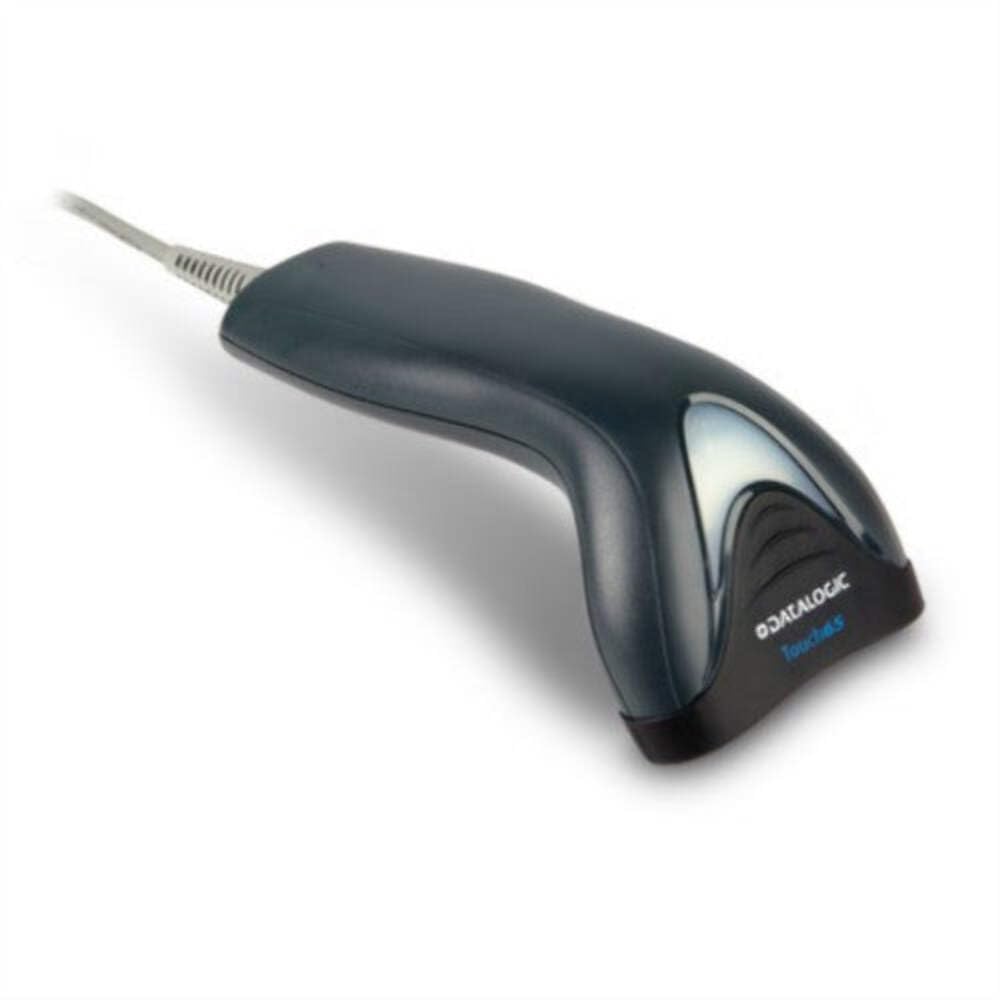
Image: The Datalogic Touch TD1100 90 Light barcode scanner, showing its ergonomic design and integrated cable.
Melite
1. Iwepu ngwongwo
Jiri nlezianya wepụ ihe niile dị na nkwakọ ngwaahịa. Chọpụta na ihe niile dị:
- Datalogic Touch TD1100 90 Light Barcode Scanner
- Eriri USB (ejikọtara ọnụ)
- Ntuziaka mmalite ngwa ngwa (ọ bụrụ na etinyere ya)
2. Ijikọ ihe nyocha
The TD1120-BK-90K1 model connects via a USB interface. Follow these steps:
- Locate an available USB port on your computer (desktop or laptop).
- Insert the USB connector of the scanner's cable firmly into the USB port.
- The operating system should automatically detect the new hardware and install the necessary drivers. This process may take a few moments.
- Once drivers are installed, the scanner will typically emit a short beep or an indicator light will illuminate, signifying it is ready for use.
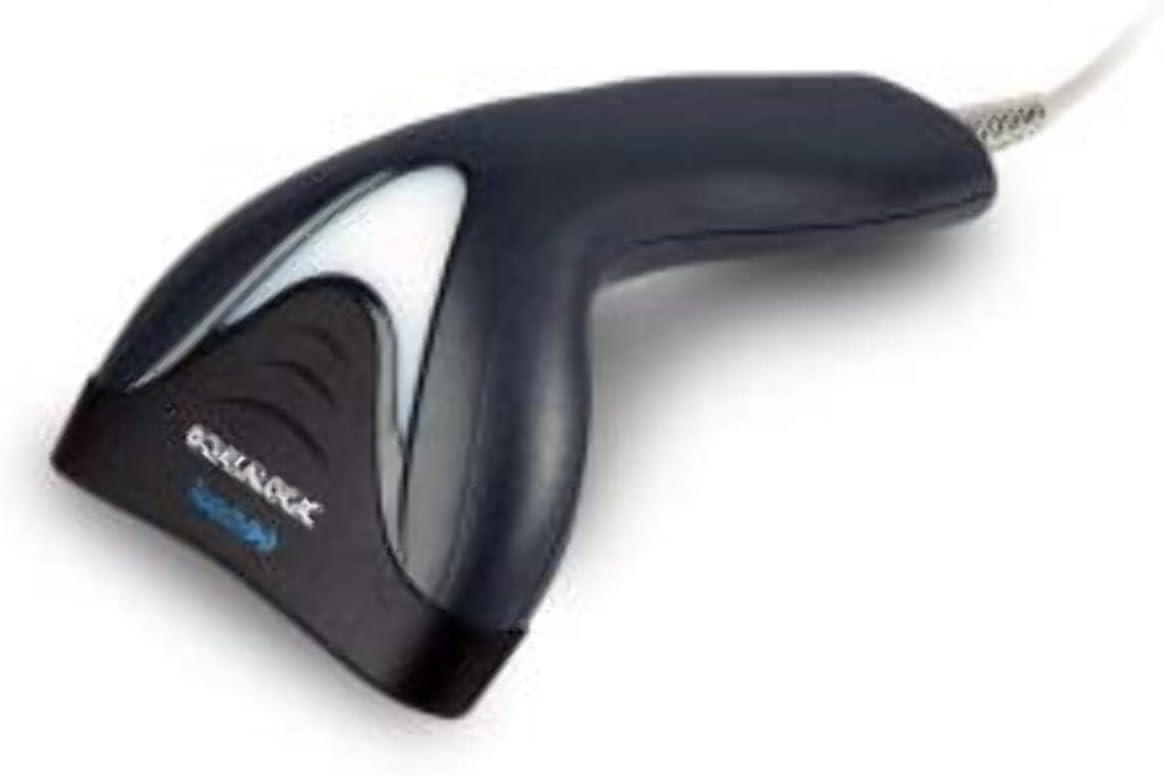
Foto: Akụkụ view of the Datalogic Touch TD1100 90 Light barcode scanner, highlighting the integrated cable for connection.
Ntuziaka ọrụ
1. Usoro Nnyocha Dị Mkpa
Ka iṅomi barcode:
- Ensure the scanner is connected and powered on.
- Open an application on your computer where you want the scanned data to appear (e.g., a text editor, spreadsheet, or POS software).
- Jide ihe nyocha ahụ ka windo nyocha ahụ na-eche koodu ahụ ihu.
- Press and hold the trigger button. A red aiming line or light will project from the scanning window.
- Position the aiming line across the entire barcode.
- Once the barcode is successfully read, the scanner will emit a beep and/or the indicator light will flash green. The data will then appear in your active application.
- Hapụ bọtịnụ mkpata.
2. Scanning Techniques
- Ogologo kacha mma: Hold the scanner at an appropriate distance from the barcode, typically between 2-10 cm (1-4 inches), depending on the barcode size and density.
- Akụkụ: Scan barcodes at a slight angle to avoid direct reflection, which can interfere with reading.
- Koodu ndị mebiri emebi: Maka akara barcode e biri nke ọma ma ọ bụ nke mebiri emebi, gbalịa iji akụkụ ma ọ bụ anya dị iche iche na-enyocha ya.
Nlekọta
1. Na-ehicha ihe nyocha
Ịsacha mgbe niile na-enyere aka ịnọgide na-arụ ọrụ nyocha kacha mma.
- Scanning Window: Jiri akwa dị nro na-enweghị akwa dampened with a mild, non-abrasive cleaner (e.g., isopropyl alcohol or glass cleaner) to gently wipe the scanning window. Avoid harsh chemicals or abrasive materials.
- Mputa: Hichapụ mpụta casing jiri nwayọ, damp cloth. Do not allow liquids to enter the scanner.
- Ensure the scanner is disconnected from the power source before cleaning.
2. Nchekwa
When not in use, store the scanner in a clean, dry environment, away from direct sunlight, extreme temperatures, and corrosive materials.
Nchọpụta nsogbu
If you encounter issues with your Datalogic TD1100 scanner, refer to the following common problems and solutions:
| Nsogbu | Ihe nwere ike ime | Ngwọta |
|---|---|---|
| Scanner does not power on or respond. | Loose cable connection, faulty USB port, power issue. |
|
| Scanner does not read barcodes. | Incorrect scanning technique, damaged barcode, dirty scanning window, incompatible barcode type, application not ready. |
|
| Scanned data appears incorrectly. | Keyboard wedge settings, incorrect language settings. |
|
Nkọwapụta
Key technical specifications for the Datalogic Touch TD1100 90 Light (TD1120-BK-90K1):
- Nọmba nlereanya: TD1120-BK-90K1
- Akara: Datalogic
- Ọnụego nyocha: okpokolo agba 90 kwa nkeji (fps)
- Teknụzụ Njikọta: Bluetooth
- Ngwa dakọtara: Desktop, Laptọọpụ
- Isi mmalite ike: Akwanyere batrị
- Ibu ihe: 153 grams
- Ezigbo akụkụ nke View: 3.5 ogo
- Onye nrụpụta: Datalogic
Note: Some specifications like "Battery Powered" and "Bluetooth" might be generic for the TD1100 series. The TD1120-BK-90K1 is primarily a wired USB scanner.
Akwụkwọ ikike na nkwado
Ozi akwụkwọ ikike
Datalogic products are covered by a standard manufacturer's warranty. For specific warranty terms and conditions, please refer to the warranty card included with your product or visit the official Datalogic websaịtị. Debe ihe akaebe nke ịzụrụ maka akwụkwọ ikike.
Nkwado ndị teknuzu
For technical assistance, troubleshooting beyond this manual, or to inquire about repairs, please contact Datalogic customer support. You can typically find contact information on the Datalogic websaịtị ma ọ bụ n'akwụkwọ enyere na nyocha gị.
- Datalogic Official Websaịtị: www.datalogic.com
- Akụrụngwa nkwado: Check the support section of the website for FAQs, drivers, and additional documentation.