
1. Nhazi
1.1 Mwepu na ọdịnaya
Carefully remove the TV and all accessories from the packaging. Ensure all components are present:
- Sharp LC-40LE653U 40-Inch Smart LED TV
- Njikwa anya
- 2 AA batrị
1.2 Nwụnye guzoro
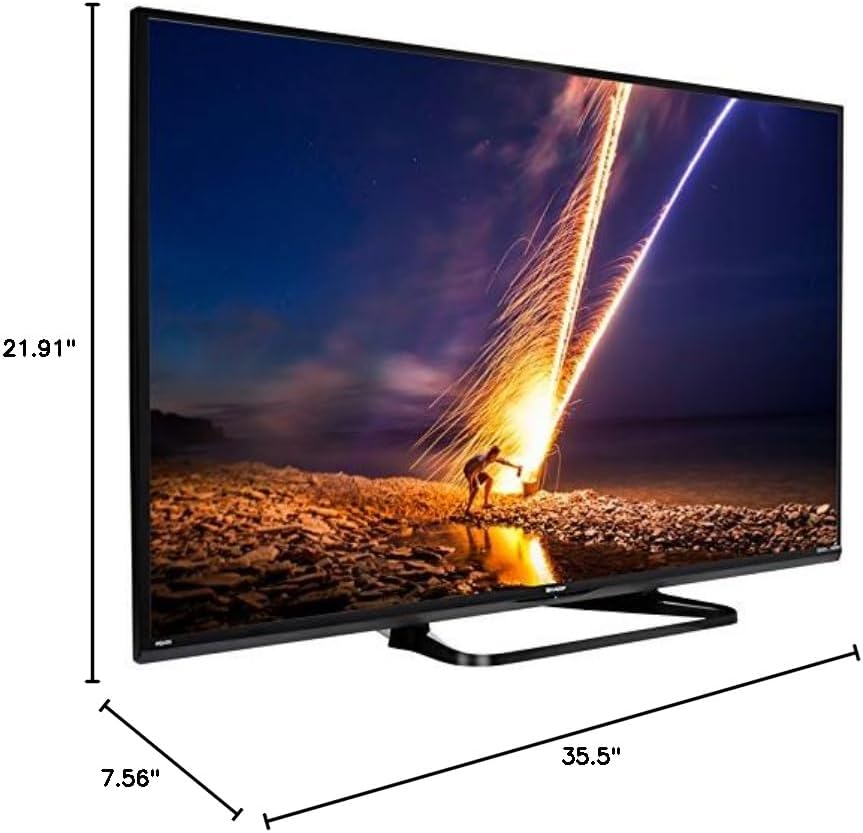
If placing the TV on a table, attach the included stand. Refer to the diagram below for proper assembly. Ensure all screws are securely fastened.
1.3 Ijikọ ngwaọrụ mpụga
Connect your external devices such as cable boxes, Blu-ray players, or gaming consoles to the TV's input ports. The TV features multiple connectivity options.


Available ports include:
- HDMI: 2 ports for high-definition audio and video. One HDMI port supports MHL (Mobile High-Definition Link).
- USB: 1 port for media playback or connecting a USB device.
- Ethernet: Maka njikọ netwọk ikuku.
- Component/Video: Maka ngwaọrụ vidiyo ochie.
- DTV/TV (Antenna): Maka ijikọ erimeri ma ọ bụ eriri TV.
- Apụọ ọdịyo: Optical for digital audio, and RCA for analog audio.
1.4 Njikọ ike
After connecting all necessary devices, plug the TV's power cord into a wall outlet.
1.5 Ntọala mbụ
Upon first power-on, the TV will guide you through an initial setup process. This includes language selection, time zone, and network configuration. For Wi-Fi setup, select your network and enter the password.
2. Ntuziaka ọrụ
2.1 Ọrụ njikwa anya
The remote control allows you to access all TV functions. Insert the two AA batteries into the remote control, ensuring correct polarity.
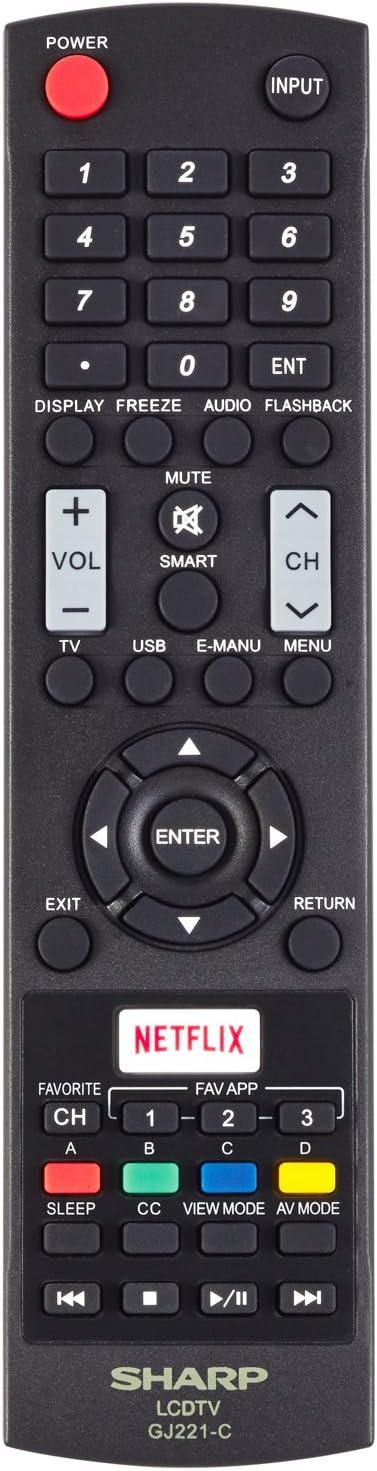
- Ike (Bọtịnụ Uhie): Gbanyụọ ma ọ bụ gbanyụọ TV.
- Ntinye: Selects the input source (HDMI, TV, USB, etc.).
- Vol +/-: Na-edozi ọkwa olu.
- CH +/-: Na-agbanwe ọwa TV.
- Navigation Buttons (Up/Down/Left/Right/Enter): A na-eji ya agagharị na menus ma họrọ nhọrọ.
- Smart: Accesses the Smart Central Apps menu.
- NchNhr: Opens the main TV menu for settings adjustments.
- NETFLIX: Direct access button for the Netflix application.
2.2 Smart TV Features (Smart Central Apps)
The Sharp LC-40LE653U features Smart Central Apps, providing access to various online services and a web browser. Ensure your TV is connected to the internet via Wi-Fi or Ethernet.

- Ịnweta ngwa: Press the 'SMART' button on your remote to open the Smart Central Apps menu.
- Ọrụ akwadoro: Includes Hulu Plus, Netflix, Pandora, Vudu, and YouTube.
- Web Ihe nchọgharị: Jiri arụnyere n'ime ya web browser for general internet browsing. Navigation is done via the remote control.
2.3 Wallpaper Mode
When the TV is turned off, Wallpaper Mode can display virtually any image. To use this feature, connect a USB drive containing your desired images to the TV's USB port. Navigate to the Wallpaper Mode settings in the TV menu to select and configure your images.
3. Nlekọta
3.1 Ihicha TV
Iji hichaa ihuenyo ahụ, jiri nwayọọ hichaa ya na akwa dị nro, kpọrọ nkụ, akwa enweghị lint. Maka akara isi ike, ntakịrị dampen the cloth with water or a specialized screen cleaner. Avoid using harsh chemicals, abrasive cleaners, or direct spraying of liquids onto the screen or cabinet.
Clean the TV cabinet with a soft, dry cloth. Ensure the TV is unplugged before cleaning.
3.2 Mmelite ngwanrọ
Periodically check for software updates through the TV's settings menu to ensure optimal performance and access to the latest features. Updates can be performed via the internet connection.
4. Nchọpụta nsogbu
If you encounter issues with your Sharp LC-40LE653U TV, refer to the following common solutions:
- Enweghị ike: Ensure the power cord is securely plugged into both the TV and a working wall outlet. Check if the power indicator light on the TV is on.
- Enweghị foto/ụda: Verify the correct input source is selected using the 'Input' button on the remote. Check all cable connections (HDMI, component, etc.) are secure.
- Ogo Foto adịghị mma: Adjust picture settings (brightness, contrast, sharpness) in the TV menu. Ensure the input source is providing a high-quality signal.
- Enweghị njikọ ịntanetị: Check your Wi-Fi router or Ethernet cable connection. Re-enter your Wi-Fi password in the TV's network settings. Restarting your router may resolve connectivity issues.
- Njikwa anya anaghị arụ ọrụ: Dochie batrị ndị dị na njikwa anya. Gbaa mbọ hụ na onweghị ihe mgbochi n'etiti ime ime na ihe mmetụta IR nke TV.
For more detailed troubleshooting steps, consult the full online manual or contact customer support.
5. Nkọwapụta
Key technical specifications for the Sharp LC-40LE653U 40-Inch Smart LED TV:
| Njirimara | Nkọwapụta |
|---|---|
| Nọmba nlereanya | LC-40LE653U |
| Nha ihuenyo | 39.5 inch (Klas 40-inch) |
| Ngosipụta teknụzụ | LCD |
| Mkpebi | 1080p (HD zuru ezu) |
| Ọnụego ume ọhụrụ | 60 Hz |
| Akụkụ akụkụ | 16:9 |
| Teknụzụ Njikọta | Wi-Fi |
| Ngwaọrụ Akụrụngwa | Ethernet, HDMI, USB |
| Ọnụọgụ niile nke ọdụ ụgbọ mmiri HDMI | 2 (one with MHL support) |
| Mgbakọta ọdụ ụgbọ mmiri USB | 1 |
| Ntinye ọdịyo | HDMI, Optical, USB |
| Ike Nwepu kacha elu | 20 Watt |
| Akụkụ ngwaahịa (D x W x H) | 7.56" x 35.5" x 21.91" |
| Ibu Ibu | 16.3 pound |
| Ụdị nkwụnye | Ugwu okpokoro |
| Ọrụ ịntanetị akwadoro | Hulu Plus, Netflix, Pandora, Vudu, YouTube |
| Energy Star akwụkwọ | Ee |
6. Akwụkwọ ikike na nkwado
6.1 Akwụkwọ ikike ngwaahịa
This Sharp LC-40LE653U TV comes with a Akwụkwọ ikike dị afọ 1. Please retain your proof of purchase for warranty claims. The warranty covers manufacturing defects under normal use conditions.
6.2 Nkwado ndị ahịa
For technical assistance, troubleshooting beyond this manual, or warranty service, please contact Sharp customer support. Refer to the official Sharp websaịtị ma ọ bụ kaadị ndebanye aha ngwaahịa gị maka ozi kọntaktị kachasị ọhụrụ.