
1. Okwu mmalite
This manual provides essential instructions for the setup, operation, maintenance, and troubleshooting of your IBM Lenovo Preferred Pro USB Wired Keyboard and Mouse Set. Please read this manual thoroughly before using the product to ensure proper functionality and longevity.
2. Ngwaahịa gafereview
The IBM Lenovo Preferred Pro USB Wired Keyboard and Mouse Set offers a reliable input solution for your computer. The keyboard features a standard layout with a numeric keypad, while the mouse is a 2-button optical mouse with a scroll wheel. Both devices connect via a standard USB interface, providing plug-and-play compatibility with most operating systems.

Foto 2.1: Top view of the IBM Lenovo Preferred Pro USB Wired Keyboard.
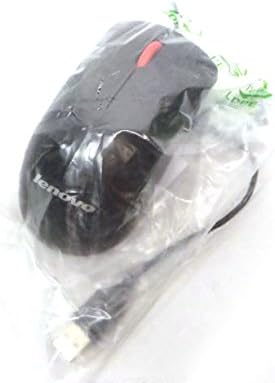
Foto 2.2: Top view of the Lenovo USB 2-Button Optical Mouse.
Akụkụ ndị bụ isi:
- USB Wired Connectivity: Ensures a stable and reliable connection.
- Plug-and-Play: No additional drivers typically required for basic functionality.
- Standard Keyboard Layout: Full-size keyboard with numeric keypad.
- Optical Mouse: Precise tracking with a scroll wheel for easy navigation.
3. Nhazi
Follow these steps to connect your keyboard and mouse to your computer.
- Mepee Ngwaọrụ ndị a: Jiri nlezianya wepụ ahụigodo na òké ahụ n'ime ngwugwu ha.
- Identify USB Connectors: Locate the USB connectors at the end of the keyboard and mouse cables.
- Jikọọ na Kọmputa: Insert the USB connector of the keyboard into an available USB port on your computer. Repeat this step for the mouse.
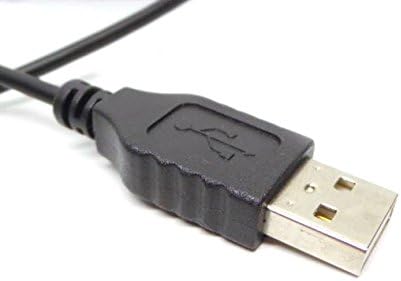
Figure 3.1: Close-up of a standard USB Type-A connector, used for connecting the keyboard and mouse.
Your computer should automatically detect and install the necessary drivers for the keyboard and mouse. No additional software installation is typically required for basic functionality.
4. Ntuziaka ọrụ
4.1 Keyboard Usage
- Na-ede: Jiri igodo alphanumerik maka ntinye ederede.
- Igodo ọrụ (F1-F12): These keys perform various functions depending on the application or operating system.
- Ahụigodo ọnụọgụ: Use the dedicated numeric keypad for efficient data entry. Ensure the "Num Lock" indicator light is on.
- Igodo pụrụ iche: Utilize keys like "Print Screen", "Scroll Lock", "Pause/Break", "Insert", "Home", "Page Up", "Delete", "End", and "Page Down" for their respective functions.
4.2 Mouse Usage
- Ntughari: Move the mouse across a flat surface to control the cursor on the screen.
- Pịa aka ekpe: Pịa bọtịnụ aka ekpe ka ịhọrọ ihe, mepee njikọ, ma ọ bụ mee ka ọrụ rụọ ọrụ.
- Pịa aka nri: Pịa bọtịnụ aka nri iji mepee menu ihe dị n'ime.
- Mpempe akwụkwọ mpịakọta: Bugharịa wheel mpịakọta elu ma ọ bụ ala ka ịnyagharịa na akwụkwọ ma ọ bụ web pages. The scroll wheel may also function as a middle click button.
5. Nlekọta
Proper care and maintenance will extend the life of your keyboard and mouse.
- Nhicha:
- Disconnect devices from the computer before cleaning.
- Jiri nwayọọ, damp cloth with a mild cleaning solution (e.g., water or isopropyl alcohol) to wipe surfaces.
- Avoid excessive moisture, especially near keycaps and optical sensors.
- Use compressed air to remove dust and debris from between keyboard keys.
- Nchekwa: Store the devices in a clean, dry environment away from extreme temperatures and direct sunlight.
- Zenarị Mwụfu: Keep liquids away from the keyboard and mouse to prevent damage.
6. Nchọpụta nsogbu
If you encounter issues with your keyboard or mouse, refer to the following common problems and solutions:
| Nsogbu | Ihe nwere ike ime | Ngwọta |
|---|---|---|
| Ahụigodo/Òké anaghị aza | Njikọ USB rụrụ arụ, ọdụ ụgbọ USB adịghị mma, nsogbu ọkwọ ụgbọ ala. |
|
| Keys not working or typing incorrectly | Debris under keys, software conflict, keyboard settings. |
|
| Ihe nrụaka òké na-adịghị arụ ọrụ ma ọ bụ na ọ naghị arụ ọrụ | Dirty optical sensor, unsuitable surface, software issue. |
|
If the problem persists after trying these solutions, contact customer support or your reseller for further assistance.
7. Nkọwapụta
| Njirimara | Nkọwa |
|---|---|
| Keyboard Model Numbers | 54Y9400, 41A5289, SK-8825, KB1021 |
| Mouse Model Numbers | 45J4888, 25011476, 45J4889, M-U0025-O |
| Ụdị | Lenovo / IBM |
| Agba | Nwa |
| Teknụzụ Njikọta | eriri USB |
| Ụdị ahụigodo | Preferred Pro USB Wired Keyboard |
| Ụdị òké | 2-Button Black Red Scroll Wheel Optical Mouse |
| Akụkụ ngwugwu | 22 x 10.2 x 4.7 sentimita (ihe dị ka) |
| Ibu Ibu | 1 pound (approximate) |
| Onye nrụpụta | Lenovo |
8. Akwụkwọ ikike na nkwado
For warranty information, please refer to the documentation provided at the time of purchase or contact your reseller. IBM and Lenovo products typically come with a standard manufacturer's warranty.
For technical support or further inquiries, please contact the product's manufacturer or the authorized reseller from whom you purchased the item. Keep your purchase receipt and product model numbers handy for faster service.