
1. Okwu mmalite
The Comfast CF-WU720N is a compact 150Mbps Wireless USB Adapter designed to provide high-speed wireless connectivity for your desktop or notebook computer. It allows you to connect to a wireless network and access the internet, share files, and enjoy online gaming at speeds up to 150Mbps. This adapter is compliant with IEEE 802.11b/g/n standards and supports USB 2.0 for efficient data transfer.
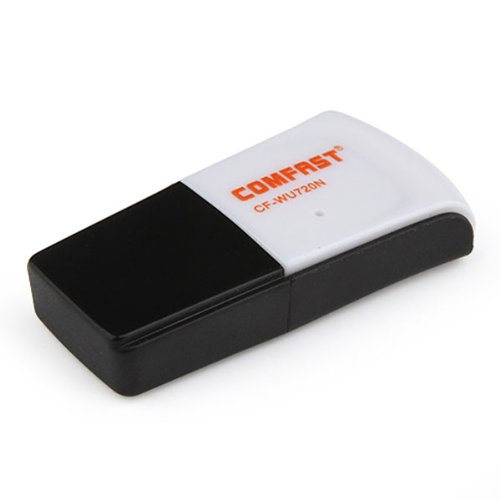
Image 1.1: The Comfast CF-WU720N Wireless USB Adapter, a compact device for wireless connectivity.
2. Akụrụngwa Ngwaahịa
- Meets IEEE 802.11b/g/n wireless standards.
- Supports USB 2.0 interface for broad compatibility.
- Utilizes Realtek 8191 SU chipset for reliable performance.
- Achieves wireless connection rates up to 150Mbps.
- Supports wireless roaming technology for seamless connectivity.
- Strong compatibility with various popular operating systems.
- Compact size: approximately 39 x 12 x 7mm (1.5 x 0.7 x 0.3 inches).
- Lightweight design: approximately 5g.
3. Ihe ngwugwu
Biko chọpụta na ihe niile dị na ngwugwu:
- 1 x Comfast CF-WU720N Wireless USB Adapter
- 1 x Ntuziaka nwụnye ngwa ngwa
- 1 x CD-ROM Driver
- 1 x kaadị ikike

Image 3.1: The retail packaging for the Comfast CF-WU720N, showing the adapter inside.
4. Ntọala na nwụnye
4.1. Nwụnye ọkwọ ụgbọala
Before connecting the USB adapter, it is recommended to install the necessary drivers from the provided CD-ROM. This ensures proper functionality and compatibility with your operating system.
- Insert the driver CD-ROM into your computer's optical drive.
- If the installer does not launch automatically, navigate to "My Computer" or "This PC," open the CD-ROM drive, and run the setup executable (e.g., "setup.exe" or "autorun.exe").
- Follow the on-screen instructions to complete the driver installation. You may be prompted to restart your computer after installation.
- Mara: If your computer does not have an optical drive, you may need to download the latest drivers from the manufacturer's official websaịtị.
4.2. Connecting the USB Adapter
Once the drivers are installed, you can connect the Comfast CF-WU720N Wireless USB Adapter to your computer.
- Locate an available USB 2.0 or 3.0 port on your desktop or laptop computer.
- Carefully insert the Comfast CF-WU720N adapter into the USB port. Ensure it is fully seated.
- The operating system should automatically detect the adapter and configure it using the installed drivers. A small LED indicator on the adapter may light up or blink, indicating activity.
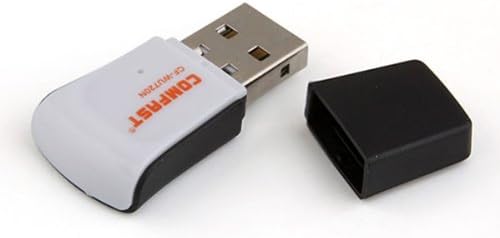
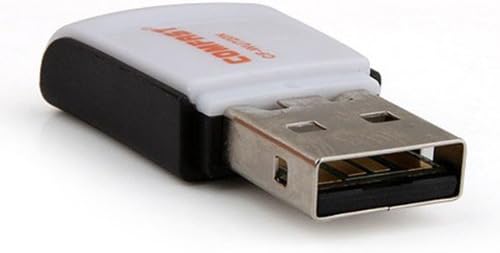
Image 4.1: The Comfast CF-WU720N adapter with its protective cap removed, revealing the USB connector. Image 4.2: A side view of the adapter, highlighting its compact design and USB interface.
5. Ntuziaka ọrụ
After successful driver installation and adapter connection, you can now connect to a wireless network.
- Nweta Ntọala netwọkụ:
- Windows: Pịa akara ngosi netwọk ikuku na tray sistemu (na-abụkarị akuku aka nri ala).
- MacOS: Pịa akara Wi-Fi dị na mmanya menu (na-emekarị akuku aka nri).
- Linux: Access network settings through your desktop environment's network manager.
- Họrọ netwọk gị: A list of available wireless networks (SSIDs) will appear. Select the name of your desired network.
- Jikọọ: Click "Connect" or "Join." If the network is secured, you will be prompted to enter the network security key (password).
- Kwenye njikọ: Once connected, the network icon will typically change to indicate a successful connection, and you should be able to access the internet.
6. Nlekọta
To ensure optimal performance and longevity of your Comfast CF-WU720N Wireless USB Adapter, follow these simple maintenance guidelines:
- Debe Ọcha: Jiri nwayọ hichaa ihe nkwụnye ahụ na akwa dị nro ma kpọọ nkụ iji wepụ uzuzu. Zere iji ihe nhicha mmiri ma ọ bụ ihe mgbaze.
- Chedo njikọ USB: When not in use, keep the protective cap on the USB connector to prevent dust and damage.
- Zere Oke Ọnọdụ: Ewepụla ihe nkwụnye ọkụ na oke okpomọkụ, iru mmiri, ma ọ bụ ìhè anyanwụ kpọmkwem.
- Jikwaa nke ọma: Zere ịda ma ọ bụ itinye ihe nkwụnye ahụ n'ọnọdụ siri ike.
- Mmelite ọkwọ ụgbọala: Lelee nke onye nrụpụta oge ụfọdụ website for updated drivers to ensure the best performance and compatibility.
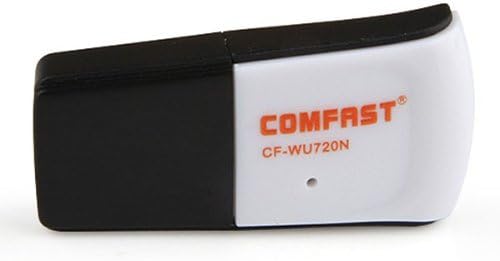
Image 6.1: The Comfast CF-WU720N adapter with its protective cap in place, ready for storage or transport.
7. Nchọpụta nsogbu
If you encounter issues with your Comfast CF-WU720N Wireless USB Adapter, refer to the following common solutions:
| Nsogbu | Ngwọta enwere ike |
|---|---|
| Adapter not detected / No Wi-Fi networks visible. |
|
| Cannot connect to a specific Wi-Fi network. |
|
| Slow connection speed or frequent disconnections. |
|
8. Nkọwapụta
| Njirimara | Nkọwa |
|---|---|
| Nlereanya | CF-WU720N |
| Ụkpụrụ ikuku | IEEE 802.11b/g/n |
| Interface | USB 2.0 |
| Chipset | Realtek 8191 SU |
| Ọsọ ikuku | Ruo 150Mbps |
| Oke ugboro ugboro | 2.4 GHz |
| Atụmatụ nchekwa | WPA/WPA2, WPA-PSK/WPA2-PSK, 64/128-bit WEP |
| Sistemu eji arụ ọrụ | Windows XP/Vista/7/8/10, macOS, Linux (driver dependent) |
| Akụkụ (L x W x H) | Ihe dị ka 39 x 12 x 7 mm (1.5 x 0.7 x 0.3 sentimita asatọ) |
| Ibu | Ihe ruru. 5g |
9. Akwụkwọ ikike na nkwado
This product comes with a warranty as specified on the included Warranty Card. Please refer to the card for details regarding warranty period, terms, and conditions.
For technical support, driver updates, or further assistance, please visit the official Comfast websaịtị ma ọ bụ kpọtụrụ ngalaba ọrụ ndị ahịa ha. Enwere ike ịhụ ozi kọntaktị na nkwakọ ngwaahịa ma ọ bụ nke onye nrụpụta websaịtị.
Biko dowe akwụkwọ nnata gị maka ebumnuche ikike.