
Linq IT-H408
Linq IT-H408 4-Port USB 2.0 Hub User Manual
Model: IT-H408
Okwu mmalite
This manual provides instructions for the proper setup, operation, and maintenance of your Linq IT-H408 4-Port USB 2.0 Hub. This device allows you to expand a single USB port into four, each with an independent on/off switch, facilitating efficient management of connected peripherals.
Ngwaahịa gafereview
The Linq IT-H408 is a USB 2.0 hub designed to provide four additional USB ports. Each port features an individual power switch, allowing you to control power to connected devices independently. It supports data transfer speeds of up to 480 Mbps.
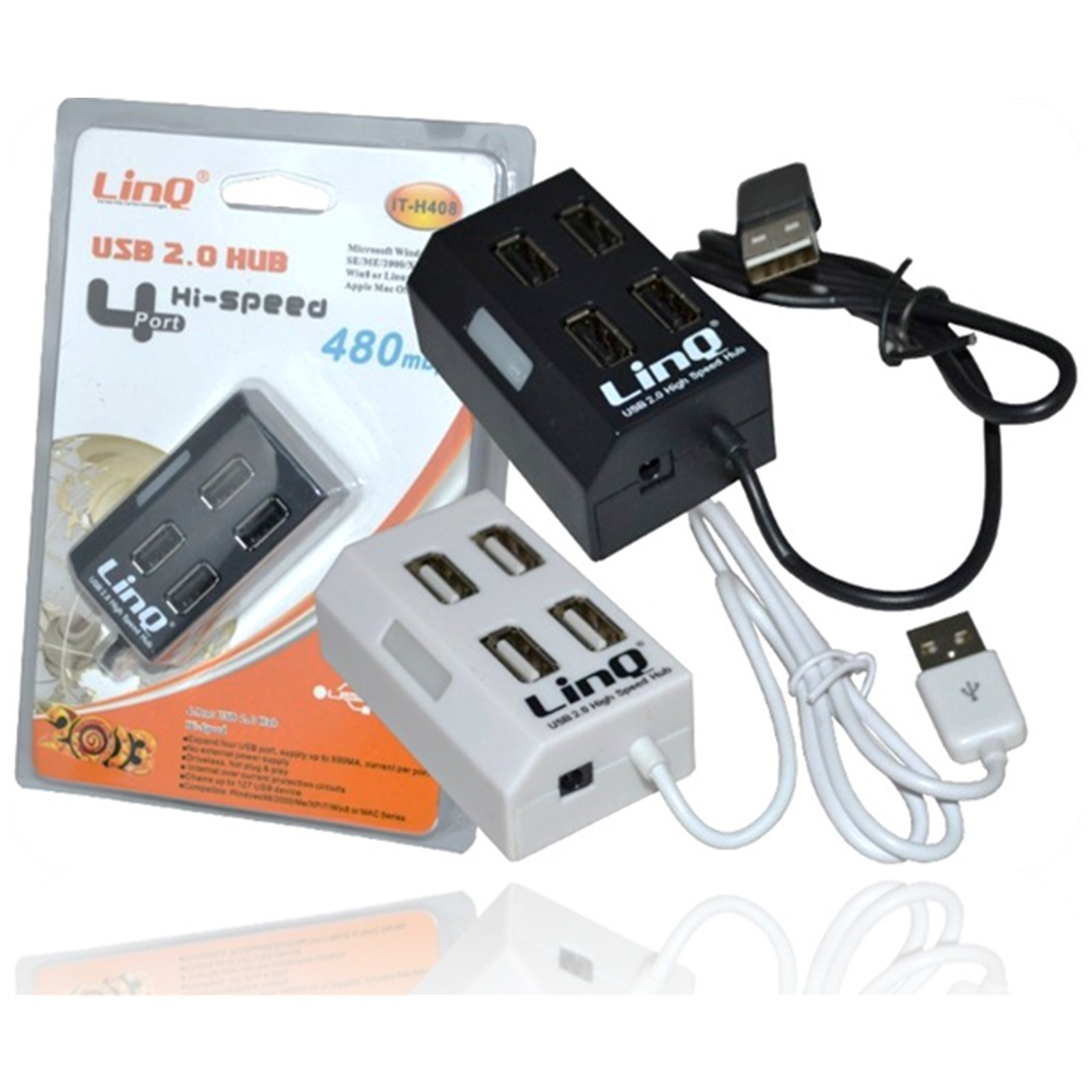
Figure 1: Linq IT-H408 4-Port USB 2.0 Hub. This image displays the hub's compact form factor, highlighting the four USB ports and their corresponding individual power switches, along with the integrated USB cable for connection to a host device.
Ntuziaka nhazi
- Mepee Hub: Carefully remove the Linq IT-H408 USB Hub from its packaging.
- Jikọọ na Kọmputa: Plug the integrated USB cable from the hub into an available USB 2.0 or USB 3.0 port on your computer.
- Nwụnye ọkwọ ụgbọala: The hub is plug-and-play and typically does not require additional driver installation for compatible operating systems (Windows 98/2000/ME/XP/7/8, Mac OS series). Your operating system should automatically detect and configure the device.
- Ngwa njikọ: Plug your USB devices (e.g., flash drives, keyboards, mice) into the available ports on the Linq IT-H408 hub.
Operating the Hub
- Powering On/Off Ports: Each USB port on the Linq IT-H408 has an independent on/off switch. Press the switch corresponding to the desired port to toggle its power state. An indicator light (if present) will illuminate when the port is active.
- Ngwa njikọ: Insert your USB device into an available port. Ensure the port is powered on using its individual switch.
- Nyefee data: The hub supports USB 2.0 data transfer speeds up to 480 Mbps. Performance may vary based on the connected device and host system.
- Oriri ike: For high-power devices, ensure your computer's USB port can supply sufficient power. If multiple high-power devices are connected, an external power adapter (not included) might be required for optimal performance, if the hub supports it.
Nlekọta
- Nhicha: Use a soft, dry cloth to clean the exterior of the hub. Avoid using liquid cleaners or solvents.
- Nchekwa: Mgbe ejighị ya, chekwaa oghere ahụ n'ebe dị jụụ, kpọrọ nkụ na-anọghị na ìhè anyanwụ kpọmkwem na oke okpomọkụ.
- Ijikwa: Zere ịdapụ ebe etiti ahụ ma ọ bụ mee ka ọ daa n'ọnọdụ siri ike. Anwala ịgbasa ngwaọrụ ahụ.
Nchọpụta nsogbu
Achọpụtaghị ngwaọrụ ahụ:
- Ensure the hub's USB cable is securely connected to your computer.
- Verify that the individual switch for the connected port is in the "on" position.
- Gbalịa ijikọ hub ahụ na ọdụ ụgbọ USB dị iche na kọmputa gị.
- Test the connected device by plugging it directly into your computer's USB port to rule out device issues.
- Malitegharịa ekwentị gị na kọmputa.
Ọsọ mbufe data dị nwayọ:
- Ensure both the hub and the connected device are USB 2.0 compatible for optimal USB 2.0 speeds.
- Zere ijikọ ọtụtụ ngwaọrụ bandwidth dị elu n'otu oge ma ọ bụrụ na ị na-enwe nwayọ.
- Ensure the hub is connected to a USB 2.0 or higher port on your computer.
Njikọ na-adịte aka:
- Lelee njikọ niile nke eriri maka ịdị nro.
- Ensure the hub is not placed near sources of strong electromagnetic interference.
- If using a desktop computer, try connecting the hub to a rear USB port directly on the motherboard.
Nkọwapụta
| Nọmba nlereanya | IT-H408 (Internal: 6950029010495) |
| Ụdị | Njikọ |
| Interface | USB 2.0 |
| Ọnụọgụ nke ọdụ ụgbọ mmiri | 4 (with individual switches) |
| Ọnụego mbufe data | Ruo 480 Mbps |
| Sistemu eji arụ ọrụ dakọtara | Windows 98 / 2000 / ME / XP / 7 / 8, Mac OS series |
| Agba | Ọcha, Nwa |
| Akụkụ (ihe dị ka.) | 19 x 11.6 x 5 cm (Package dimensions) |
| Ibu (ihe dị ka.) | 80 grams |
| Batrị achọrọ | Mba |
Akwụkwọ ikike na nkwado
Specific warranty information for the Linq IT-H408 USB Hub is typically provided at the point of purchase or within the product packaging. Please refer to your purchase documentation for details regarding warranty coverage and duration.
For technical support or further assistance, please contact your retailer or visit the official Linq websaịtị. Debe nnata nzụta gị dị ka ihe akaebe nke ịzụrụ ihe maka akwụkwọ ikike ọ bụla.
Ask a question about this manual
Ask about setup, troubleshooting, compatibility, parts, safety, or missing instructions. Manuals+ will review the question and use this page’s manual context to help answer it.