
Okwu mmalite
Welcome to your iFrogz Orion Headphones. This manual provides essential information for the proper setup, operation, and maintenance of your device. Please read these instructions carefully before using your headphones.
Ihe ngwugwu
- iFrogz Orion Headphones
- Akwụkwọ ntuziaka a
Ngwaahịa gafereview
The iFrogz Orion headphones are designed for audio playback and communication. They feature a 40mm driver for sound delivery and an integrated in-line remote with a microphone for call and music control. The foldable design enhances portability.
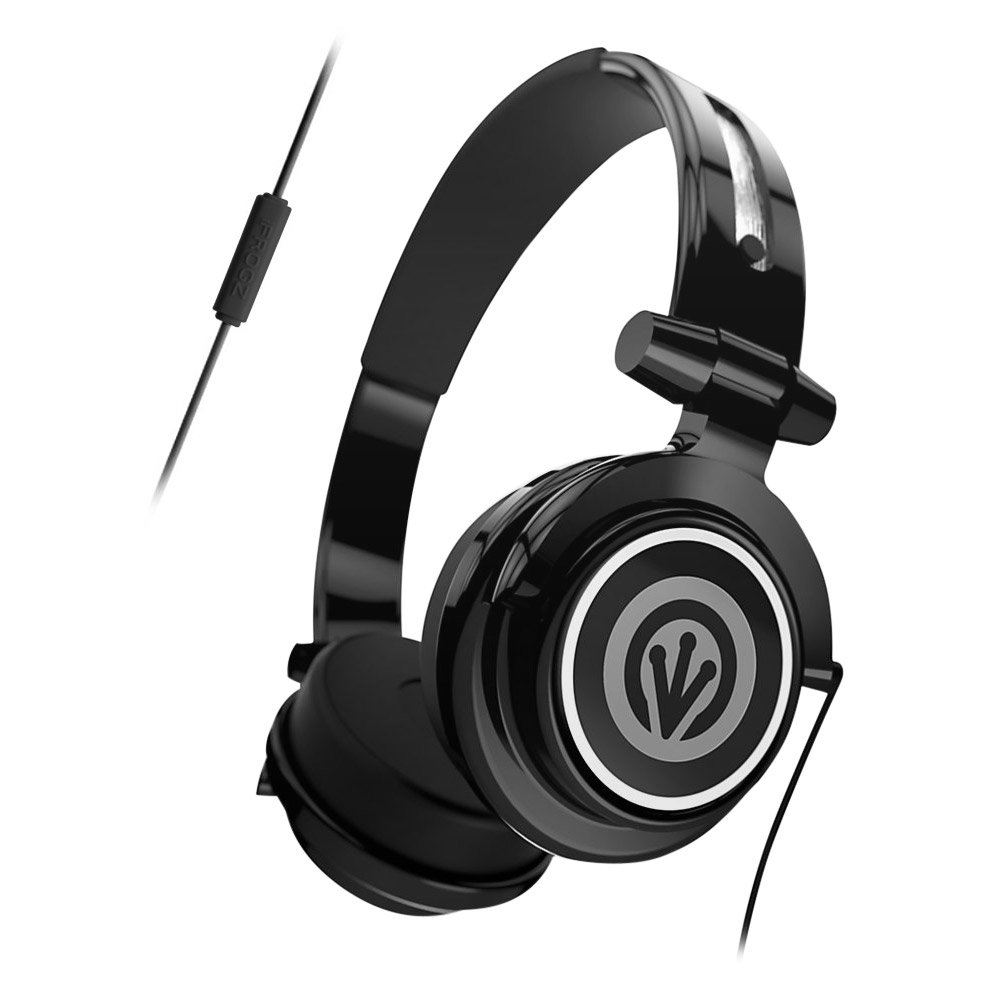
Image: iFrogz Orion Headphones, front view, black color, showcasing earcups na eriri isi.
Melite
Ijikọ Igweisi
- Locate the 3.5mm audio jack on your iFrogz Orion headphones.
- Insert the 3.5mm audio jack firmly into the compatible audio port of your device (e.g., smartphone, tablet, computer).
- Hụ na njikọ ahụ dị nchebe maka arụmọrụ ọdịyo kacha mma.
Ntuziaka ọrụ
Ngwugharị ọdịyo
Once connected, audio from your device will play through the headphones. Adjust the volume using your device's native volume controls.
Using the In-Line Remote/Microphone
- Njikwa egwu: Press the single button once to play or pause audio playback.
- Njikwa oku: Press the single button once to answer an incoming call. Press it again to end an active call.
- The integrated microphone allows for hands-free communication during calls.
Nlekọta
- Nhicha: Use a soft, dry cloth to clean the exterior surfaces of the headphones. Do not use liquid cleaners, abrasive materials, or solvents, as these may damage the finish or internal components.
- Nchekwa: When not in use, fold the headphones for compact storage. Store them in a cool, dry place, away from direct sunlight, excessive heat, or extreme cold.
- Nlekọta USB: Avoid sharp bends, kinks, or excessive pulling on the audio cable to prevent internal wire damage.
Nchọpụta nsogbu
Enweghị ụda
- Ensure the 3.5mm audio jack is fully inserted into both the headphones and the audio source device.
- Check the volume level on your audio source device and ensure it is not muted.
- Test the headphones with a different audio source to determine if the issue is with the headphones or the original device.
Igwe okwu anaghị arụ ọrụ
- Verify that the headphones are securely connected to your device.
- Check your device's audio settings to ensure the external microphone is selected and enabled.
Nkọwapụta
| Njirimara | Nkọwa |
|---|---|
| Nha ọkwọ ụgbọ ala | 40mm |
| Njikọta | Waya (Jack ọdịyo 3.5mm) |
| Njikwa | In-line single-button remote/microphone |
| Nhazi | Foldable, Lightweight |
| Ihe onwunwe | Plastic |
| Ibu Ibu | 8.8 ounces |
| Akụkụ | 8.78 x 6.46 x 3.35 sentimita asatọ |
| Nọmba nlereanya | IF-ORI-BLK |
| UPC | 848467004830 |
Akwụkwọ ikike na nkwado
For detailed warranty information, product registration, or customer support, please visit the official iFrogz website or contact their customer service department directly. Please retain your purchase receipt as proof of purchase for any warranty claims.