
1. Okwu mmalite
This manual provides detailed instructions for the setup, operation, and maintenance of your Vibe Axcess 5-in-1 Universal Remote. Please read this manual thoroughly before using the remote control to ensure proper functionality and to maximize your user experience. This remote is designed to control up to five different audio/video devices.
2. Ngwaahịa gafereview
The Vibe Axcess 5-in-1 Universal Remote is designed to consolidate control of multiple home entertainment devices into a single unit. It features dedicated buttons for various functions and device types.
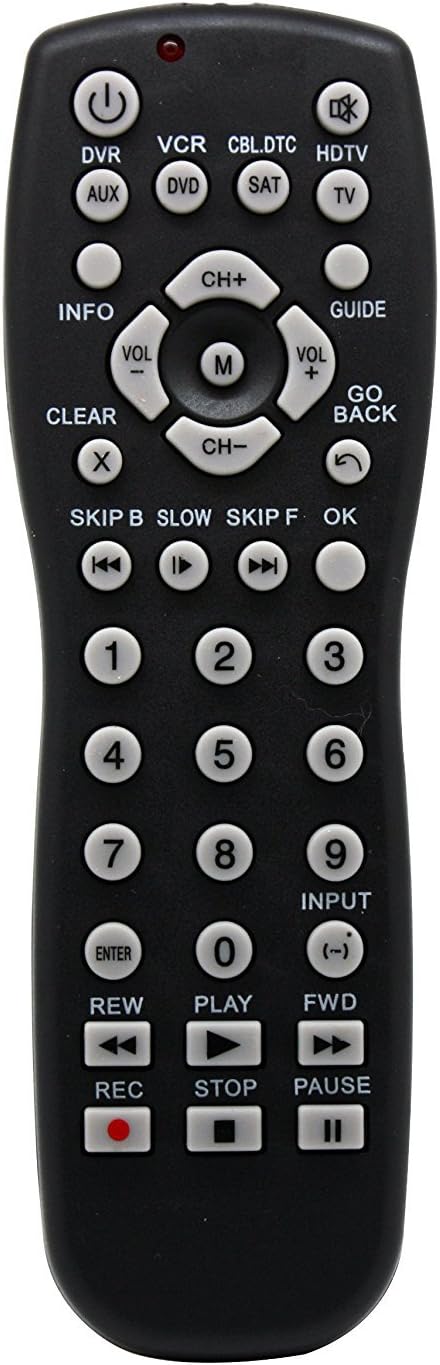
Foto 1: N'ihu view of the Vibe Axcess 5-in-1 Universal Remote. This image displays the remote's layout, including device selection buttons (DVR, VCR, CBL.DTC, HDTV, AUX, DVD, SAT, TV), navigation pad, number keys, and media control buttons (REW, PLAY, FWD, REC, STOP, PAUSE).

Foto 2: Packaging of the Vibe Axcess 5-in-1 Universal Remote. The packaging highlights the remote's 5-in-1 capability and compatibility with various device types such as DVD/VCR, HDTV, DVD, AUX, and CBL/SAT/CABLE.
3. Nhazi
3.1 Ntinye batrị
- Chọta mkpuchi mkpuchi batrị n'azụ nke njikwa anya.
- Wetuo mkpuchi ahụ ala ma ọ bụ pịa eriri ma welie ya ka imepee.
- Tinye batrị AAA abụọ (2), hụ na njedebe ndị dị mma (+) na nke na-adịghị mma (-) kwekọrọ na eserese dị n'ime ngalaba ahụ.
- Dochie mkpuchi nke batrị batrị, na-atụgharị ya azụ n'ime ebe ruo mgbe ọ pịrị na nchekwa.
Mara: Always use fresh batteries and replace both batteries at the same time. Do not mix old and new batteries or different types of batteries.
3.2 Programming the Remote
To control your devices, the universal remote must be programmed with the correct codes for each device. There are typically two methods for programming:
3.2.1 Ntinye koodu Direct
This method involves entering a specific code from a code list (usually provided with the remote or available online) for your device's brand.
- Gbanye ngwaọrụ ịchọrọ ijikwa (dịka ọmụmaatụ, TV, ihe ọkpụkpọ DVD).
- Press and hold the desired device button on the remote (e.g., TV, DVD) for approximately 3 seconds until the indicator light (usually red) illuminates and stays on.
- While the indicator light is on, enter the 3-digit or 4-digit code for your device's brand using the number keys.
- If the code is valid, the indicator light will turn off. If the light flashes and remains on, the code was invalid; re-enter the code.
- Nwalee ihe dịpụrụ adịpụ site na ịpị bọtịnụ IKE button. If the device turns off, the code is correct. If not, try the next code listed for your brand.
3.2.2 Chọọ koodu akpaaka
If you cannot find a code or direct code entry fails, use the auto code search method.
- Tụgharịa na ngwaọrụ ịchọrọ ịchịkwa.
- Press and hold the desired device button (e.g., TV) for approximately 3 seconds until the indicator light illuminates and stays on.
- While holding the device button, press the IKE button once. The indicator light will start flashing, indicating it is searching for a code.
- Point the remote at the device and wait for the device to turn off. This may take several minutes as the remote cycles through codes.
- Ozugbo ngwaọrụ ahụ gbanyụrụ, pịa ozugbo Banye bọtịnụ iji chekwaa koodu ahụ. Ọkụ ihe ngosi ahụ ga-agbanyụ.
- Test the remote's functions. If some functions do not work, repeat the auto search process to find a more compatible code.
4. Ntuziaka ọrụ
Once programmed, operating your Vibe Axcess 5-in-1 Universal Remote is straightforward.
- Họrọ Ngwaọrụ: Press the corresponding device button (e.g., TV, DVD, CBL.DTC) for the device you wish to control. The indicator light will briefly illuminate to confirm selection.
- Gbanyụọ/ Gbanyụọ: Pịa IKE bọtịnụ iji gbanye ma ọ bụ gbanyụọ ngwaọrụ ahọpụtara.
- Njikwa olu: Jiri ihe VOL+ na Vol- bọtịnụ iji dozie olu.
- Njikwa ọwa: Jiri ihe CH+ na CH- bọtịnụ ịgbanwe ọwa.
- Igodo Nọmba: Use the number keys (0-9) to directly enter channel numbers or other numerical inputs.
- Ntugharị: Use the directional pad (up, down, left, right) and OK button for menu navigation.
- Njikwa mgbasa ozi: Jiri KWURU, Kwụsịtụ, KWỤSỊ, REW, FWD, na REC for controlling media playback on compatible devices.
5. Nlekọta
5.1 Nhicha
To clean your remote, gently wipe it with a soft, dry cloth. Do not use abrasive cleaners, solvents, or harsh chemicals, as these can damage the remote's finish or internal components.
5.2 nnọchi batrị
When the remote's performance degrades or the indicator light fails to illuminate, it is time to replace the batteries. Follow the battery installation steps in Section 3.1. Dispose of used batteries responsibly according to local regulations.
6. Nchọpụta nsogbu
- Remote anaghị arụ ọrụ:
- Lelee ma batrị ndị ahụ hà dị mma ma ha agwụchabeghị. Gbanwee ha ma ọ bụrụ na ọ dị mkpa.
- Ensure you have selected the correct device button (e.g., TV for your television).
- Verify that the remote is programmed with the correct code for your device. Re-program if unsure.
- Ensure there are no obstructions between the remote and the device's infrared sensor.
- Ụfọdụ ọrụ anaghị arụ ọrụ:
- Some universal remote codes may not support all original remote functions. Try another code for your device brand using the programming steps.
- Ensure the device you are trying to control supports the specific function (e.g., not all TVs have a dedicated 'INFO' button function).
- Indicator light not illuminating:
- Lelee ma dochie batrị.
- If the issue persists after battery replacement, the remote may be faulty.
7. Nkọwapụta
- Ụdị: OT795-KO
- Akara: Vibe
- Akụkụ ngwaahịa: 10.7 x 4 x 0.8 sentimita asatọ
- Ibu ihe: 4 ounces
- Batrị: A chọrọ batrị 2 AAA (anaghị etinye ya)
- Ọnụọgụ ngwaọrụ akwadoro kacha: 5
- Teknụzụ Njikọta: Infrared
- Njirimara Pụrụ Iche: Universal
8. Akwụkwọ ikike na nkwado
For information regarding warranty coverage or technical support, please refer to the documentation included with your purchase or contact the retailer where the product was acquired. Specific warranty terms may vary.