
Okwu mmalite
This manual provides essential instructions for the proper installation, operation, and maintenance of your KYOCERA TASKALFA 300Ci toner cartridge. Please read this manual thoroughly before using the product to ensure optimal performance and longevity.
Ntọala na nwụnye
Follow these steps to correctly install the KYOCERA TASKALFA 300Ci toner cartridge into your compatible printer.
- Mepee katrijị ahụ: Carefully remove the new toner cartridge from its packaging. Avoid touching the drum surface or electrical contacts.
- Kpoo cartridge: Gently rock the cartridge horizontally several times to distribute the toner evenly inside.
- Open the Printer Cover: Refer to your printer's manual to locate and open the toner compartment cover.
- Remove the Old Cartridge: Press the release lever (if present) and pull the used toner cartridge straight out of the printer. Place it in a protective bag for recycling.
- Insert the New Cartridge: Align the new toner cartridge with the guides in the printer and push it firmly until it clicks into place. Ensure it is securely seated.
- Mechie mkpuchi ngwa nbipute: Close the toner compartment cover. The printer should automatically detect the new cartridge.
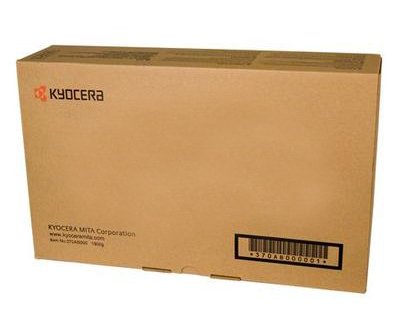
Image: KYOCERA TASKALFA 300Ci Toner Cartridge. This image shows the toner cartridge in its packaging, ready for installation.
Ntuziaka ọrụ
Once installed, the KYOCERA TASKALFA 300Ci toner cartridge operates automatically with your printer. Here are some operational considerations:
- Toner Level Monitoring: Your printer's control panel or software utility will typically display the current toner level. Monitor this to anticipate when a replacement cartridge will be needed.
- Ogo bipụta: If print quality degrades (e.g., faded prints, streaks), it may indicate low toner or a need for maintenance. Refer to the troubleshooting section.
- Replacement Notification: The printer will usually display a message or indicator when the toner cartridge is nearing empty or requires replacement.
Nlekọta
Proper handling and storage can extend the life and performance of your toner cartridge.
- Nchekwa: Store new toner cartridges in their original, unopened packaging in a cool, dry place away from direct sunlight and extreme temperatures.
- Ijikwa: Always handle the cartridge by its designated grips. Avoid touching the drum or electrical contacts.
- Imegharị: Dispose of used toner cartridges responsibly. Many manufacturers and retailers offer recycling programs.
Nchọpụta nsogbu
If you encounter issues, consult the following common troubleshooting tips:
| Nsogbu | Ihe nwere ike ime | Ngwọta |
|---|---|---|
| Mbipụta agwụla ma ọ bụ ọkụ | Ọkwa toner dị ala; nkesa toner na-adịghị nhata. | Gently rock the cartridge to redistribute toner. If problem persists, replace the cartridge. |
| Streaks or Lines on Prints | Toner residue; damaged drum. | Perform a printer cleaning cycle. If the issue continues, the cartridge may be faulty or the drum damaged, requiring replacement. |
| Onye nbipute anaghị amata katrij | Cartridge not seated correctly; dirty electrical contacts. | Remove and reinsert the cartridge firmly. Clean electrical contacts on both the cartridge and printer with a lint-free cloth. |
Nkọwapụta
- Akara: KYOCERA
- Ụdị: TASKALFA 300Ci
- Ibu ihe: 2.48 pound
- ASIN: B008N4AX3Y
- Onye nrụpụta: KYOCERA
- Ụbọchị mbụ dị: Nọvemba 15, 2012
Akwụkwọ ikike na nkwado
For specific warranty information regarding your KYOCERA TASKALFA 300Ci toner cartridge, please refer to the documentation provided with your original printer or contact KYOCERA customer support directly. KYOCERA provides support for its products to ensure customer satisfaction.
KYOCERA Customer Support: Please visit the official KYOCERA website or refer to your printer's user manual for contact details and support resources.


