
1. Okwu mmalite
The SteelSeries Kana Optical Gaming Mouse is engineered for precision and versatility, designed to accommodate all three primary grip styles: palm, claw, and fingertip. This ambidextrous mouse features an ergonomic button layout and size, developed in collaboration with professional gaming teams to ensure consistent performance and accuracy in competitive environments. This manual provides comprehensive instructions for setup, operation, maintenance, and troubleshooting to help you maximize your gaming experience.
2. Ihe ngwugwu
- SteelSeries Kana Optical Gaming Mouse (White)
- Quick Start Guide (integrated into this manual)
3. Ngwaahịa gafereview
Familiarize yourself with the key components of your SteelSeries Kana mouse:
- Bọtịnụ Pịa aka ekpe: Bọtịnụ ihe omume mbụ.
- Pịa aka nri bọtịnụ: Bọtịnụ ihe omume nke abụọ.
- Mpempe akwụkwọ mpịakọta: For scrolling and a clickable middle button. The scroll wheel is illuminated.
- CPI Toggle Button: Located centrally, allows quick switching between sensitivity settings.
- Bọtịnụ Akụkụ (x2): One on each side, large and easily accessible for rapid-fire actions. These can be customized or disabled via software.
- Ihe mmetụta anya: Dị n'okpuru, na-enye nsochi ziri ezi.
- Njikọ USB: For connecting the mouse to your computer.
- Braided Cable: Durable, tangle-free nylon cord.
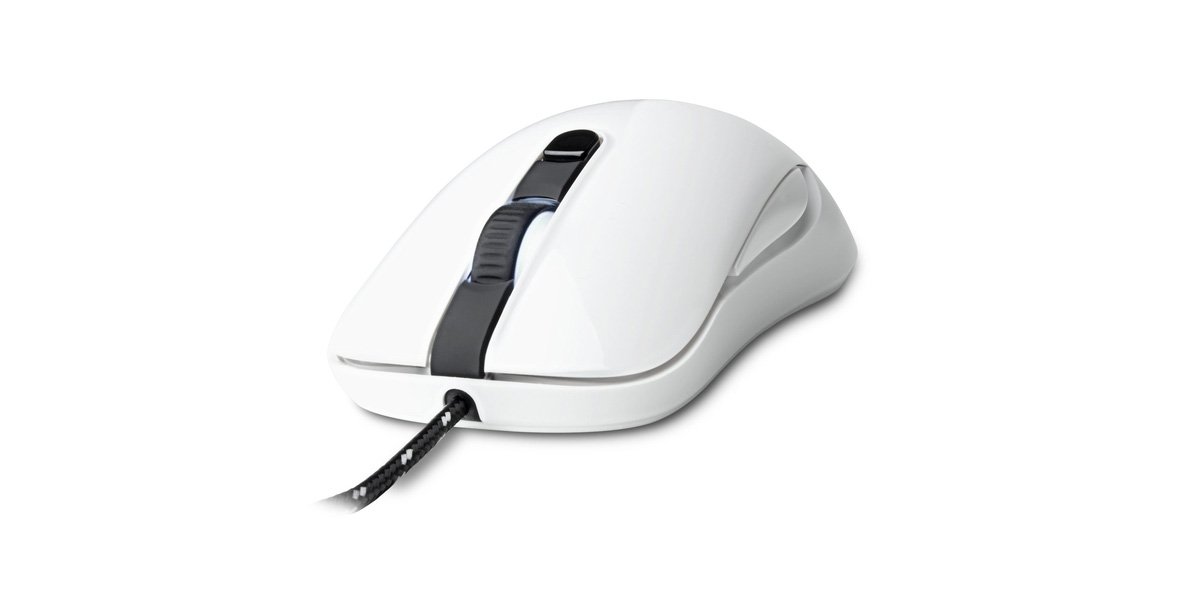
Image of the SteelSeries Kana Optical Gaming Mouse in white, showcasing its ambidextrous design, illuminated scroll wheel, and side buttons.
4. Nhazi
4.1 Njikọ Hardware
- Chọta ọdụ ụgbọ mmiri USB dị na kọmputa gị.
- Plug the USB connector of the SteelSeries Kana mouse into the USB port.
- Your operating system should automatically detect and install basic drivers for the mouse.
4.2 Software Installation (SteelSeries Engine)
To unlock the full customization potential of your SteelSeries Kana mouse, including CPI settings, button programming, macros, and LED intensity, install the SteelSeries Engine software.
- Visit the official SteelSeries websaịtị: steelseries.com/engine
- Download the SteelSeries Engine software compatible with your operating system (Windows or macOS).
- Soro ntuziaka ihuenyo iji mezue nrụnye.
- Once installed, launch the SteelSeries Engine to configure your mouse settings.
Rịba ama maka ndị ọrụ Mac: Compatibility with macOS versions 10.9 and later for SteelSeries Engine 2.0 (required for Kana) has historically been inconsistent. Please check the official SteelSeries website for the latest software updates and compatibility information before installation.
5. Ntuziaka ọrụ
5.1 Ọrụ bụ isi
- Ntughari: Move the mouse across a surface to control the cursor on your screen.
- Ịpị: Use the left and right buttons for primary and secondary actions.
- Mpịakọta: Rotate the scroll wheel to navigate documents and web pages. Press the scroll wheel for its assigned middle-click function.
5.2 Adjusting CPI (Counts Per Inch)
The centrally located CPI toggle button allows you to switch between two pre-defined sensitivity settings instantly. The default CPI settings are optimized for gaming, but can be customized using the SteelSeries Engine software. The maximum CPI supported is 3200.
- Press the CPI toggle button once to switch to the alternate CPI setting.
- Press it again to revert to the previous setting.
5.3 Customizing with SteelSeries Engine
The SteelSeries Engine software provides extensive customization options:
- CPI Settings: Fine-tune or set custom CPI values beyond the pre-defined options.
- Mmemme bọtịnụ: Assign custom functions, keyboard shortcuts, or macros to any of the 6 programmable buttons (including side buttons and scroll wheel click).
- Macros: Create and assign complex sequences of commands with precise timing control.
- LED Intensity: Adjust the brightness of the illuminated scroll wheel.
- Profiles: Mepụta ma chekwaa ọtụtụ ọkachamarafiles for different games or applications, with automatic switching based on game triggers.
6. Nlekọta
6.1 Cleaning Your Mouse
To ensure optimal performance and longevity, keep your mouse clean.
- Mputa: Jiri akwa dị nro na-enweghị ntụpọ dampejiri mmiri ma ọ bụ ihe nhicha dị nro hichaa elu òké ahụ. Zere kemịkalụ siri ike ma ọ bụ ihe ndị na-emebi ihe.
- Ihe mmetụta anya: Gently clean the optical sensor lens on the underside of the mouse with a dry cotton swab or compressed air to remove dust or debris.
- Ụkwụ òké: Ensure the mouse feet are clean and free of obstructions for smooth gliding.
Ịkpachara anya: Do not immerse the mouse in water or any cleaning solution. Avoid spraying liquids directly onto the mouse.
7. Nchọpụta nsogbu
| Nsogbu | Ngwọta enwere ike |
|---|---|
| Mouse not detected / Not responding |
|
| Inaccurate or erratic tracking |
|
| Buttons not responding or performing incorrectly |
|
| SteelSeries Engine software not recognizing mouse (Mac OS) |
|
8. Nkọwapụta
| Ụdị | Usoro igwe |
| Nọmba nlereanya | 62029 |
| Agba | Ọcha |
| Teknụzụ nchọpụta ngagharị | Ngwa anya |
| Ọnụọgụ bọtịnụ | 6 (nwere ike ime mmemme) |
| Ntuzi aka | Ambidextrous (Left, Right) |
| Ngwaike Platform | PC |
| Ụdị USB | Naịlọn akpara akpa |
| Ibu Ibu | 0.16 kilogram |
| Njirimara Pụrụ Iche | Ergonomic Design, Illuminated Scroll Wheel |
9. Akwụkwọ ikike na nkwado
9.1 Ozi akwụkwọ ikike
The SteelSeries Kana Optical Gaming Mouse comes with a Akwụkwọ ikike dị afọ 1 site na ụbọchị azụrụ ya. Akwụkwọ ikike a na-ekpuchi ntụpọ nrụpụta na ọrụ aka n'oge ojiji nkịtị. Ọ naghị ekpuchi mmebi sitere na ojiji na-ezighị ezi, ihe mberede, mgbanwe na-akwadoghị, ma ọ bụ mmebi nkịtị. Biko debe ihe akaebe nke ịzụrụ ihe gị maka nkwupụta akwụkwọ ikike.
9.2 Nkwado ndị ahịa
For technical assistance, warranty claims, or further information, please visit the official SteelSeries support websaịtị:
You can find FAQs, driver downloads, and contact information for customer service on their websaịtị.