
1. Okwu mmalite
The D-Link Wireless N300 Dual Band PCI Express Desktop Adapter (DWA-566) provides high-speed wireless connectivity for your desktop computer. Utilizing Wireless N technology, it maximizes the speed and range of your wireless signal, offering superior performance compared to Wireless G devices. The dual-band capability supports both 2.4GHz and 5GHz wireless signals, allowing for flexible network usage, such as browsing on 2.4GHz and HD streaming or gaming on the clearer 5GHz band.
This adapter is designed to fit into any standard PCI Express slot, offering a higher performance interface than legacy PCI. It supports secure wireless networks with WPA or WPA2 encryption.

Figure 1.1: D-Link DWA-566 Wireless N300 Dual Band PCI Express Desktop Adapter with antennas.
2. Atụmatụ
The DWA-566 adapter includes the following key features:
- IEEE 802.11n, 802.11g, and 802.11a Compliant
- Dual Band Technology for Superior Wireless Performance (2.4GHz or 5GHz)
- Access secure wireless networks using advanced WPA or WPA2 encryption
- Fits into any standard PCI Express slot
- PCI Express Interface provides higher performance than a legacy PCI interface
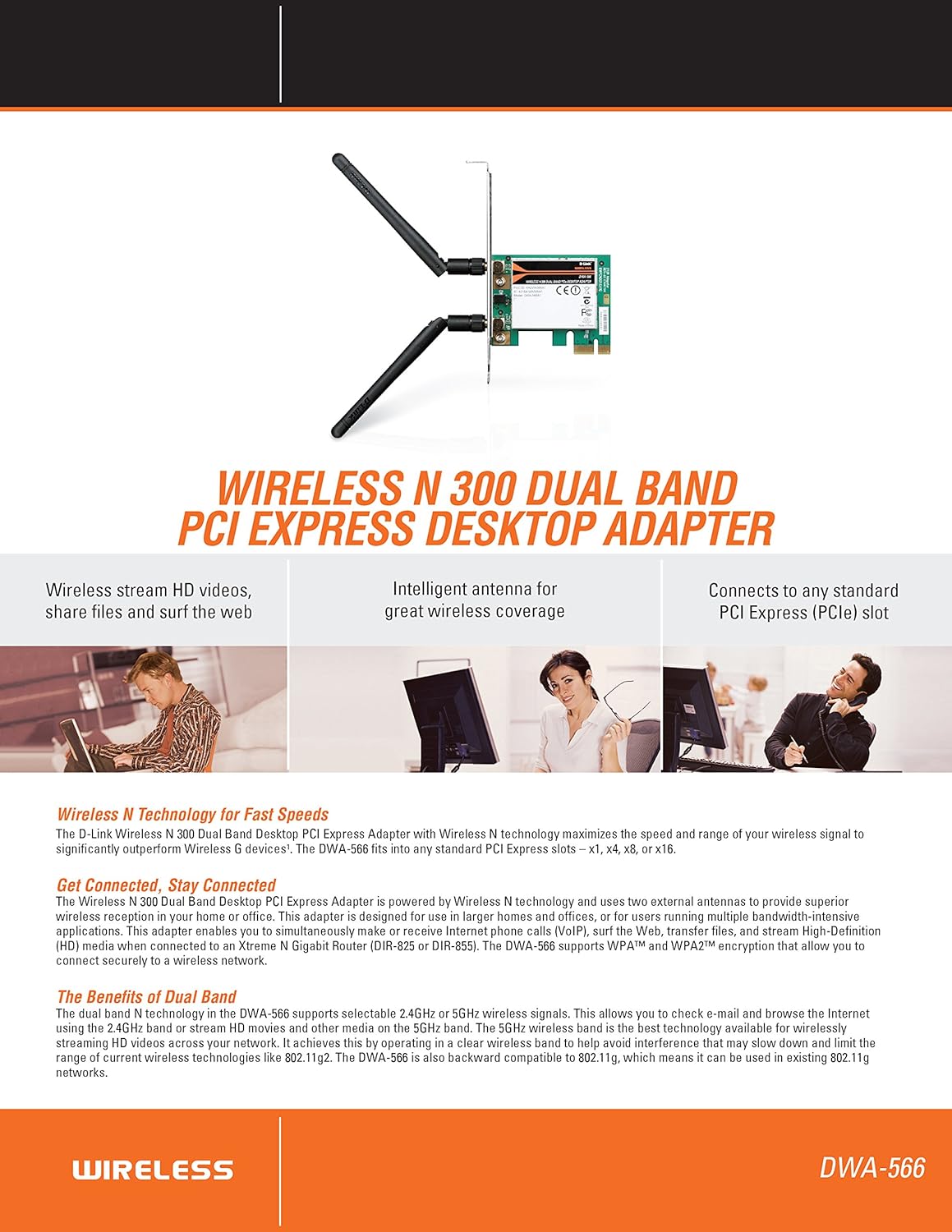
Nyocha 2.1: N'eluview of DWA-566 features and benefits.
3. Ihe ngwugwu
Chọpụta na ngwungwu gị nwere ihe ndị a:
- Wireless N 300 Dual Band PCI Express Adapter (DWA-566)
- Two detachable antennas
- Dị ala-profile nkwado nkwado
- Ntuziaka ntinye ngwa ngwa
- CD-ROM with:
- Onye njikwa njikọ ikuku D-Link
- Ndị ọkwọ ụgbọ ala
- Ndekọ ngwaahịa
4. System chọrọ
Before installing the DWA-566, ensure your system meets the following minimum requirements:
- Computer with an available PCI Express slot
- Windows operating system (Windows XP, Vista, 7, 8, 10)
- CD-ROM drive (for driver installation from included CD)
- Internet Explorer 7 or Firefox 3.0 and above (for viewing documentation)
- Ịdenye aha na onye na-eweta ọrụ ịntanetị (ISP)
For optimal performance, a D-Link Wireless N router (DIR-655 or DIR-825) is recommended.

Figure 4.1: Detailed technical specifications, minimum requirements, and network diagram.
5. Ntọala na nwụnye
5.1 Ntinye ngwaike
- Power Off Computer: Gbanyụọ kọmputa gị wee wepụ eriri ọkụ.
- Mepee akpa kọmputa: Remove the computer case cover.
- Chọta oghere PCI Express: Find an available PCI Express slot on your motherboard.
- Fanye nkwụnye: Carefully insert the DWA-566 adapter into the PCI Express slot, ensuring it is seated firmly.
- Ihe nkwụnye echedoro: Secure the adapter with a screw to the computer chassis.
- Tinye eriri: Screw the two included antennas onto the connectors on the adapter.
- Mechie igbe na ike na: Replace the computer case cover, plug in the power cord, and power on your computer.

Figure 5.1: DWA-566 adapter with antennas attached, ready for installation.
5.2 Nwụnye ngwanrọ
After hardware installation, proceed with driver and utility installation:
- Insert Installation CD: Insert the DWA-566 installation CD into your computer's CD-ROM drive. The setup wizard should launch automatically. If not, navigate to the CD drive and run the 'Setup.exe' file.
- Soro ntuziaka na ihuenyo: Follow the prompts of the D-Link setup wizard to install the drivers and the D-Link Wireless Connection Manager utility.
- Malitegharịa kọmputa: After the installation is complete, restart your computer when prompted.
Mara: For Windows 7/8 64-bit systems, ensure you are using the latest drivers available from the official D-Link support website to avoid potential compatibility issues.
6. Ntuziaka ọrụ
Once the drivers are installed, you can connect to a wireless network:
- Launch Connection Manager: Open the D-Link Wireless Connection Manager utility or use the built-in Windows wireless network utility.
- Nyochaa netwọkụ: The utility will scan for available wireless networks in your area.
- Họrọ netwọk: Choose your desired wireless network (SSID) from the list.
- Tinye igodo nchekwa: If the network is secured, enter the correct WPA/WPA2 security key or passphrase.
- Jikọọ: Click 'Connect' to establish a wireless connection.
A successful connection will be indicated by a strong signal strength and internet access.
7. Nlekọta
To ensure optimal performance and longevity of your DWA-566 adapter:
- Debe ndị ọkwọ ụgbọala emelitere: Lelee nkwado D-Link kwa oge website for the latest drivers and firmware updates.
- Gbaa mbọ hụ na ikuku ikuku dị mma: Make sure your computer case has adequate airflow to prevent overheating of internal components, including the wireless adapter.
- Ndokwa Antenna: Adjust the antennas for the best possible signal reception.
- Ihe na-akpata gburugburu: Avoid placing your computer near large metal objects or other devices that may cause wireless interference.
8. Nchọpụta nsogbu
If you encounter issues with your DWA-566 adapter, consider the following:
8.1 No Wireless Connection
- Verify Hardware Installation: Ensure the adapter is correctly seated in the PCI Express slot and antennas are securely attached.
- Lelee ndị ọkwọ ụgbọala: Confirm that the drivers are installed correctly. Check Device Manager for any error symbols next to the network adapter. Reinstall drivers if necessary.
- Ọnọdụ rawụta: Ensure your wireless router is powered on and broadcasting a signal.
- Igodo nchekwa: Double-check that the correct wireless security key (WPA/WPA2 passphrase) is entered.
- Ntọala Firewall: Temporarily disable your computer's firewall to see if it is blocking the connection. If it resolves the issue, configure your firewall to allow the D-Link utility.
8.2 Slow Connection Speed or Frequent Disconnections
- Ndozi antenna: Try repositioning the antennas for better signal reception.
- Ntinye aka: Move the computer away from potential sources of interference (e.g., cordless phones, microwaves, Bluetooth devices).
- Ịdị nso router: Ensure the computer is within the effective range of your wireless router.
- Dual Band Usage: If your router supports it, try connecting to the 5GHz band for less interference and potentially higher speeds, especially for streaming or gaming.
- Mmelite ọkwọ ụgbọala: Update the adapter drivers to the latest version from the D-Link websaịtị.
9. Nkọwapụta
| Njirimara | Nkọwapụta |
|---|---|
| Ụdị | D-njikọ |
| Nọmba nlereanya | DWA-566 |
| Ngwaọrụ Akụrụngwa | PCI Express |
| Protocol Njikọ Data | IEEE 802.11n, 802.11g, 802.11a |
| Ọnụego mbufe data | Up to 300 Megabits Per Second |
| Ugboro ugboro | 2.4 GHz / 5 GHz (Dual Band) |
| Nchekwa | WPA, WPA2 |
| Ngwa dakọtara | Kọmputa kọmputa |
| Ibu Ibu | 0.4 pound (ihe dị ka gram 181) |
| Asambodo Nnwale Mpụga | FCC B, IC B, CE, C-Tick |
10. Akwụkwọ ikike na nkwado
The D-Link Wireless N300 Dual Band PCI Express Desktop Adapter (DWA-566) comes with a Akwụkwọ ikike dị afọ 1. For specific terms and conditions, please refer to the warranty documentation included with your product or visit the official D-Link websaịtị.
D-Link provides 24/7 Basic Installation Support to assist with initial setup and configuration. For technical assistance, driver downloads, and further product information, please visit the D-Link support websaịtị ma ọ bụ kpọtụrụ ndị ahịa ha ọrụ.
Nkwado D-njikọ Websaịtị: https://support.dlink.com/