
1. Okwu mmalite
This manual provides detailed instructions for the installation, operation, and maintenance of the Eaton 4PORT Netxtreme II 1000 Express Ethernet Adapter. Please read this manual thoroughly before installing and using the product to ensure proper functionality and to prevent damage.
2. Ngwaahịa gafereview
The Eaton 4PORT Netxtreme II 1000 Express Ethernet Adapter is a high-performance, quad-port, copper Gigabit Ethernet network adapter designed for server environments. It supports both Network Interface Card (NIC) and TCP Offload Engine (TOE) functionalities, as well as iSCSI over a single network connection. This adapter is ideal for implementing virtualization solutions, providing the necessary density and capacity for numerous virtualized systems on a single server.
Atụmatụ gụnyere:
- Quad-port copper Gigabit Ethernet connectivity.
- PCI Express 2.0 x4 interface for high bandwidth.
- Support for NIC/TOE and iSCSI.
- Optimized for virtualization environments.
- Network Technology: 10/100Base-TX.
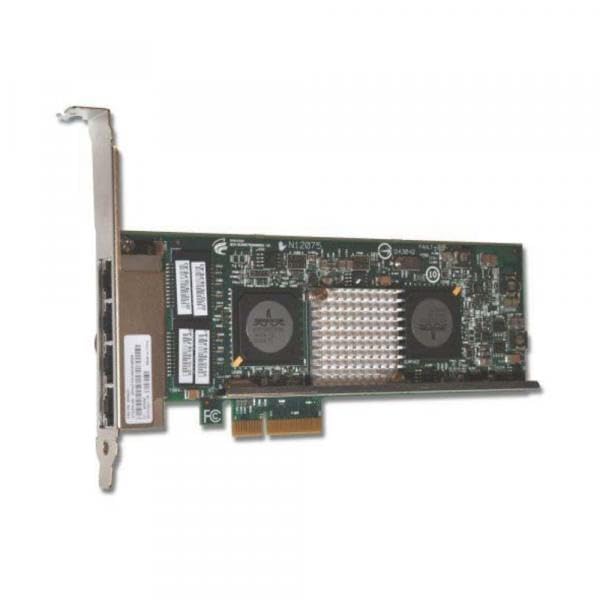
Figure 2.1: Eaton 4PORT Netxtreme II 1000 Express Ethernet Adapter. This image shows the network adapter with its four copper Gigabit Ethernet ports and PCI Express connector.
3. Ntọala na nwụnye
Follow these steps to properly install the Eaton 4PORT Netxtreme II 1000 Express Ethernet Adapter into your server system.
3.1. Akụrụngwa nwụnye
- Sistemụ gbanyụọ ike: Ensure your server is completely powered off and disconnected from the power source before opening the chassis.
- Chassis mepere emepe: Carefully open the server chassis to access the internal components.
- Chọta oghere PCI Express: Identify an available PCI Express 2.0 x4 (or larger, e.g., x8, x16) slot on your server's motherboard.
- Fanye nkwụnye: Align the adapter with the chosen PCI Express slot and gently press it down until it is firmly seated. Ensure the bracket is secured to the chassis.
- Mechie chassis: Close the server chassis and reconnect the power source.
3.2. Nwụnye ọkwọ ụgbọala
After hardware installation, you may need to install or update drivers for the operating system to recognize and utilize the adapter fully.
- Power On System: Power on your server.
- Lelee Onye njikwa ngwaọrụ: In your operating system, open Device Manager (or equivalent) to verify if the adapter is detected. It may appear under "Network Adapters" or "Other Devices" if drivers are not yet installed.
- Obtain Drivers: Visit the official Eaton or IBM (manufacturer) support website and download the latest drivers for the Netxtreme II 1000 Express Quad Port Ethernet Adapter (Model 49Y4220) compatible with your operating system.
- Wụnye ndị ọkwọ ụgbọala: Follow the instructions provided with the driver package to install the drivers. This typically involves running an executable file.
- Nyochaa nwụnye: After installation, check Device Manager again to ensure the adapter is recognized correctly and functioning without errors.
3.3. Network Cable Connection
Connect standard RJ-45 Ethernet cables to the four available ports on the adapter and to your network switch or router. Ensure secure connections for optimal performance.
4. Ntuziaka ọrụ
Once installed and drivers are configured, the Eaton 4PORT Netxtreme II 1000 Express Ethernet Adapter operates as a standard network interface card, providing high-speed Gigabit Ethernet connectivity.
- Standard Network Operation: The adapter will provide network access at speeds up to 1000 Mbps (Gigabit Ethernet) through each of its four ports.
- Virtualization Support: For virtualization environments, configure the adapter within your hypervisor software (e.g., VMware, Hyper-V) to assign network resources to virtual machines. The quad-port design allows for dedicated network paths or link aggregation for increased bandwidth and redundancy.
- NIC/TOE and iSCSI: The adapter's support for NIC/TOE (TCP Offload Engine) and iSCSI can be configured through your operating system's network settings or specialized utility software provided by the driver package. Refer to your operating system's documentation or the driver's user guide for specific configuration steps for these advanced features.
5. Nlekọta
The Eaton 4PORT Netxtreme II 1000 Express Ethernet Adapter is designed for reliable operation with minimal maintenance. However, adhering to general best practices for server hardware can prolong its lifespan and ensure optimal performance.
- Debe Sistemụ Dị Ọcha: Periodically clean the interior of your server chassis to prevent dust buildup on the adapter and other components. Dust can impede airflow and lead to overheating. Use compressed air for cleaning.
- Gbaa mbọ hụ na ikuku ikuku dị mma: Operate the server in an environment with adequate airflow and temperature control to prevent overheating of internal components, including the network adapter.
- Mmelite ọkwọ ụgbọala: Regularly check the Eaton or IBM support website for updated drivers. Keeping drivers current can improve performance, stability, and security.
- Nyocha anụ ahụ: During routine server maintenance, visually inspect the adapter for any signs of physical damage or loose connections.
6. Nchọpụta nsogbu
This section provides solutions to common issues you might encounter with the Eaton 4PORT Netxtreme II 1000 Express Ethernet Adapter.
6.1. Enweghị njikọ netwọk
- Lelee eriri: Ensure all Ethernet cables are securely connected to the adapter ports and the network switch/router.
- Verify Link Lights: Check the LED indicators on the adapter ports. A solid or blinking light usually indicates a successful link and activity. No lights may suggest a cable issue, port issue, or driver problem.
- Driver Status: Confirm that the drivers are correctly installed and the adapter is enabled in the operating system's Device Manager. Reinstall drivers if necessary.
- Nhazi netwọk: Verify IP address, subnet mask, gateway, and DNS settings in your operating system's network configuration.
6.2. Ọsọ netwọkụ dị nwayọ
- Ogo USB: Gbaa mbọ hụ na ị na-eji eriri Cat5e ma ọ bụ Cat6 Ethernet maka ọsọ Gigabit. eriri Cat5 ochie nwere ike igbochi ọsọ.
- Switch/Router Capability: Confirm that your network switch or router supports Gigabit Ethernet (1000 Mbps) on the connected ports.
- Ntọala ọkwọ ụgbọala: Check the adapter's speed and duplex settings in the operating system's network adapter properties. Ensure it is set to "Auto Negotiation" or "1.0 Gbps Full Duplex".
- Ibu sistemu: High CPU or disk usage on the server can impact network performance.
6.3. Achọpụtaghị ihe nkwụnye ahụ
- Ndoghachi ihe nkwụnye: Power off the server, open the chassis, and reseat the adapter firmly in its PCI Express slot.
- Gbalịa oghere ọzọ: Ọ bụrụ na ọ dị, gbalịa itinye ihe nkwụnye ahụ n'ime oghere PCI Express dị iche iji wepụ oghere nwere nsogbu.
- Ntọala BIOS/UEFI: Check your server's BIOS/UEFI settings to ensure PCI Express slots are enabled and configured correctly.
7. Nkọwapụta
| Njirimara | Nkọwa |
|---|---|
| Ụdị | Eton |
| Nọmba nlereanya | 49Y4220 |
| Onye nrụpụta | IBM |
| Ngwaọrụ Akụrụngwa | PCI Express 2.0 x4, Ethernet |
| Protocol Njikọ Data | Gigabit Ethernet |
| Ọnụego mbufe data | 1000 Megabits kwa nkeji |
| Teknụzụ Ntanetị | 10/100Base-TX |
| Ọnụọgụ nke ọdụ ụgbọ mmiri | 4 |
| Ibu Ibu | 8 ounces |
| UPC | 883436078085 |
| ASIN | B0037717DM |
8. Akwụkwọ ikike na nkwado
Specific warranty information for the Eaton 4PORT Netxtreme II 1000 Express Ethernet Adapter (Model 49Y4220) is not provided in this document. For detailed warranty terms, conditions, and technical support, please refer to the official Eaton or IBM product support websites or contact their customer service directly.
A na-atụ aro ka ị debanye aha ngwaahịa gị, ọ bụrụ na ọ dị mkpa, iji nweta mmelite na ọkwa nkwado.