
Intermec PD42
Intermec PD42 Series Commercial Printer User Manual
Model: PD42BJ1000002021
1. Okwu mmalite
This manual provides essential information for the safe and efficient operation of your Intermec PD42 Series Commercial Printer. The PD42 is a dependable and versatile direct thermal printer designed for medium-duty applications in manufacturing, transportation, and warehousing environments. It features a robust all-metal chassis, proven printing mechanics, and powerful electronics to ensure reliable performance. The integrated monochrome graphical display allows for direct setup and configuration, enhancing user control and reducing reliance on host commands.
2. Ozi nchekwa
Please read and understand all safety instructions before operating the printer. Failure to follow these instructions may result in injury or damage to the equipment.
- Jikọọ ngwa nbipute mgbe ọ bụla na oghere ọkụ n'ala.
- Do not operate the printer with a damaged power cord or plug.
- Avoid placing the printer in areas with excessive dust, humidity, or extreme temperatures.
- Anwala ịrụ ọrụ nbipute n'onwe gị. Kpọtụrụ ndị ọrụ ruru eru ọrụ niile.
- Debe aka na uwe rụrụ arụ pụọ na akụkụ ndị na-akpụ akpụ mgbe ị na-arụ ọrụ.
3. Ihe ngwugwu
Verify that all items are present in the package. If any items are missing or damaged, contact your supplier immediately.
- Intermec PD42 Series Commercial Printer
- Power Cord (Euro and US compatible)
- Ntuziaka mmalite ngwa ngwa (ọ bụrụ na etinyere ya)
- Documentation CD (if included)
4. Ihe karịrị anụ ahụview
Familiarize yourself with the external components and connection ports of the Intermec PD42 printer.

Foto 4.1: Ihu na Akụkụ View of the Intermec PD42 Printer. This image displays the printer's front panel with its graphical display and control buttons, along with a label partially ejected from the print mechanism. The robust casing and compact design are visible.
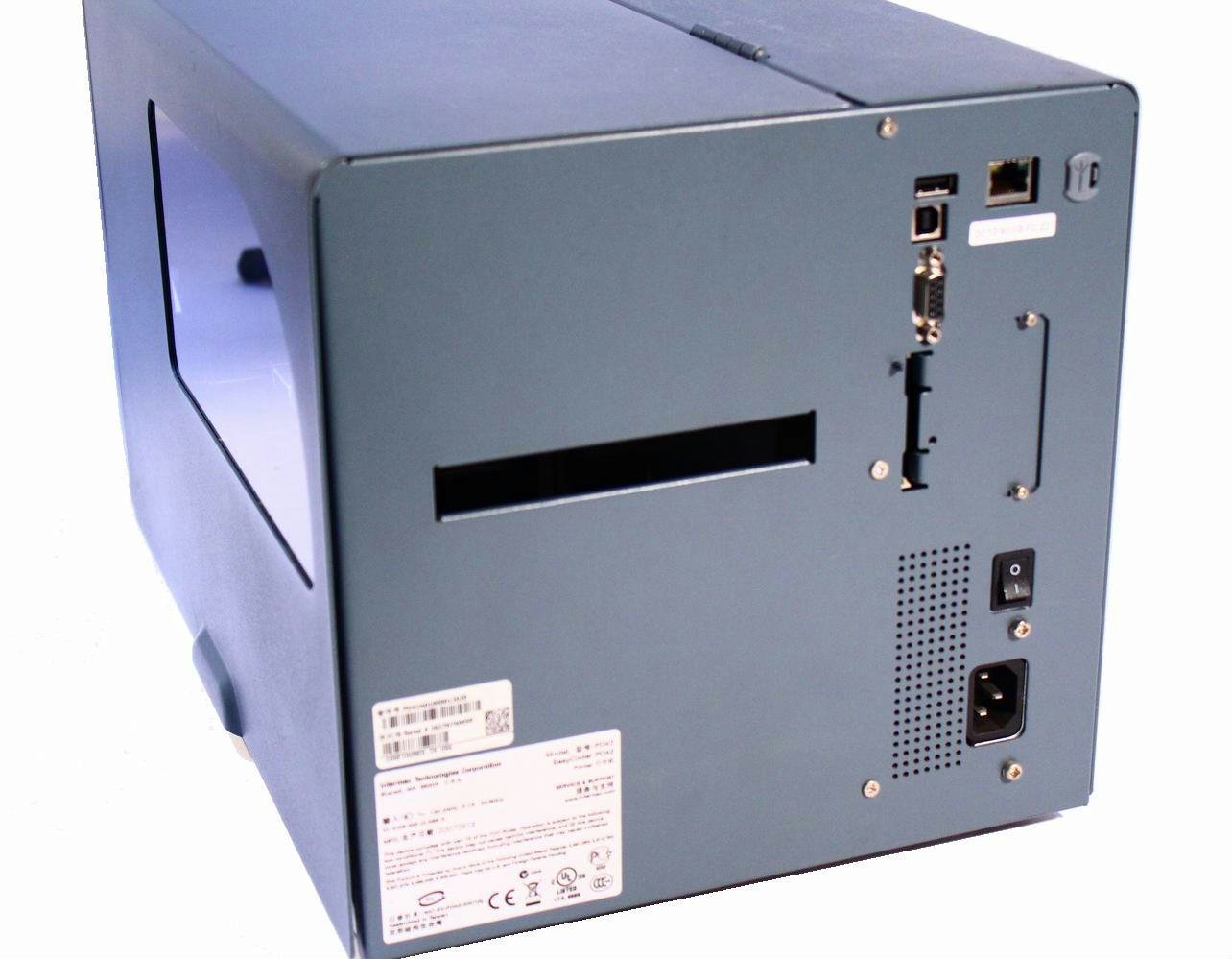
Ọgụgụ 4.2: N'azụ View of the Intermec PD42 Printer. This image highlights the various connectivity options available on the back of the printer, including USB, Serial, and Ethernet ports. The power input and main power switch are also visible.

Ọgụgụ 4.3: Ime View of the Intermec PD42 Printer. With the top cover open, this image reveals the internal mechanisms for loading labels and ribbon. Key components such as the printhead assembly, media guides, and ribbon spindles are visible, illustrating the media path.
5. Nhazi
5.1 Mwepu na ntinye
- Jiri nlezianya wepụ ihe nbipute na nkwakọ ngwaahịa ya.
- Debe igwe nbipute ahụ n'elu ebe kwụsiri ike ma dị larịị, ebe ikuku na-abata nke ọma.
- Ensure sufficient space around the printer for media loading and maintenance.
5.2 Ijikọ ike
- Connect the power cord to the power input on the rear of the printer (refer to Figure 4.2).
- Tinye nsọtụ nke ọzọ nke eriri ọkụ n'ime oghere eletrik gbadoro ụkwụ.
5.3 Connecting Data Cables
The PD42 offers multiple connectivity options:
- USB: Connect a USB cable from the printer's USB port to your computer.
- Oghere Usoro: Connect a serial cable from the printer's serial port to your computer or host system.
- Ethernet: Connect an Ethernet cable from the printer's Ethernet port to your network.
5.4 Loading Media (Labels and Ribbon)
The PD42 supports industry-standard 200-mm (8-inch) label rolls and 450-m (18,000-inch) ribbon rolls.
- Open the printer's top cover (refer to Figure 4.3).
- Follow the internal diagrams or specific instructions for your media type to correctly load the label roll onto the media spindle.
- Thread the labels through the media guides and under the printhead assembly.
- If using thermal transfer printing, load the ribbon onto the ribbon supply spindle and thread it according to the internal guides.
- Mechie mkpuchi elu nke ọma.
6. Ntuziaka ọrụ
6.1 Gbanyụọ/ gbanyụọ
- Iji gbanye: Flip the main power switch on the rear of the printer to the 'On' position. The graphical display will illuminate.
- Iji gbanyụọ: Flip the main power switch to the 'Off' position.
6.2 Using the Graphical Display
The monochrome graphical display and control buttons on the front panel allow you to configure printer settings directly. Navigate through menus using the arrow buttons and confirm selections with the 'Enter' button. Refer to the on-screen prompts for specific options.
6.3 Nwụnye ọkwọ ụgbọala na ngwanrọ
Before printing from a computer, install the appropriate printer drivers. These are typically available on the manufacturer's website or an included CD. Follow the on-screen instructions during installation.
6.4 Printing a Test Label
After setup, it is recommended to print a test label to verify proper operation and media loading. This option is usually available through the printer's front panel menu or via the printer driver software.
7. Nlekọta
Ndozi mgbe niile na-eme ka arụ ọrụ kacha mma ma gbasaa ndụ nke ngwa nbipute gị.
7.1 Cleaning the Printhead
The printhead should be cleaned regularly, especially if print quality degrades. Use a lint-free cloth or a printhead cleaning pen with isopropyl alcohol. Ensure the printer is powered off and cooled down before cleaning.
7.2 Cleaning Rollers and Media Path
Dust and adhesive residue can accumulate on rollers and within the media path. Use a lint-free cloth dampened with isopropyl alcohol to clean these components. Always power off the printer before cleaning.
7.3 Replacing Media
When the label roll or ribbon runs out, follow the steps in Section 5.4 to load new media.
8. Nchọpụta nsogbu
This section addresses common issues you might encounter with your PD42 printer.
- Igwe nbipute anaghị agba ọkụ: Check power cord connections and ensure the power outlet is functional.
- Enweghị Mbipụta Mbipụta: Verify that the printer is online, connected correctly to the host, and that media is loaded properly. Check for error messages on the graphical display.
- Ọdịmma Mbipụta na-adịghị mma: Clean the printhead. Ensure the correct media and ribbon (if applicable) are used and properly loaded. Adjust print darkness settings via the display or driver.
- Okwu Njikọta: Check all cable connections. Verify network settings for Ethernet connections. Reinstall printer drivers if necessary.
- Ozi mperi na ngosi: Consult the printer's graphical display for specific error codes or messages, then refer to the full product documentation or manufacturer's support websaịtị maka ngwọta zuru ezu.
9. Nkọwapụta
| Njirimara | Nkọwapụta |
|---|---|
| Aha Nlereanya | PD42BJ1000002021 |
| Teknụzụ obibi akwụkwọ | Direct Thermal |
| Mmepụta ngwa nbipute | Monochrome |
| Mkpebi | 203 dpi |
| Ọsọ Bipụta | Ruo 150 mm/s (6 ip) |
| Teknụzụ Njikọta | USB, Serial, Ethernet |
| Njirimara Pụrụ Iche | Graphical Display, Ethernet |
| Ibu Ibu | 28.7 pound |
| Akụkụ ngwaahịa | 25 x 15 x 15 sentimita asatọ |
| Ụdị njikwa | Pịa bọtịnụ |
| Mgbasa ozi bipute | Akara aha |
10. Akwụkwọ ikike na nkwado
For warranty information and technical support, please refer to the documentation provided with your printer or visit the official Intermec (now Honeywell) websaịtị. Debe nnata nzụta gị dị ka ihe akaebe nke ịzụrụ maka nkwupụta ikike.
Akụrụngwa dị n'ịntanetị: For the latest drivers, firmware updates, and detailed troubleshooting guides, visit the manufacturer's support portal.
Ask a question about this manual
Ask about setup, troubleshooting, compatibility, parts, safety, or missing instructions. Manuals+ will review the question and use this page’s manual context to help answer it.