
1. Okwu mmalite
This manual provides essential information for the safe and efficient operation of your Sharp Aquos LC42D64U 42-Inch 1080p LCD HDTV. Please read these instructions thoroughly before using your television and retain them for future reference. The Sharp Aquos D64 series offers a slim design, Full HD 1080p resolution, and advanced features for an enhanced viewahụmahụ.
2. Ozi nchekwa dị mkpa
Na-agbaso usoro nchekwa nchekwa mgbe niile mgbe ị na-eji igwe onyonyo a iji belata ihe egwu nke ọkụ, ujo eletrik na mmerụ ahụ.
- Isi mmalite ike: Jikọọ TV ahụ naanị na ọkụ eletrik egosiri na akara ahụ.
- Igwe ikuku: Gbaa mbọ hụ na ikuku ikuku dị mma. Akwụsịla oghere ikuku.
- Mmiri na mmiri: Ewepụla TV na mmiri ozuzo ma ọ bụ mmiri. Edokwala ihe jupụtara na mmiri mmiri na TV.
- Nhicha: Wepụ TV ahụ na ihe mkpuchi mgbidi tupu ị hichaa ya. Jiri ákwà dị nro ma kpọọ nkụ.
- Ije ozi: Anwala ịnye ngwaahịa a n'onwe gị. Tụtụ aka n'aka ndị ọrụ ruru eru.
- Ịkwanye: If wall-mounting, ensure the mount is compatible and installed by qualified personnel.
- Ụmụaka: Na-elekọta ụmụaka ka ha ghara ịrịgo ma ọ bụ igwu egwu na TV.
3. Kedu ihe dị na Igbe ahụ
Nyochaa na akụrụngwa niile dị tupu ịmalite ntọlite.
- Sharp Aquos LC42D64U 42-Inch LCD HDTV
- Njikwa anya
- Nkwụsị tebụl
- Ụdọ ọkụ
- Akwụkwọ ntuziaka (akwụkwọ a)
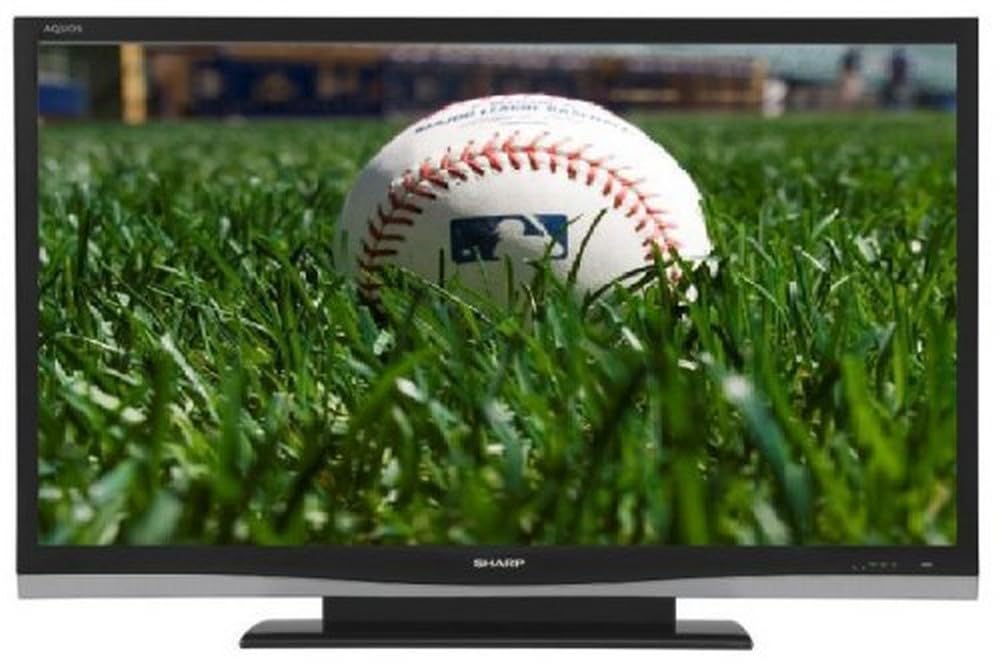
Foto: N'ihu view of the Sharp Aquos LC42D64U 42-Inch LCD HDTV with its included table stand.
4. Nhazi
4.1 Na-agbakwunye tebụl nkwụnye
If you are not wall-mounting the television, attach the included table stand. Refer to the separate assembly guide for detailed instructions on securing the stand to the TV. Ensure all screws are tightened securely.
4.2 Ijikọ ngwaọrụ mpụga
Connect your external devices (e.g., cable box, Blu-ray player, game console) to the appropriate input terminals on the rear or side of the TV.
- HDMI: For high-definition digital video and audio. The TV features three HDMI 1.3 inputs (two rear, one side).
- Component Video (Y, Pb, Pr): For high-definition analog video. Two inputs are available.
- Composite Video (A/V): For standard-definition analog video and audio. One side and one rear input.
- S-Video: For standard-definition video. One side and one rear input.
- PC Input (D-Sub 15-pin): Connect a computer for use as a monitor.
- RF Antenna Inputs: Two inputs for connecting an antenna or cable TV.
- Njikọ Ethernet: For network connectivity (DLNA).
4.3 Njikọ ike
After connecting all desired devices, plug the power cord into the TV's power inlet and then into a wall outlet. The TV will enter standby mode.
5. Ntuziaka ọrụ
5.1 Initial Power On and Channel Setup
- Pịa IKE button on the remote control or the TV to turn it on.
- The first time you power on, the TV will guide you through the initial setup process, including language selection and channel scanning.
- Select your preferred language (English, Spanish, or French).
- Perform an "Easy Setup" or "Channel Setup" scan to detect available digital (ATSC, QAM) and analog (NTSC) channels.
5.2 Basic Remote Control Functions
- IKE: Turns the TV on or off (standby).
- Ntinye: Cycles through available input sources (HDMI, Component, PC, etc.).
- CH +/-: Na-agbanwe ọwa.
- Vol +/-: Na-edozi olu.
- NchNhr: Accesses the on-screen menu for settings adjustments.
- BỤTA ỤTA: Gaa na nhọrọ menu.
- Tinye: Na-akwado nhọrọ.
- EXIT/RETURN: Na-apụ na menus ma ọ bụ na-alaghachi na ihuenyo gara aga.
5.3 Nhazi na Ntọala NchNhr
Pịa MENU button to access various settings categories:
- Foto: Adjust brightness, contrast, color, tint, sharpness, and backlight. The OPC function automatically adjusts brightness based on room conditions.
- Audio: Control volume, bass, treble, balance, and select audio modes.
- Ọwa: Rescan channels, add/delete channels, and set up favorite channels.
- Melite: General settings like language, time, sleep timer, and parental controls (V-Chip).
- Akụkụ dị elu: Access settings for DLNA, Picture-in-Picture, and AQUOS LINK.
6. Advanced Atụmatụ
6.1 AQUOS LINK (HDMI-CEC)
AQUOS LINK allows convenient control of compatible Sharp devices connected via HDMI using just your AQUOS TV remote. Ensure connected devices also support HDMI-CEC (Consumer Electronics Control) and are enabled in their respective settings.
6.2 DLNA Compatibility
The TV is DLNA-compatible, enabling interoperability with other DLNA-certified electronics, computers, and mobile devices. Connect the TV to your home network via the Ethernet port to access and share digital content (photos, videos, music) from compatible devices on your network.
6.3 Picture-in-Picture (PIP)
The Picture-in-Picture function allows simultaneous viewing of a TV program and a video or PC source. Consult the on-screen menu for PIP activation and source selection.
6.4 V-Chip System
The V-Chip system allows you to block TV and movie programs based on their rating, providing parental control over objectionable content. Access V-Chip settings through the TV's setup menu.
7. Nlekọta
7.1 Na-ehicha ihuenyo ahụ
Jiri nwayọ hichaa ihuenyo ahụ site na iji akwa dị nro na-enweghị lint. Maka akara ndị isi ike, dị obere dampen akwa na mmiri ma ọ bụ pụrụ iche ihuenyo Cleaner. Emela use harsh chemicals, abrasive cleaners, or spray liquids directly onto the screen.
7.2 ihicha ụlọ ọrụ
Wipe the TV cabinet with a soft, dry cloth. Avoid using solvents or abrasive materials.
7.3 Nlekọta n'ozuzu
- Kwụpụ TV n'oge oké ifufe ọkụ ma ọ bụ mgbe ejighi ya ogologo oge.
- Mee ka TV ghara ịdị na ìhè anyanwụ kpọmkwem, ebe okpomọkụ, na uzuzu buru ibu.
- Gbaa mbọ hụ na ohere zuru oke na gburugburu TV maka ikuku ikuku kwesịrị ekwesị.
8. Nchọpụta nsogbu
Tupu ịkpọtụrụ nkwado ndị ahịa, nwaa azịza ndị a maka okwu nkịtị:
| Nsogbu | Ngwọta enwere ike |
|---|---|
| Enweghị ike | Check if the power cord is securely plugged into the TV and the wall outlet. Ensure the outlet has power. |
| Enweghị foto, mana ụda dị | Nyochaa isi mmalite ntinye ziri ezi ahọpụtara. Lelee njikọ eriri na ngwaọrụ mpụga. |
| Enweghị ụda, mana foto dị | Check the volume level and mute setting. Ensure audio cables are correctly connected. |
| Njikwa anya anaghị arụ ọrụ | Dochie batrị. Hụ na enweghị ihe mgbochi ọ bụla n'etiti ihe ntanetị na ihe mmetụta IR nke TV. |
| "Hotel Mode" issue (as per customer review) | If the TV is stuck in a limited functionality mode, contact Sharp customer support for assistance in disabling "Hotel Mode." This typically requires a specific service menu sequence. |
9. Nkọwapụta
| Njirimara | Nkọwa |
|---|---|
| Nọmba nlereanya | LC42D64U |
| Nha ihuenyo | 42 sentimita asatọ |
| Ngosipụta teknụzụ | LCD |
| Mkpebi | 1080p (HD zuru ezu) |
| Ọnụọgụ ọdịiche | 10,000:1 Dynamic |
| Oge nzaghachi | 4 nkeji |
| ọdụ ụgbọ mmiri HDMI | 3 (2 n'azụ, akụkụ 1) |
| Component Video Inputs | 2 |
| Ntinye vidiyo mejupụtara | 3 (akụkụ 1, 2 n'azụ) |
| S-Video Inputs | 2 (akụkụ 1, 1 n'azụ) |
| Ntinye PC | 1 (D-Sub 15-pin) |
| Ọdụ ụgbọ mmiri Ethernet | Ee |
| Ụdị Tuner | ATSC, QAM, NTSC |
| Njikwa Nne na Nna | V-Chip |
| Ibu | 70.2 pound (ihe dị ka.) |
| Afọ Nlereanya | 2008 |
10. Akwụkwọ ikike na nkwado
10.1 Akwụkwọ ikike nwere oke
This Sharp Aquos LC42D64U television comes with a 1 Year Parts and 1 Year Labor Warranty from the date of original purchase. This warranty covers manufacturing defects in materials and workmanship under normal use. It does not cover damage caused by misuse, accident, modification, or unauthorized repair.
Biko dowe ihe akaebe nke ịzụrụ ihe maka akwụkwọ ikike.
10.2 Nkwado ndị ahịa
For technical assistance, troubleshooting beyond this manual, or warranty service, please contact Sharp Customer Support. Refer to the contact information provided with your product documentation or visit the official Sharp websaịtị maka nkọwa nkwado kachasị ugbu a.
When contacting support, please have your model number (LC42D64U) and serial number ready.