
1. Okwu mmalite
Welcome to Microsoft Flight Simulator 2004: A Century of Flight. This manual provides essential information for installing, operating, and maintaining your flight simulation software. This edition celebrates 100 years of powered flight, offering a diverse collection of aircraft and historical scenarios.

Image 1.1: The game box and accompanying manual for Microsoft Flight Simulator 2004: A Century of Flight.
2. System chọrọ
To ensure optimal performance, your computer system should meet or exceed the following minimum specifications:
- Sistemụ nrụọrụ: Windows 98/ME/2000/XP
- Ihe nhazi: 450 MHz or higher
- RAM: 128 MB RAM (256 MB kwadoro)
- Hard Drive: 1.8 GB dị ohere diski ike
- Kaadị vidiyo: 16 MB DirectX 8.1 compatible video card (32 MB recommended)
- Kaadị ụda: DirectX 8.1 compatible sound card
- Ngwa anya: 8x CD-ROM drive or faster
- Ntinye: Keyboard and mouse (joystick or yoke recommended for enhanced experience)
3. Ntọala na nwụnye
Follow these steps to install Microsoft Flight Simulator 2004 on your PC:
- Insert Disc 1: Place the first installation disc into your computer's CD-ROM or DVD-ROM drive. The setup program should start automatically. If it does not, navigate to 'My Computer', open your CD/DVD drive, and double-click 'Setup.exe'.
- Soro ngwa ngwa na ihuenyo: The installation wizard will guide you through the process. Read each screen carefully and click 'Next' to proceed.
- Accept License Agreement: You must accept the End User License Agreement (EULA) to continue the installation.
- Họrọ Ụdị Nwụnye: Select 'Typical' for a standard installation or 'Custom' to choose specific components and installation directory.
- Enter Product Key: When prompted, enter the unique product key found on the back of your game manual or disc sleeve.
- Disc Swaps: The installer will prompt you to insert subsequent discs (Disc 2, Disc 3, Disc 4) as needed to complete the installation.
- Nwụnye zuru ezu: Ozugbo niile files are copied, click 'Finish' to exit the installer.
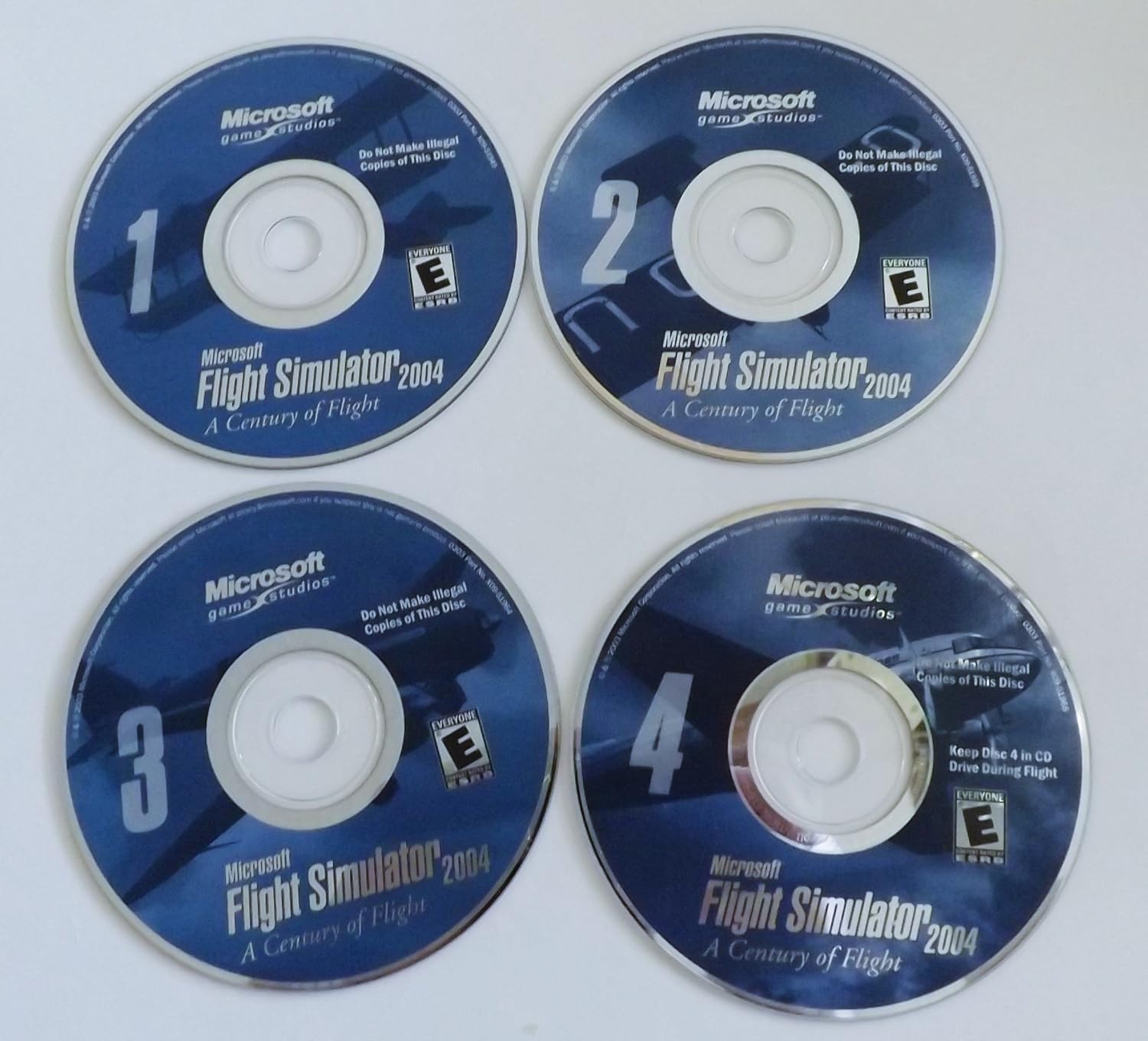
Image 3.1: The four installation discs for Microsoft Flight Simulator 2004. Disc 4 is typically required to be in the drive during gameplay.
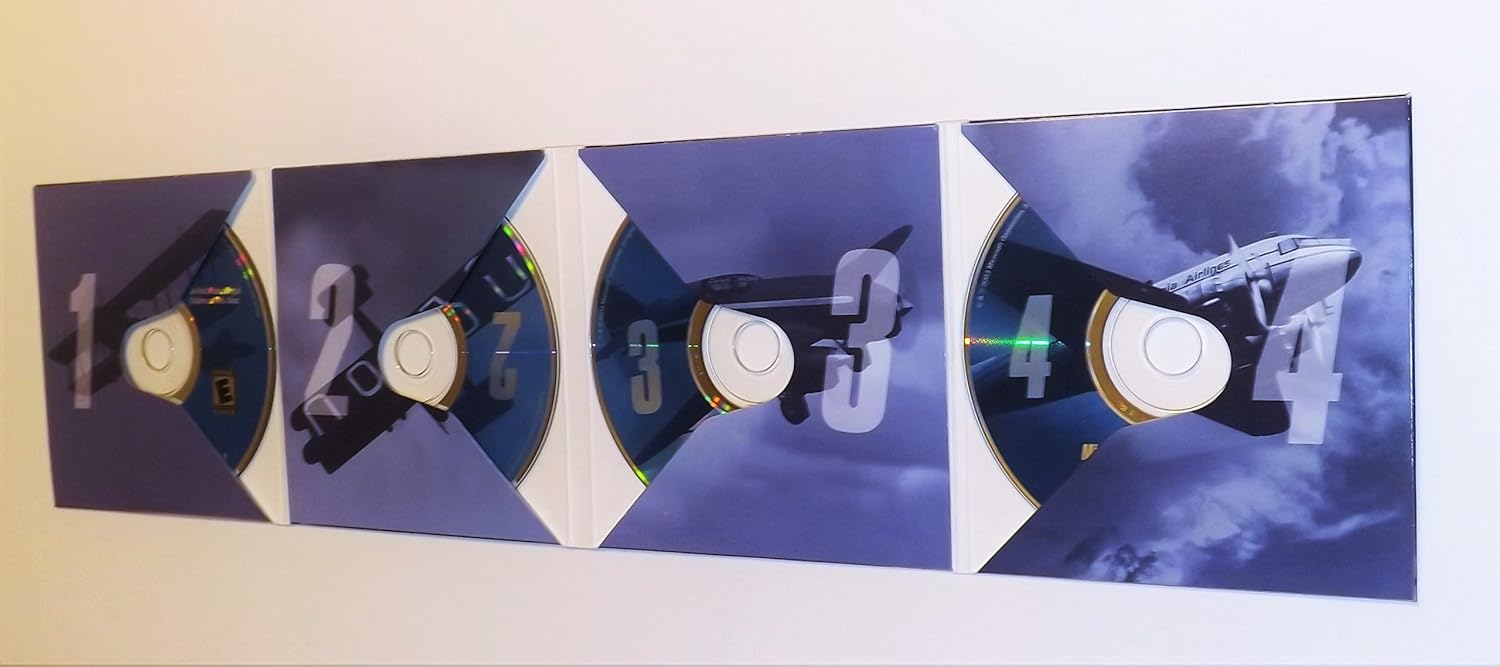
Image 3.2: The game's disc holder, opened to reveal the four installation discs.
4. Operating the Software
4.1 Ịmalite Egwuregwu ahụ
After successful installation, ensure Disc 4 is in your CD/DVD drive. You can launch the game from the desktop shortcut or the 'Start Menu' > 'Programs' > 'Microsoft Games' > 'Microsoft Flight Simulator 2004'.
4.2 Atụmatụ
- Dynamic Weather System: Experience realistic atmospheric physics with true three-dimensional clouds that form and dissipate, influencing flight conditions.
- Worldwide Scenery: Explore accurate 3D terrain and auto-generated objects that populate the world with appropriate buildings and vegetation.
- Enhanced Interactive Air Traffic Control (ATC): Engage with realistic ATC, including traffic at all airports globally, for an immersive flight experience.
- Improved Graphics Hardware Acceleration: Benefit from enhanced support for 3D graphics hardware acceleration across multiple windows and monitors.
- Ọtụtụ egwuregwu: Connect with 1 or more players over a Local Area Network (LAN) or the Internet for shared flight experiences.
4.3 Njikwa ntọala
The game supports keyboard, mouse, and joystick/yoke inputs. Familiarize yourself with the default key assignments, which can be customized within the game's 'Controls' menu.
- Elevator (Pitch): Joystick Y-axis / Keyboard Up/Down Arrows
- Ailerons (Roll): Joystick X-axis / Keyboard Left/Right Arrows
- Rudder (Yaw): Joystick Z-axis / Keyboard Numpad 0/Enter
- Oche: Joystick slider / Keyboard F1 (idle) to F4 (full)
- Mpịaji: Keyboard F5 (retract) to F8 (extend)
- Ngwa ọdịda: Keyboard G
- breeki: Keyboard Period (.)
4.4 Ụdị egwuregwu
- Free Flight: Choose any aircraft, location, and weather conditions to explore the world.
- Flight Lessons: Learn fundamental and advanced flying techniques with interactive tutorials.
- Historical Flights: Recreate famous flights from aviation history, celebrating a century of flight.
- Ọtụtụ egwuregwu: Fly with or against other players online or on a local network.
5. Nlekọta
Proper care of your game discs and system can help ensure continued enjoyment of Microsoft Flight Simulator 2004.
- Nlekọta diski: Keep game discs clean and free of scratches. Store them in their original case when not in use. Use a soft, lint-free cloth to wipe discs from the center outwards if cleaning is necessary.
- Mmelite sistemu: Ensure your operating system and graphics drivers are up to date for optimal performance and compatibility.
- Oghere draịvụ ike: Periodically check for sufficient free hard drive space, as this can impact game performance.
6. Nchọpụta nsogbu
Ọ bụrụ na ị na-enwe nsogbu, tụlee ihe ngwọta ndị a na-emekarị:
- Mperi nwụnye: Ensure your system meets the minimum requirements. Clean the installation discs and try again. Temporarily disable antivirus software during installation if it interferes.
- Game Not Starting: Verify that Disc 4 is in the drive. Check that your graphics drivers are current. Reinstall DirectX if necessary.
- Poor Performance/Low Frame Rate: Reduce in-game graphics settings (e.g., scenery density, cloud detail). Ensure your graphics card drivers are updated. Close unnecessary background applications.
- Okwu njikwa: Calibrate your joystick or yoke through Windows control panel settings. Ensure the controller is properly connected before launching the game.
- Nsogbu ụda: Check your sound card drivers and in-game audio settings. Ensure speakers or headphones are correctly connected.
7. Nkọwapụta
| Njirimara | Nkọwa |
|---|---|
| Aha ngwaahịa | Microsoft Flight Simulator 2004: A Century of Flight |
| Platform | PC |
| Nọmba nlereanya | G13-00079 |
| Onye nrụpụta | Microsoft |
| Ụbọchị mwepụta | Jenụwarị 13, 2004 |
| Asụsụ | Bekee |
| Ibu Ibu | 6.4 ounces |
| Akụkụ ngwaahịa | 5.35 x 0.55 x 7.5 sentimita asatọ |
| Ogo ESRB | Onye ọ bụla |
8. Akwụkwọ ikike Ozi
Microsoft Flight Simulator 2004 is covered by a limited warranty against defects in materials and workmanship. For specific details regarding the warranty period and terms, please refer to the End User License Agreement (EULA) included with your software or visit the official Microsoft support website. This warranty typically covers the physical media (discs) for a limited time from the date of purchase.
9. Nkwado ndị ahịa
For technical assistance, frequently asked questions, or additional resources, please visit the official Microsoft support website. You may also find community forums and fan-created resources helpful for gameplay tips and advanced configurations.
- Nkwado Microsoft gọọmentị: nkwado.microsoft.com
- Flight Simulator Community Forums: Search online for 'Flight Simulator 2004 forums' for community-driven support.